Purpose
The Resources section is designed for you to be able to store files. This can be purely used as a centralised file system for your organisation, or you can also use it to link items in your email communications etc. An example of this would be to link a downloadable PDF that your clients can click to download.
Instructions
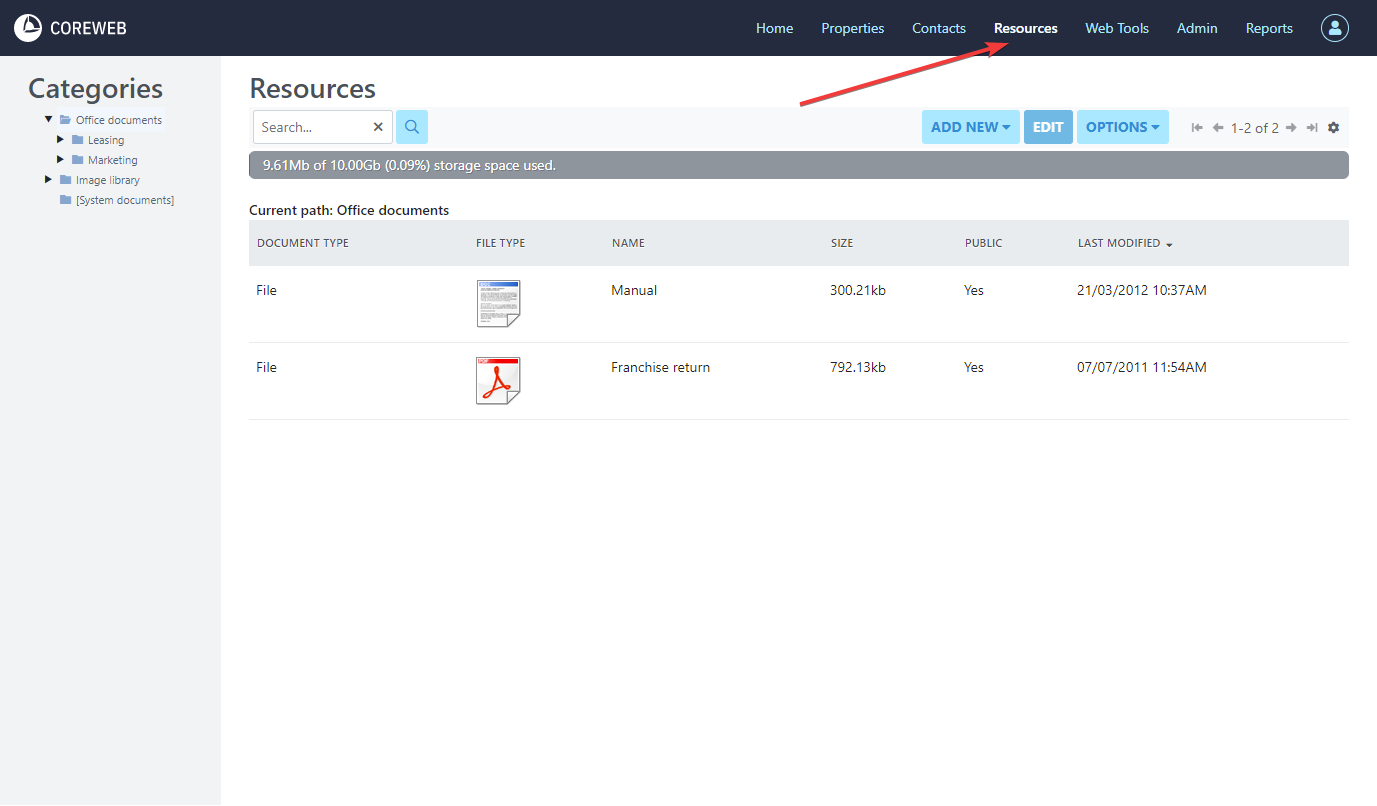
- Clicking on the Resources tab takes you to the main file system. In the centre of your screen you will see the files listed in the folder you are currently viewing. To the top left you will see the Categories Box and below the title bar are your Add New. Edit and Options buttons.
- The Categories box should be considered your list of folders, or categories for your files. The layout of this is totally up to you. Clicking into a category will display the files it holds in the main window
- Add New. Edit and Options buttons relate to the files in the main window. Highlighting a file by left clicking on it will change what you are able to do
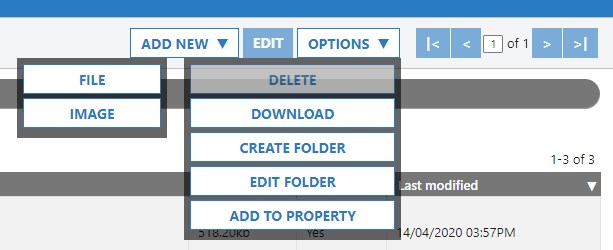
- Button breakdowns are as follows:
Add New > File – Select this option to add a new file. Typically PDFs are uploaded by this method
Add New > Image – Select this option to upload an image.
Edit – Select the file you wish to modify, then click the Edit button. You can change where the file lives (it’s category), the name of the file, and its description. One of the most used features here is the option to make the file Public (accessible outside) and then to copy its URL so that you can use it to share. Hyperlink this URL in an email, or on your website to create downloadable files.
Options > Delete – Use this to delete the selected file
Options >Download – Use this to download the selected file to your device
Options >Create Folder – Use this option to create a folder. Ticking the “Public” box will add a shareable link back in the main window so that it can be accessed outside of Core.
Options >Edit Folder – Make changes to a folder after you’ve created it, including deleting it if it is no longer required. Otherwise, the options are the same as when you are creating a folder
Options >Add To Property – Select an uploaded file, and then press this button. Here you can attach the file to a Property so that it can be found directly via the Properties detail later.