Purpose
A Stock List gives you an easy to create option for sending a list of your Properties as a PDF. They are customizable and need to be configured via Admin > Marketing Admin > Stocklists
Instructions
- Before starting, a Stock List is created based on the list of Properties you are viewing in your main window. In order to create the Stock List that you want, you will need to perform a search with criteria that matches the list you’d like to create ie searching only for Duplex properties. Once you’ve done your search and have the list of Properties displayed, move on to the next step.
- Click on the Create Stock List option under the Marketing Menu
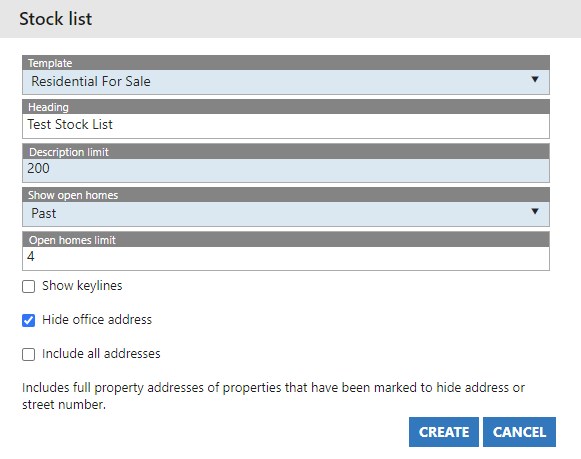
- Choose your Stock List template. In this example we’ll use a pre-defined “Residential For Sale” list.
- If needed, provide a Heading
- You can limit the amount of characters in the description to better help it fit on the screen
- You can choose whether or not to show past, or future open homes and also select a limit on the number to display
- The tickboxes at the bottom of the screen Show Keylines, Hide Office Address and Include All addresses change what is displayed in the Stock List. Show Keylines displays a line between properties, hide office address removes your address from the output, and include all addresses overrides the “hide address” option on properties for the purpose of this Stock List.
- Once you’ve set up your options, press Create.
- Your Stock List will be downloaded as a PDF that you can open and send as you wish.