Purpose
The final piece to proposals. This section is to be used once you have your brand style set up and you have created a master template. Here we customize this individual proposal for the property owner.
Instructions
Note: These instructions essentially identical to using the Proposal Templates editor, except they give you more of a live “what you see is what you get” style. Please also note that there will still be subtle differences that will only appear in the final web based version of the proposal.
- Ensure that you have created a prospect property with the detail you wish to use in your proposal.
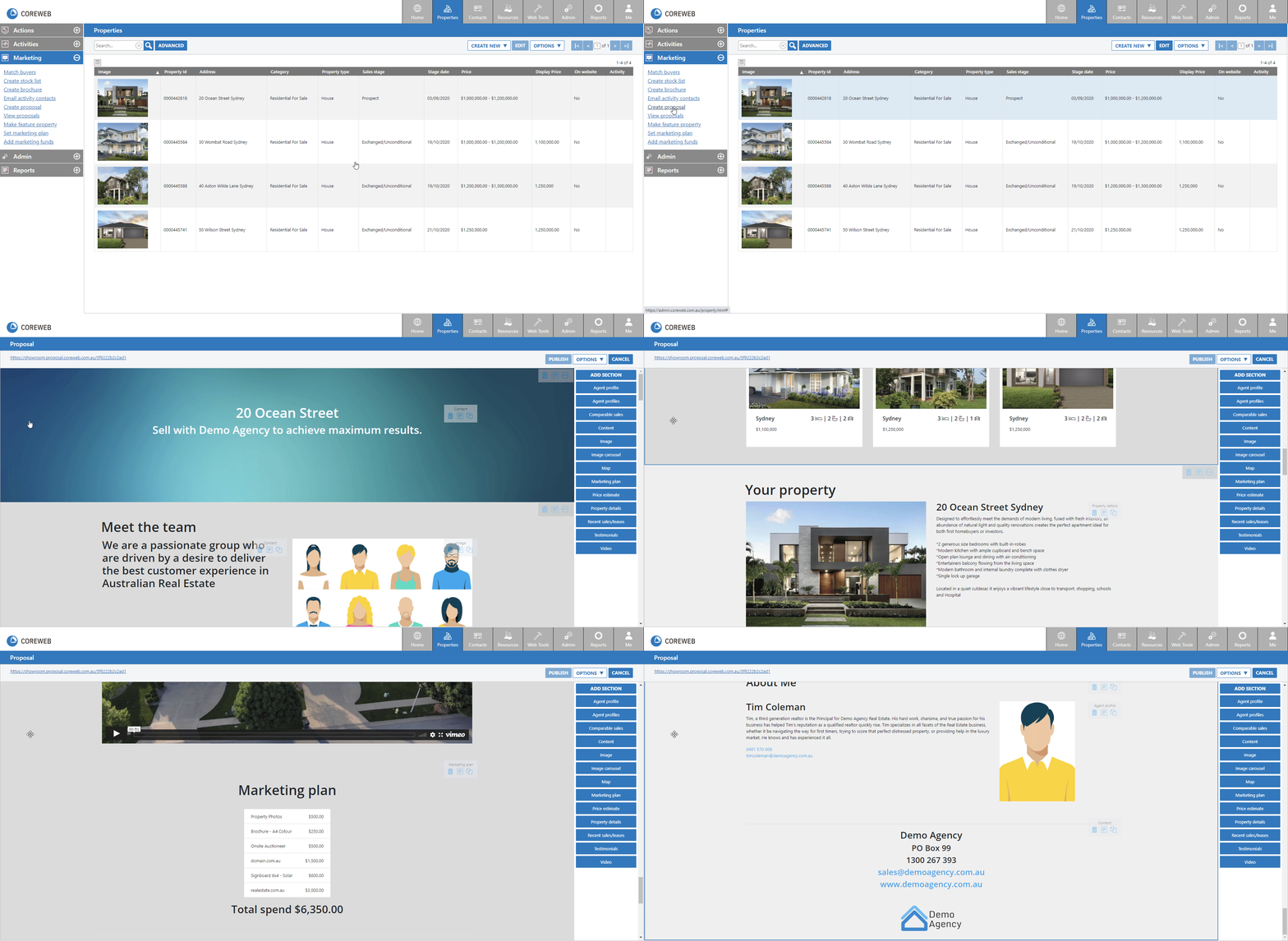
- Left click on the property from the Properties screen, then from the Marketing menu click Create Proposal. If you have multiple templates, here you will get to choose one. If you only have one template it will be used automatically.
Note: If you have previously created a proposal for a property, it will automatically be loaded. If you wish to start again from the master template, you must delete this proposal from the “View Proposals” screen. Click here for more information on this.
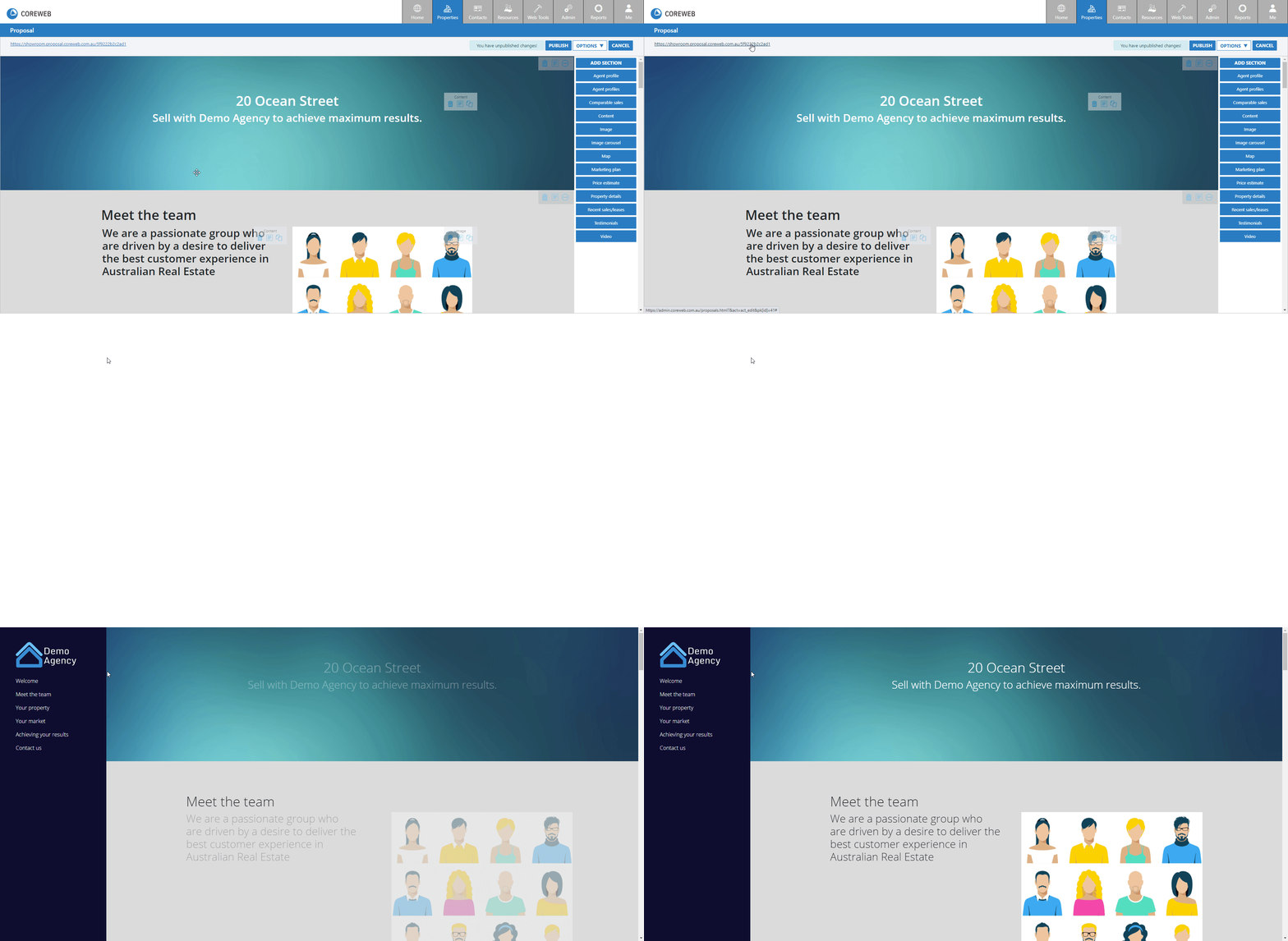
- You will be loaded into the editor – This process can be seen in the top image.
The screen is laid out as follows:
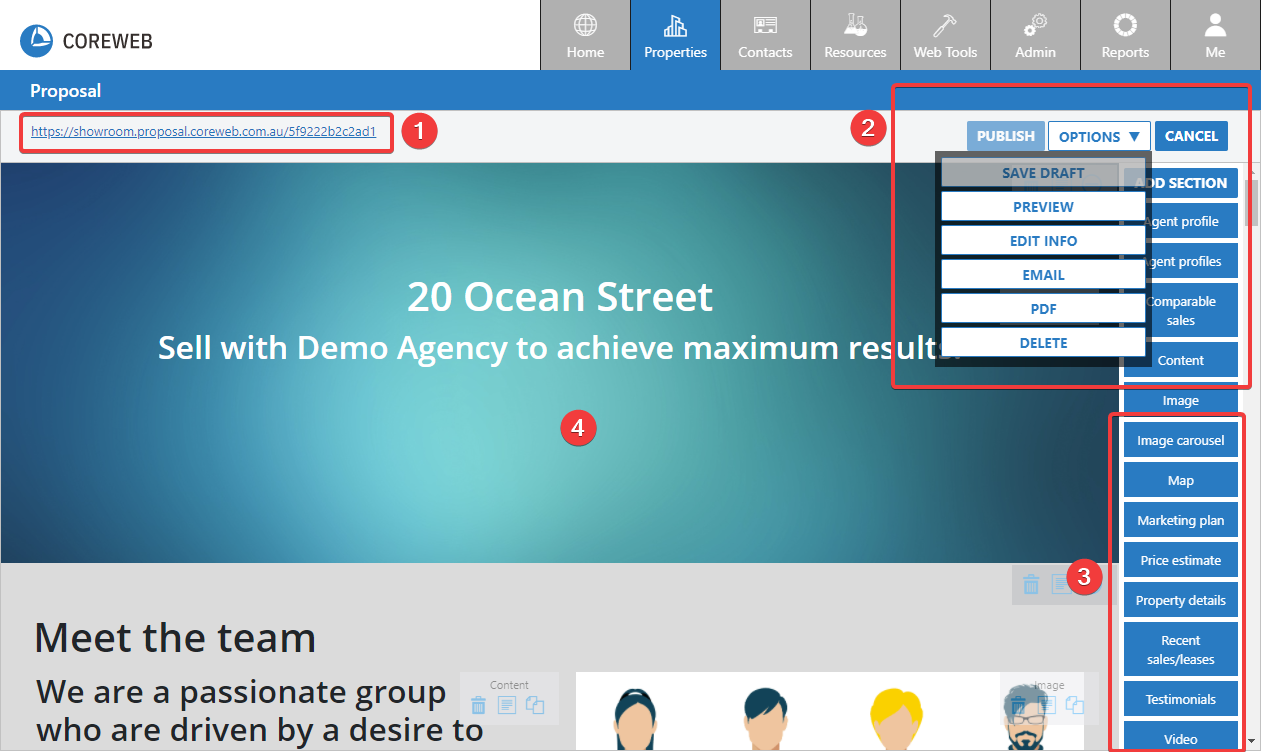
KEY:
- Clickable link to the final proposal. This is the link that you would send to the proposal recipient
- The Main Menu items.
- Publish – Update the live version of your proposal. Anyone clicking the live link outside of Core will see your changes.
- Options.
- Save Draft – Suggested to use this to save your work as you progress.
- Preview – Opens a preview of your work that can be viewed at any stage. You do not need to have saved your draft or published your work to use this option.
- Edit Info – Gives you options to make the proposal “Active” or untick to deactivate. Also in here you can set an expiry date. Once this date is reached the proposal will no longer appear on the web.
- Email – Opens the Email wizard and auto inserts a link to your proposal. This way you can send it with your agency branding.
- PDF – Creates a PDF from your design that can be emailed to the recipient. Note that to gain the full effect of the proposal it is best to have them focus on the web version.
- Delete – Deletes the proposal.
- Cancel – Return to the Properties screen.
- The Components options.
- The main work window, dynamically displaying your content.
- Once in the editor you will see that instead of placeholders for your information it has now been populated with the images and basic styling from the master template. This is your opportunity to go through the content and make sure that it is all appearing as you wish. Again note though that there are further styling pieces that only appear in the final product. You can press Preview from the Options menu to see how this will look.
- See screenshot below for example of the live WYSIWYG (What You See Is What You Get) editor, and your ability to drag/drop and navigate it. As you move your mouse around, the components will light up to show you where they are, their size etc. Also, when you do this the options appear top right to delete, edit or copy them.
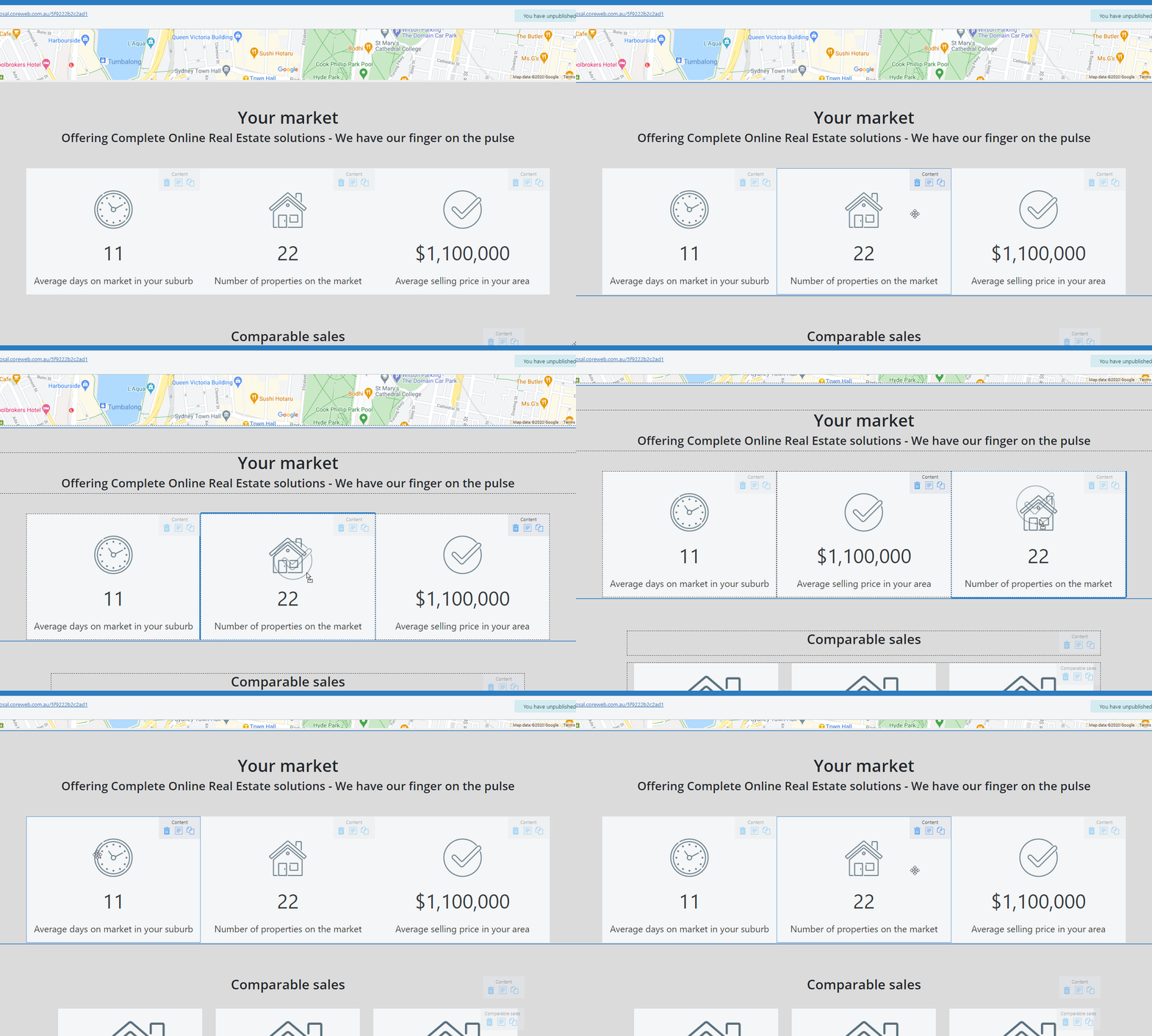
- If you are using a component that requires quite a bit of styling and you wish to make more of them you can copy/duplicate a component. See below for an example of this:
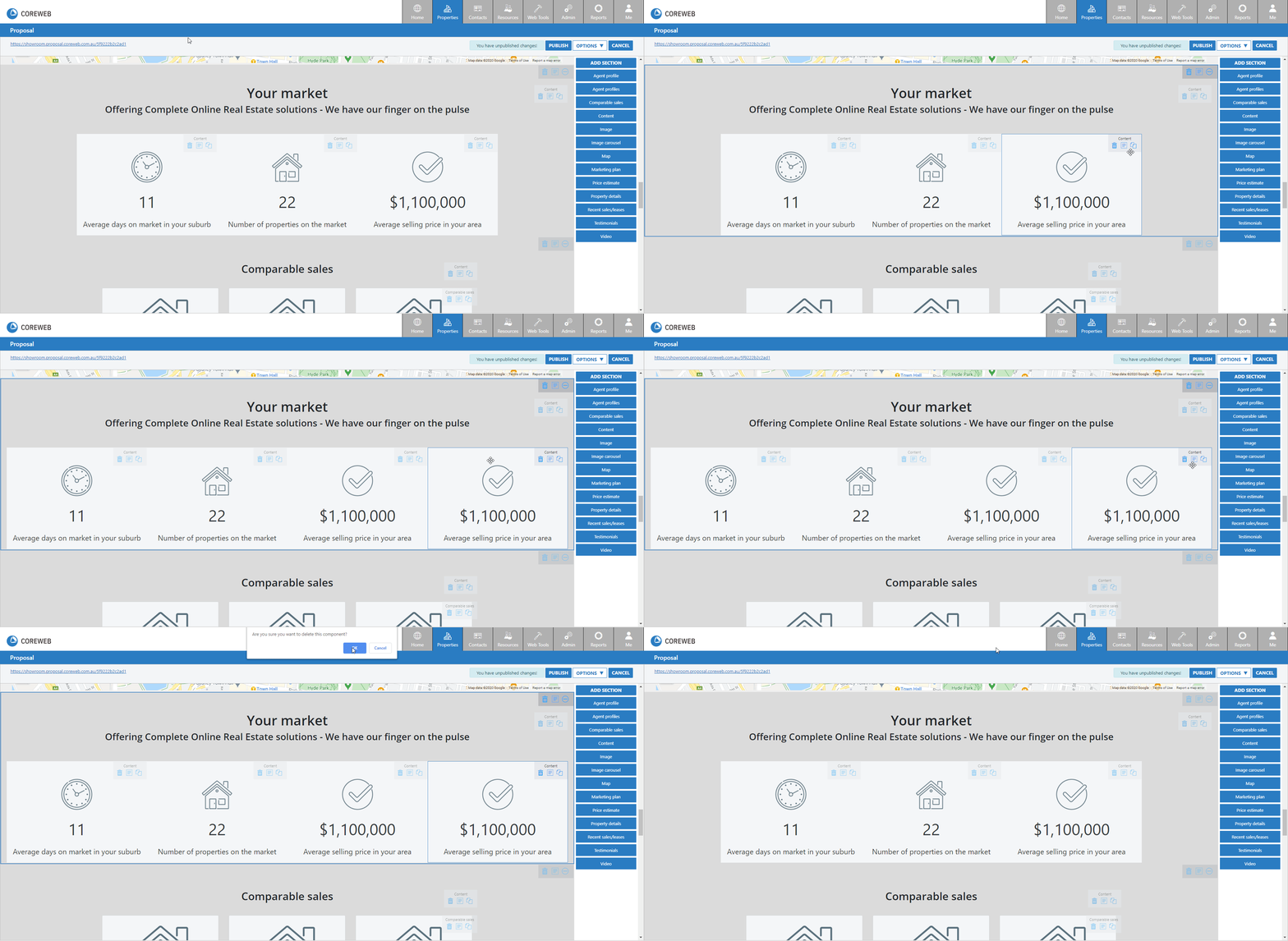
- In the proposal editor you can drag in new components, or remove them. These changes are only saved against the proposal for this Property and do not impact the master template. The idea is that each proposal will need to be customized for each property owner, so subtle differences will need to be tweaked. It is suggested that perhaps the Agent, Comparable Sales, Our Recent Sales type items would be the most likely to change per proposal.
- Once you have completely finished your proposal, press the Publish button. From here you can either Email the property owner using the Core system or copy/paste the link and send it using your own methods.
- Example below of clicking your link on a proposal: