Purpose
Add communication to People attached to the Property. Ie send a letter to a vendor, buyer etc. Once saved, the letters will appear under the Activities associated with the Property and the Contact if selected. A letter can either be created by using a Letter Template, or simply by attaching something that has been created using other software – A PDF or Word document etc.
Instructions
- Highlight the Property you wish to add a letter to and click Create letter
- Choose to either use a Template, or attach an existing document. Templates must be pre-configured under the Admin > Activity Admin > Letter Templates section. In this example we will use a Template
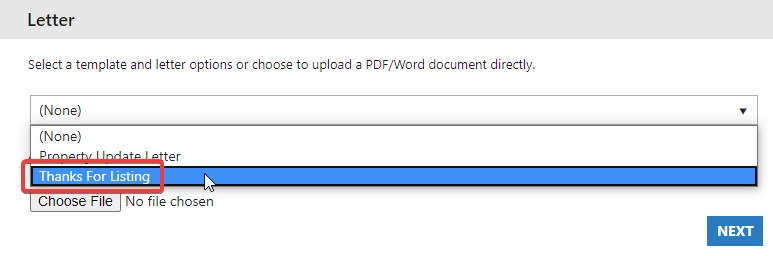
- After selecting your template, press Next. The template you’ve selected will be shown in the editor
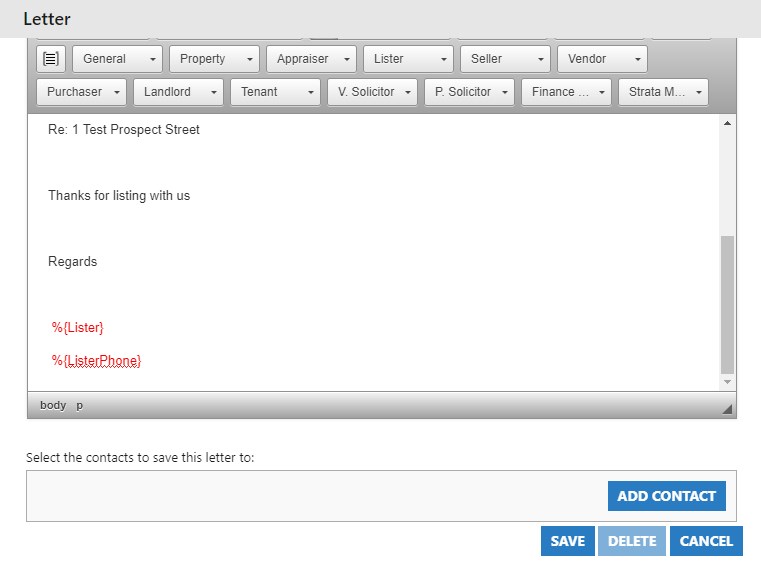
- Give your letter a Name, then fill in the contents in the body of the editor. The template will likely have predefined information along with dynamic fields that will automatically display information when finished. ie %{Lister} and %{ListerPhone} in this example will give display the Lister’s name and phone number in the body of the letter.
- Attach a Contact to the letter. When pressing Add Contact only people associated with the Property already will appear as selectable. Once done, press Save.
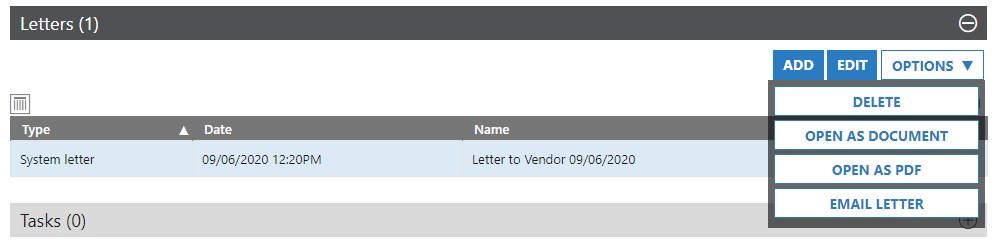
- The letter now appears in the Letters section of the Properties Activity tab.
- From here you can do one of several things. Highlight and press the Options button to see your next steps
- Delete – Deletes the item
- Open As Document – Downloads the letter as a Word document
- Open As PDF – Downloads the letter as a PDF
- Email Letter – Attaches the letter to an email from within the Core system, then allows you to send it as an attachment. You also have the ability to write in the body of the email before sending. A screenshot of these options can be seen below: