Purpose
To be used to capture the details of prospective buyer or tenant outside of the open home environment that wants to view the listing You can use this function to add their interest, the price indication and anything they have been quoted
Instructions
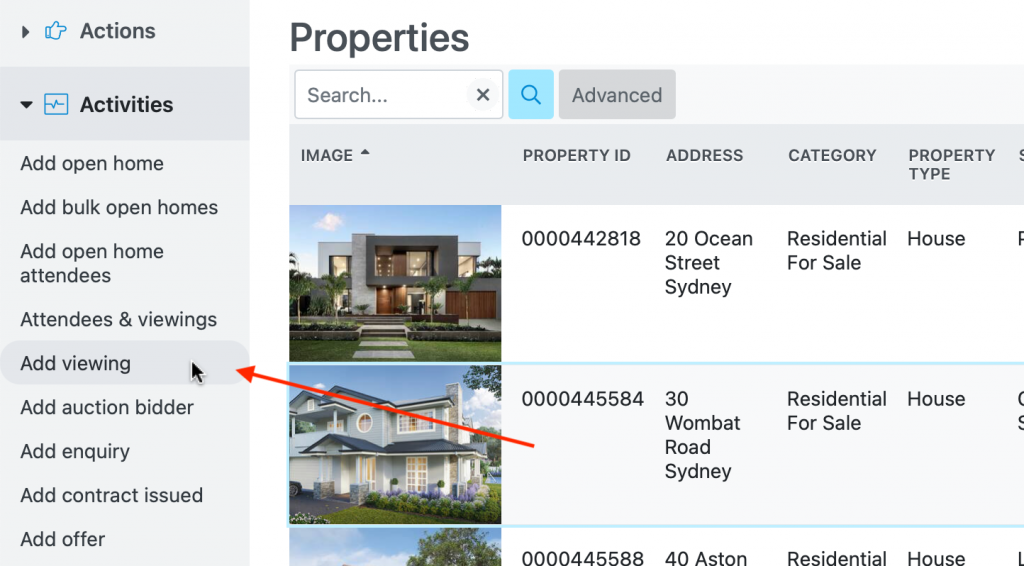
- Either select the property from your property list, or double click to open it, then click Add viewing from the Activities Menu
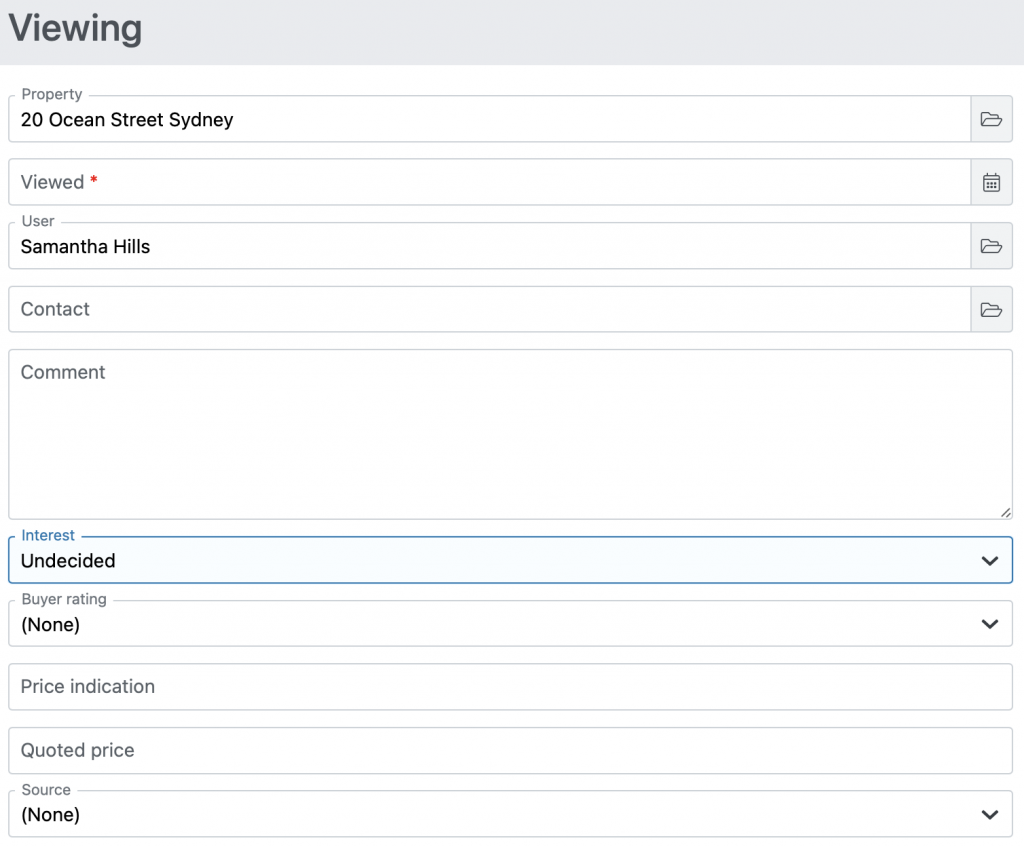
- At the next screen, enter all of the information you want to about the date and time of the viewing. The only required fields are the details of the property, the calendar details and the CoreWeb user adding the viewing.
- Once complete, press the Save button. Details of the viewing can be found inside the property details and behaves in the same way as an open home attendee.
Viewings – register attendees via a QR Code
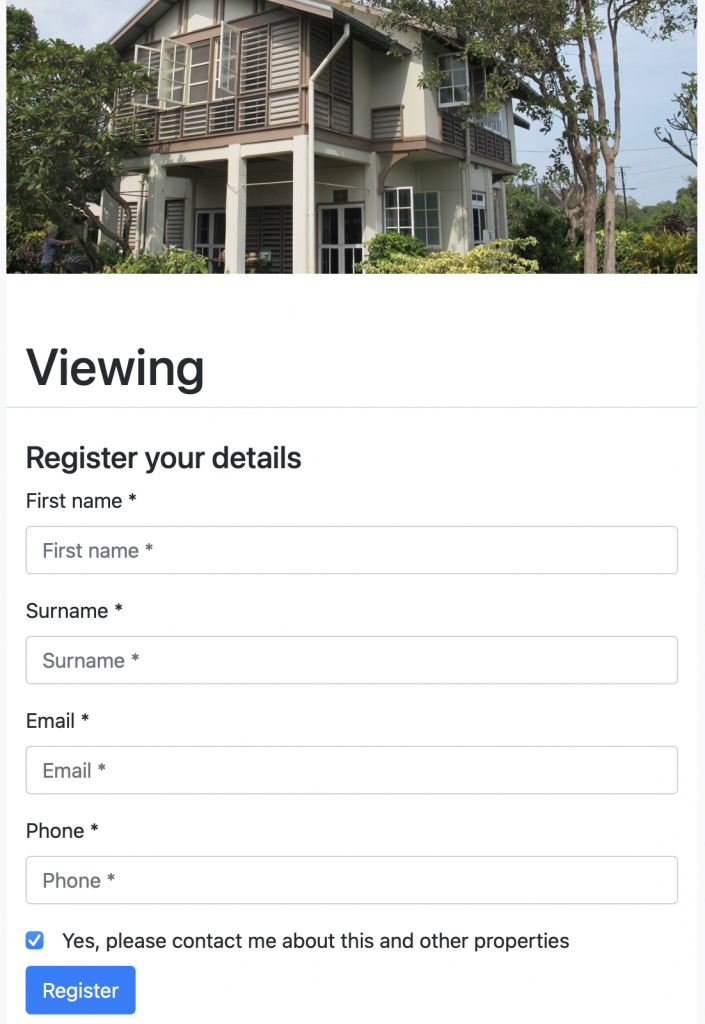
Each listing in CoreWeb has a unique QR Code available which you can use to register an attendee at a viewing. The QR Code, when scanned by the attendee using their phone, will open a registration page designed with your agency branding. Once the attendee registers for the viewing their details will be added as a contact into CoreWeb and attached to the property in the viewings table.
Instructions
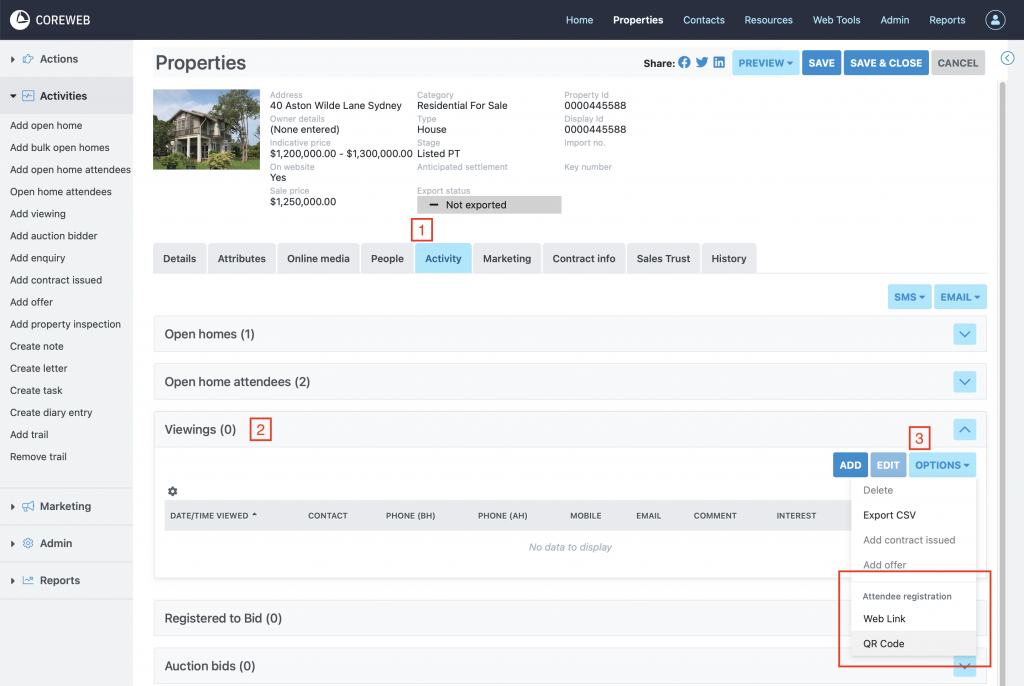
- Open the activity tab, then viewings table for the property. Open the options menu on the viewings table to access the registration “Web Link” and “QR Code”.
- Web Link – A link to the viewing registration page for that property. This allows you to see what it looks like and identify anything that needs adjusting. If you want to email the viewing registration link, you can also copy it from here. Note that registration for viewings can be completed at any time the listing is active.
- QR Code – Downloads a file to your computer that can either be printed, or displayed on a mobile device. People attending a viewing can use their phone to scan the code and register their details prior to entering the Property.
Sample QR Code

Sample Registration Page
Confirmation of registration

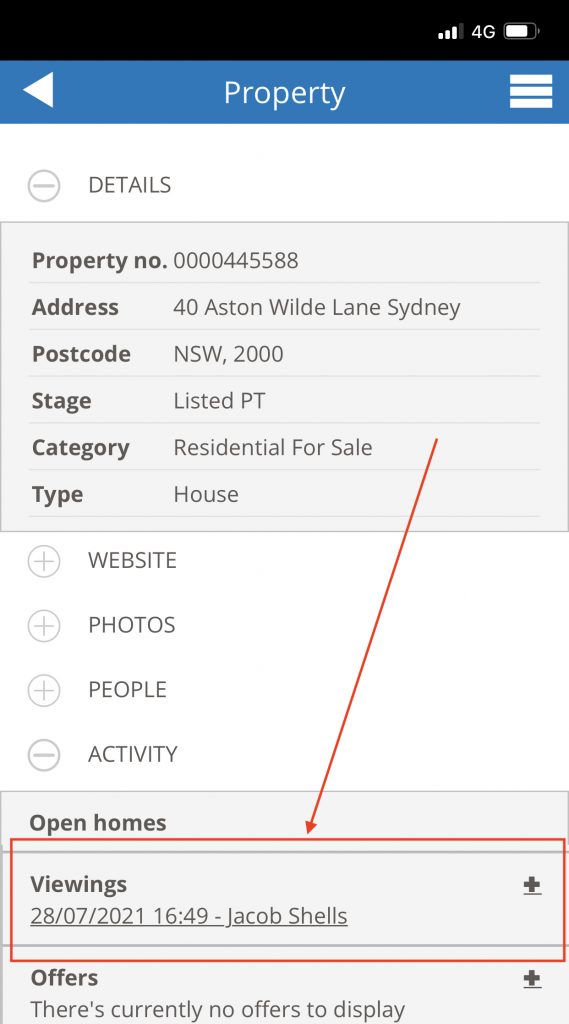
After the attendee has completed the registration is is recommended that you confirm their registration was saved successfully into CoreWeb.
The best way to do this is to open the property via Core Mobile and check the attendee has been added to the Viewings section. Below is an example of an attendee that has successfully registered: