Purpose
Trails need to be configured first via Admin > Activity Admin > Trails. They are a way of grouping tasks together. An example of this would be to map out a list of items that would be performed in the lifecycle of selling a property, from putting up a sign to sending a thankyou to the Vendor after selling the Property. Each item in a trail can have an offset amount associated with it to automatically trigger X days after the start date. ie if marketing material always gets ordered a certain number of days after after the process starts. All tasks associated with the trail will be added to the Property and reminders will be issues to the appropriate Users as they become due.
Instructions
- Highlight the Property you wish to add a Trail to and click Add Trail
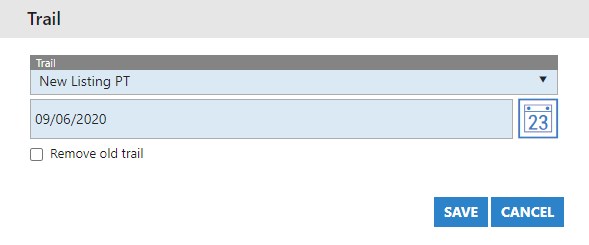
- In this example we are using a pre-configured trail called “New Listing PT”. Select a start date for the Trail to begin
- If there are Trail related items already on the Property, you can remove them all by ticking the “Remove old trail” box and pressing save. This will not remove any individual tasks that have already been set up outside of the Trail activity.