Purpose
Keep your finger on the pulse of your prospect Properties and Vendors. This area provides you with a single screen to view the latest notes you’ve left on prospects and update the likelihood of listing. You can sort the properties based on a variety of attributes and save your searches for easy access.
Instructions
- Access the Prospecting area via Properties > Actions > Prospecting.
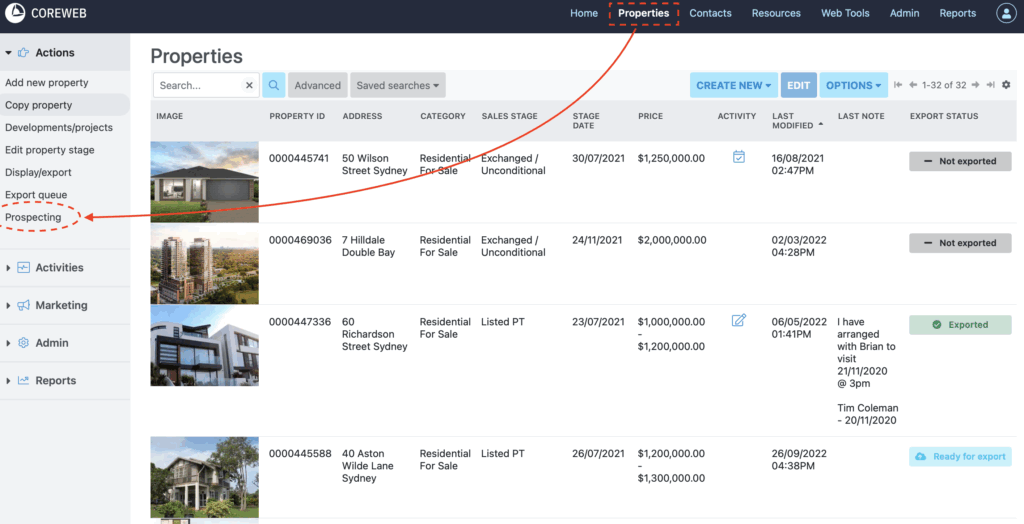
- You will be presented with a screen similar to the below:
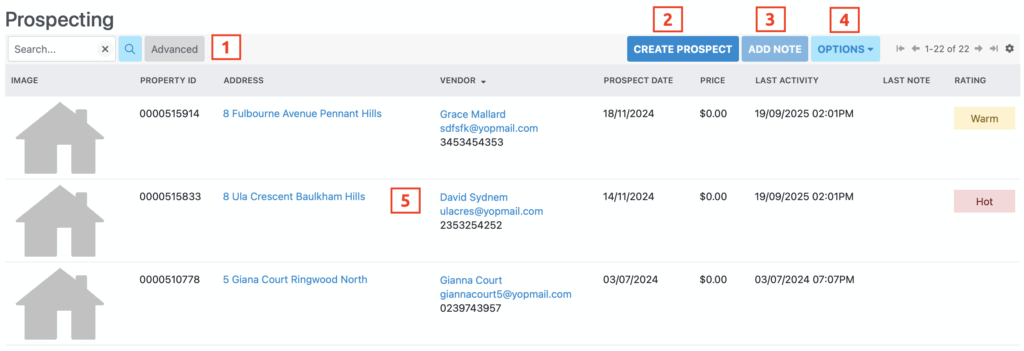
- Search and Advanced Search. Use this to narrow down your list of Prospect properties. Here you can save your searches to easily sort and find your prospects
- Create Prospect button. Use this to create a new prospect property and attach a Vendor to it.
- Add Note – becomes available when you have highlighted a property. Use this to take records of conversations, or make a visual reminder for yourself.
- Options – Allows you to export your list to CSV
- The Property list window. Shows you all of the properties matching your current search. If your search is cleared, this will show you all prospect properties. The property window contains the last activity on the property, the last notes left and an indication of how likely the Vendor is to list, if you have set this.
- The main idea behind this function is to stay in touch with your Vendors, while updating the listing likelihood and your notes accordingly. This can all be done via the Add Note screen
- Highlight the property you wish to update, then click Add Note, or alternatively double click the row to open it. An example of this below:
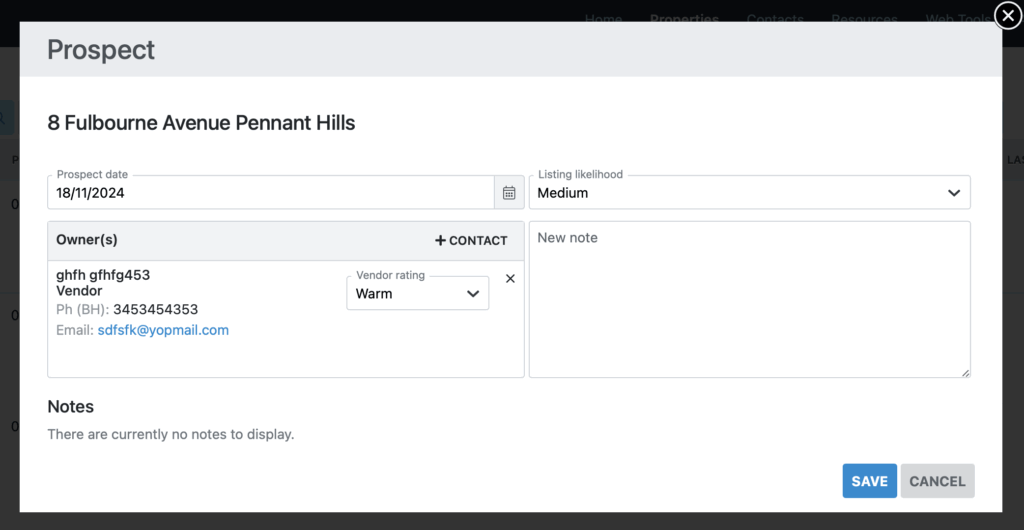
- Update the listing likelihood on the right, and leave a note
- Any notes left by you, or other users will appear at the bottom of the screen so that you can view the history. Notes are not only saved in the Prospecting area, but will appear in the Activity of any Vendor, or Property that has been linked.