Purpose
The Export Queue is a staging area for any changes you’ve made to sit temporarily before exporting them out to your connected Portals. Anything you have set to export will not automatically upload until you’ve pushed it from the queue.
Instructions
- Once you are sure that any changes you’ve made to your property are correct AND you have followed the steps in the Display/Export section above, click the “Export Queue” link
- You will be presented with the Export Queue popup
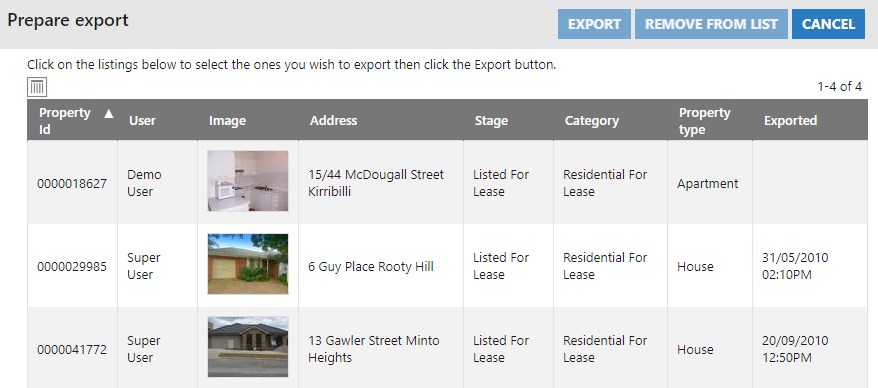
- Here, the primary function is to left click/select the property you wish to export, and click the Export button. You also have the option to remove items if needed. The list of properties can be re-ordered by clicking on the heading you wish to sort by
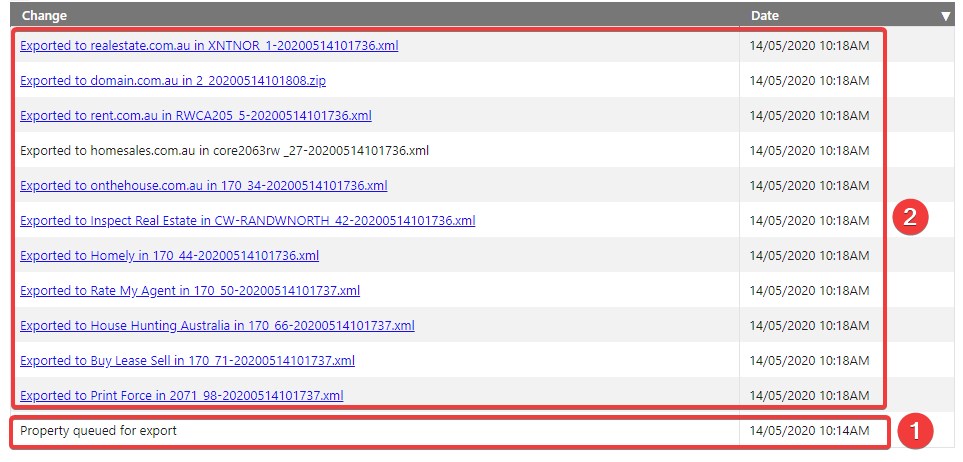
NOTE: Once Export is pressed, the property is added to the queue and a “Property queued for export” note will be added to it’s Import/Export Log. This is useful for troubleshooting as the time and list of portals it was exported to is also available.
- In the example below you’ll see:
- The property was queued at 10:14am
- It was successfully exported to the connected portals at 10:18am, 4 minutes later
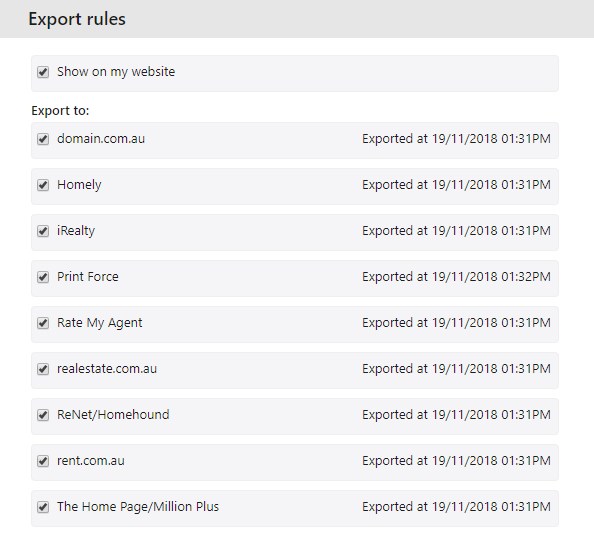
- Another helpful place to see what has happened post export is back on the Display/Export screen as the properties status will change from “Not yet exported” to list the date and time that it was exported to each portal. Example below: