Purpose
One of your main areas of use, the Display/Export screen is what tells the Core system that you’re ready to display your property with the world. Once you have chosen your options you will need to finalise things by exporting via the Export Queue
Instructions
- Select the property you wish to export to your portal pages by left clicking on it once.

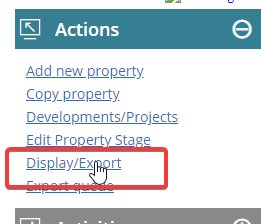
- Under the Actions menu, click Display/Export
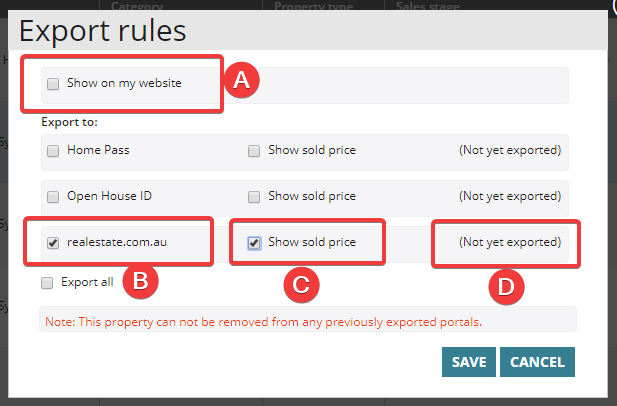
- From here you can choose to show the property on your own web page (A), or export it out to the portals of your choosing (B). Each portal needs to be configured by Core support as it links with your agencies individual portal account. Click the options that you wish to export to and press Save
Note: This screen also gives you the ability to turn on or off the sold price (C) and the date and time it was last exported (D) In this example, the property has not yet been exported.
Note: It is important to remember that this step does not make the property live. You will need to export it from the queue. There can be a 20-30 minute delay as the Core server talks to the Portal and your changes are live.