Purpose
To provide an area to see all sent, not yet sent (draft) and Emails waiting to be sent via the Core queue (outbox)
Instructions
- Click on the View Saved Emails link via the Marketing menu. The screen below is displayed:
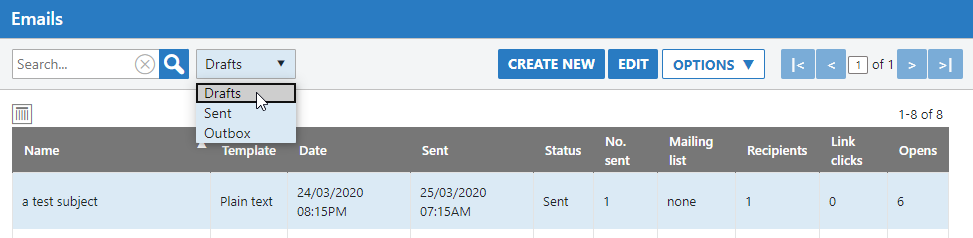
- Your main navigation point will be the drop down menu next to the search field. Use this to select which view of the emails you’d like to see. Once you have selected, then press search to refresh the results.
- Here you can Create New emails, edit emails that you have in your Drafts folder or you can also highlight an email and press the Options menu for some extra abilities listed below:
- Delete – Deletes the email
- Resend – Uses the email’s configuration to resend. This takes you back through the wizard and allows you to make changes to it. This is particularly useful if you want to send an email that is similar a number of times and saves you from spending the time setting it up for each use.
- Report – Displays a popup window report of who has opened the email, how many times they opened it, whether there were any errors and how many items inside the email were clicked.
- Recipients – Displays a popup window list of the email’s recipients.
- Links – A popup window with all of the links used inside the email and a record of how many clicks per item. This is a smaller version of the “Report” option.
- Opens – A popup window list of the contacts that the email was sent to and how many times they’ve opened it. This is a smaller version of the “Report” option.
- Export CSV – This gives you an ability to Export as a CSV the entire view of emails on your screen. eg:
