Purpose
A tool to help clean up your Contact database. This function allows you to select a Contact, then use a key field to find multiple instances of them (if any) and move the Activities associated with them to the primary Contact.
Instructions
- Highlight the Contact you wish to de-duplicate and click the De-duplicate option under the Admin menu.
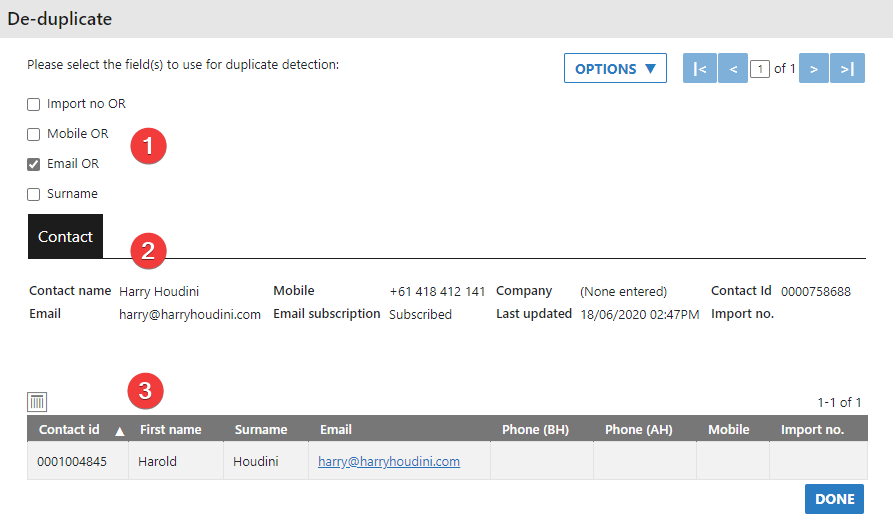
- To illustrate, we have a contact with a slightly different name but the same email address recorded.
-
- Shows the option for the field you want to use to find the duplicates
- Shows the Contact that you originally selected
- Shows any duplicate records found in the database
- To decide what you want to do with the duplicate you use the Options menu. Highlight the Contact in section #3 and click Options.
- The options are:
- View – Opens a new tab to show you the full Contact’s information. If you do want to completely Archive the Contact, then it suggested to open this and leave it sitting while you decide what you want to do with the data
- Archive – This hides the contact from the live data for future. They still exist in the system as no Contact can be deleted, but it removed them from view.
- Move Data – Moves the data from Contact in option #3 to Contact in option #2
- For this exercise we will Move Data. Click this from the Options dropdown.
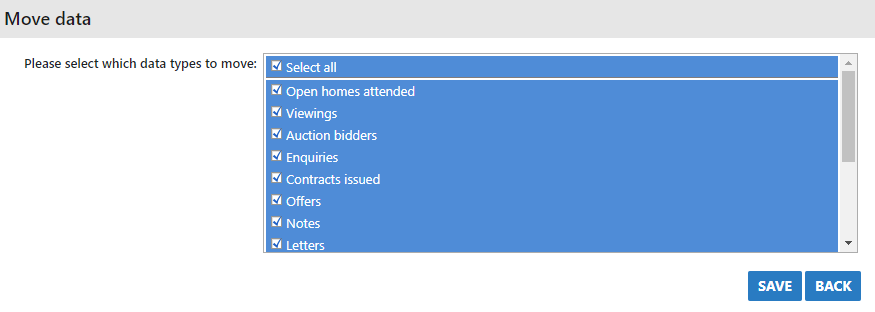
- Next, select which data you’d like to move, then press Save. If you have made a mistake prior to saving you do have the option click Back to choose another option.
- Once saved, all Activity related to the Contact #3 will be moved to #2. At this stage, both Contacts still exist. If you want to remove your duplicate completely from view, open the 2nd window referenced above with the Contacts details and you can archive them from there.
- Press save once done