Purpose
This section allows you to change details on your Core “Office”. It is important to ensure that these details are updated if anything changes as they can feed into other areas of the system. This section is also where you can generate a QR code to be displayed at your reception entry for walk-in enquiries to be captured
Instructions
- Entering this area presents you with a list of Offices that you have access to. The only option here is to double click on the Office you wish to modify or highlight it to use the Options menu.
Double clicking/Pressing Edit
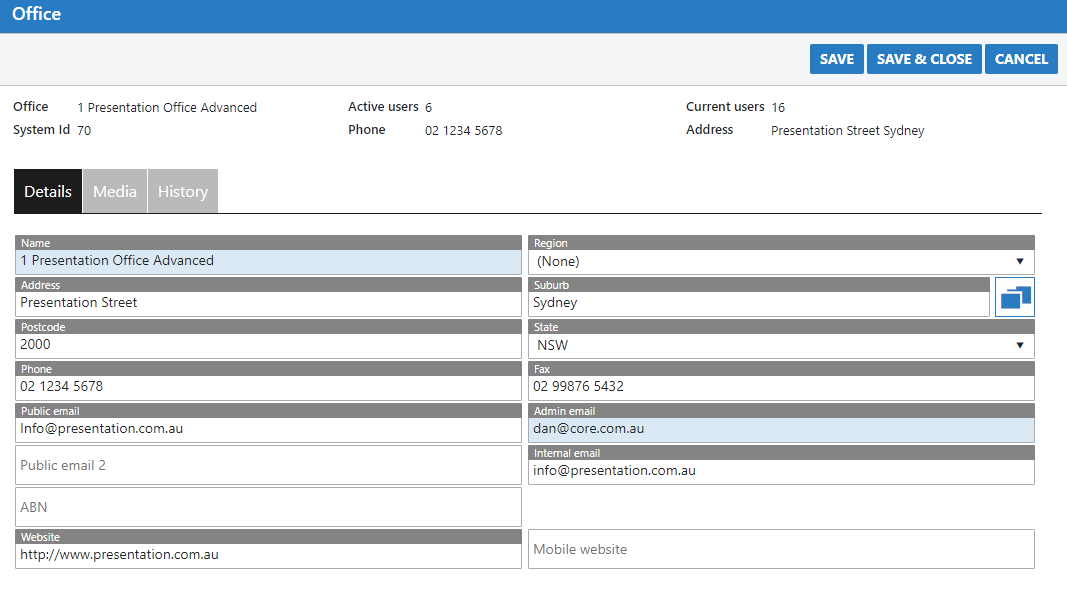
The details tab contains all of the contact information for your Office. As mentioned above, keep this up to date if any of the detail changes.
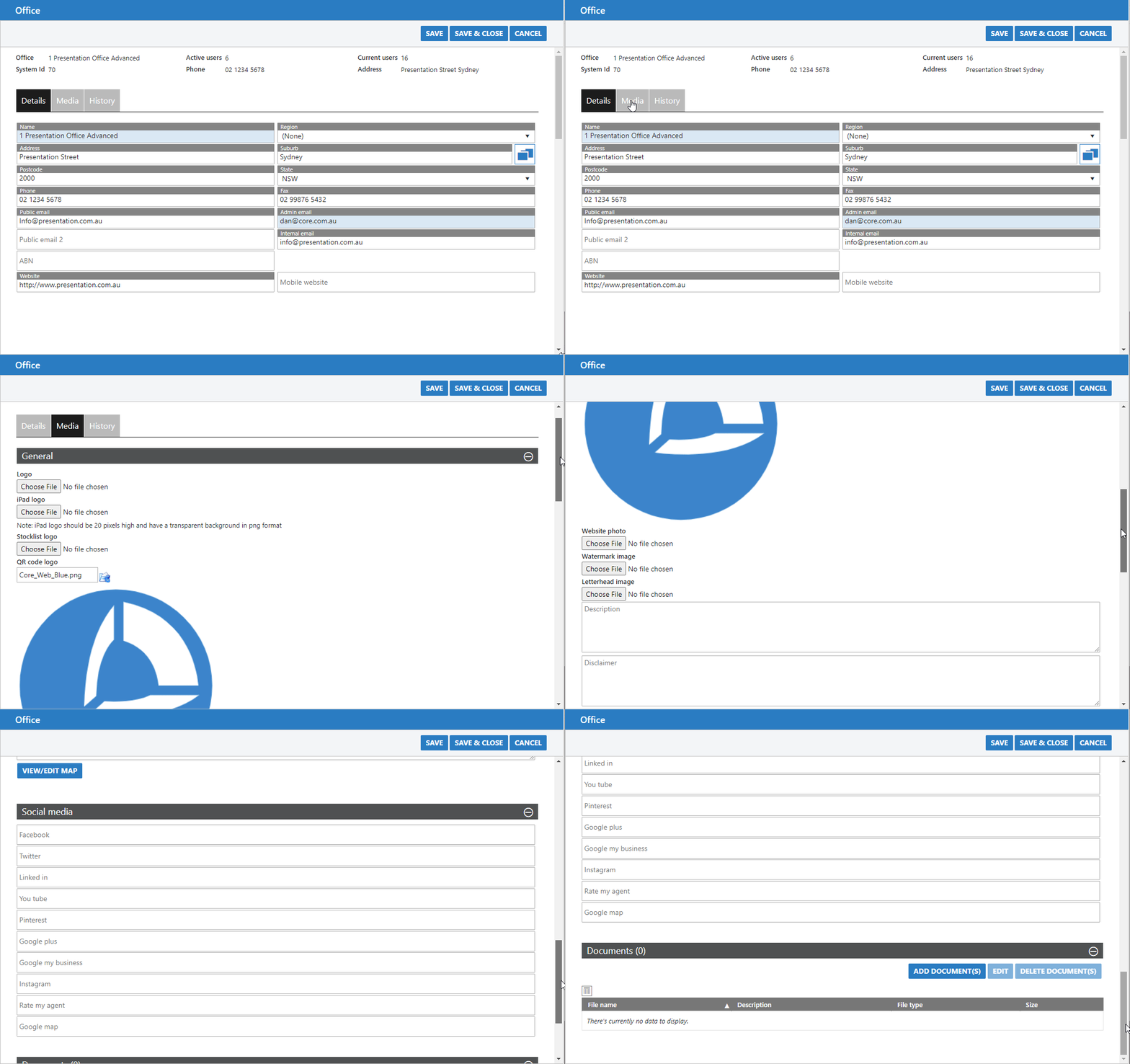
The media tab is the place to set any Office related images/logos etc. It is also where the details of your social media links can be set. Once set, these links will be displayed in your email templates and your website if hosted by Core
Options Menu
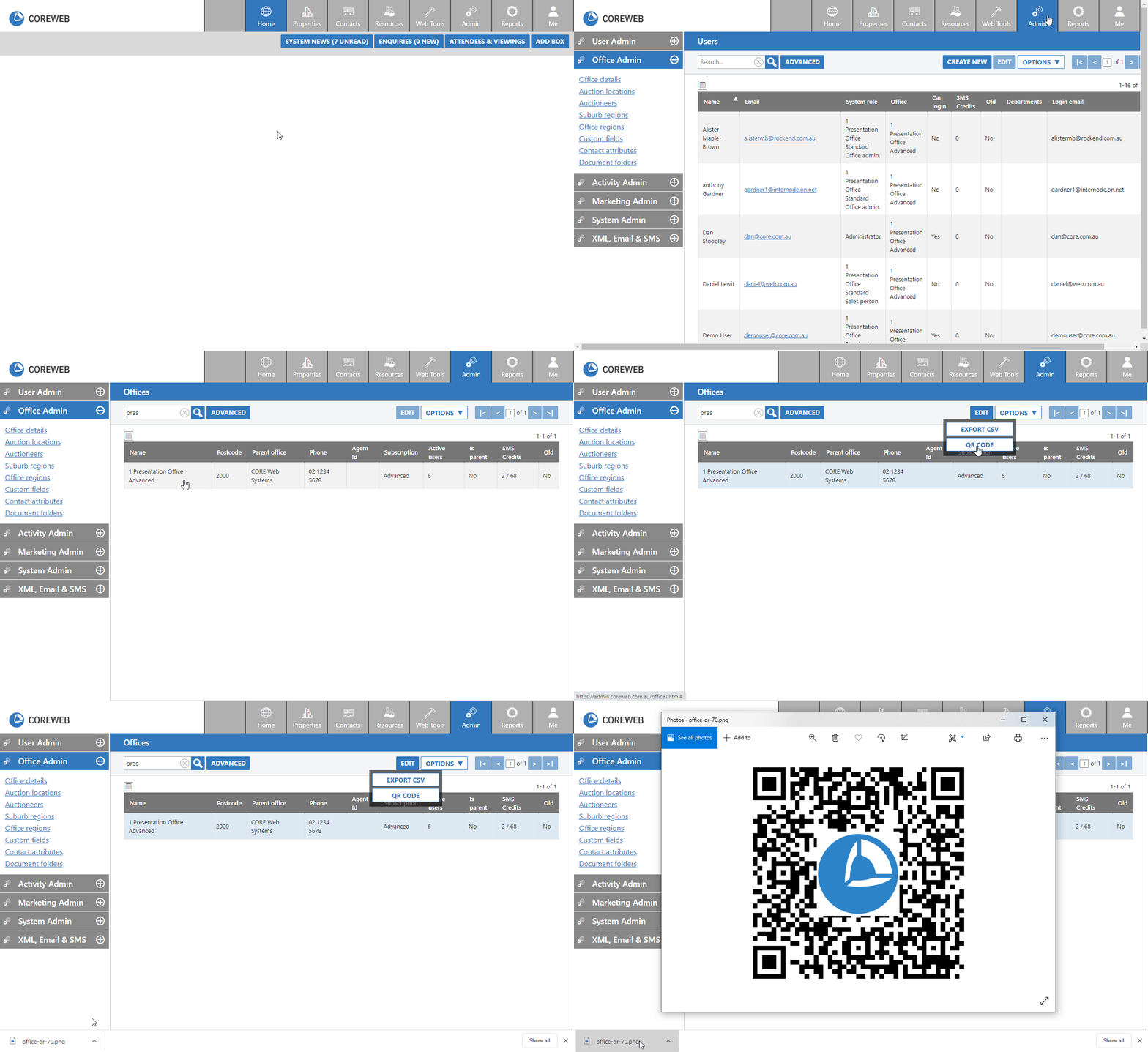
Instead of double clicking/editing the office you can highlight it and press the Options Menu. Here you can export a CSV with the details of your office, or you can download the QR code for walk-in enquiry registration
Office QR Code Download
- From the Office Details section, highlight your office by left clicking it once, click the Options Menu and then QR Code. The code for your office will download.
- This code can be printed and placed at the entry to your building where you can request visitors to scan and register. When they use their QR code reader they will be taken to a website similar to below to enter their details. This is an example only. Your unique code will take you to a personalised version of this page.
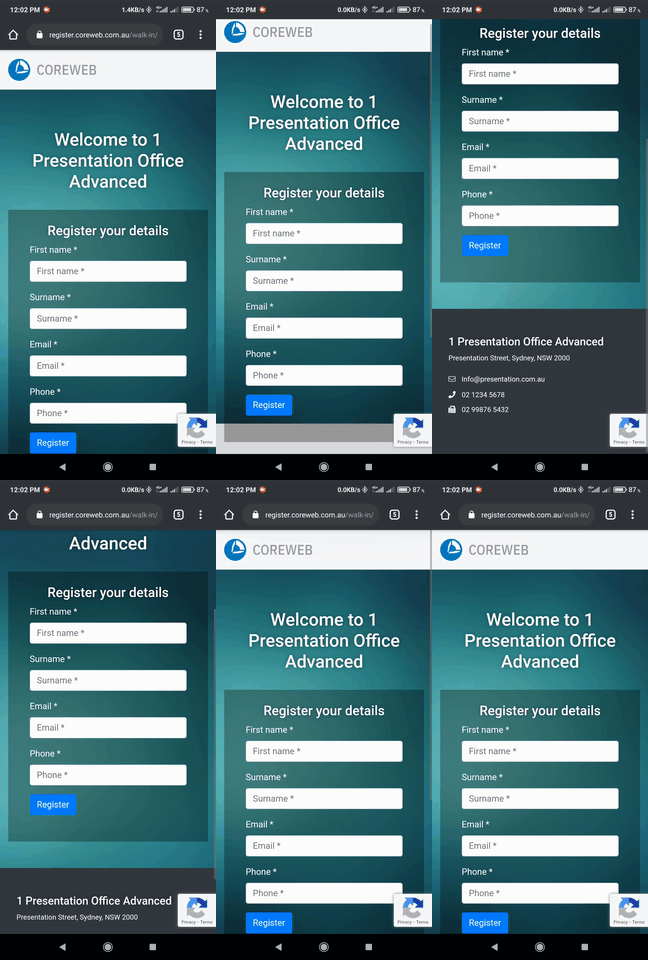
- Once the walk-in has entered their details and registered you will be able to immediately find them in the Core system listed as a “Walk-In” contact type.
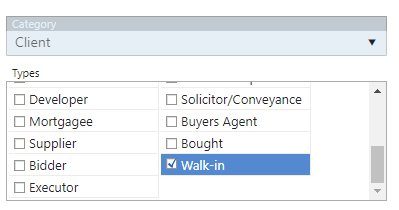
- From there, the suggested workflow would be for the person greeting them to modify the record to suit the enquiry.