Introduction
A single, meaningful screen showing you the calendar month, and identifying days that have something associated with them. This will include any open homes, but also any meetings that you’ve manually added either through the web interface, or through mobile.
Instructions
How To Use The Diary
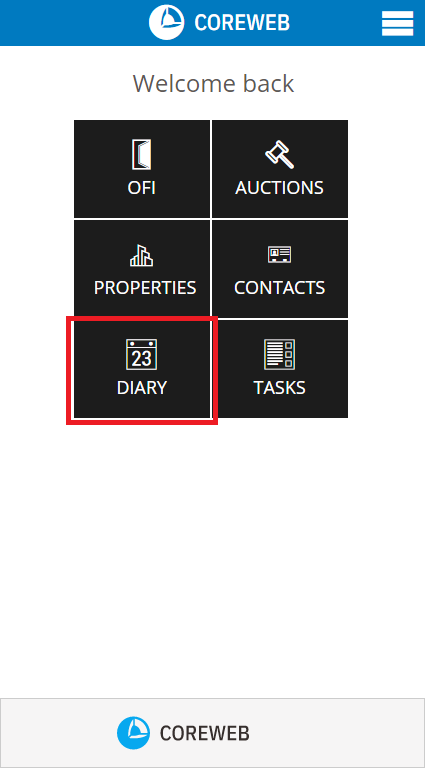
Pressing the Diary button brings you to the default view of this month’s calendar.
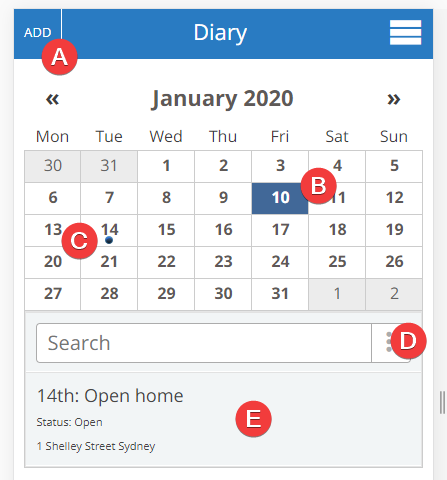
a) Allows you to add a new Diary entry
b) Highlights Today’s date
c) The small dot located on the 14th indicates that there is an activity associated with that day
d) The advanced search function
e) This is the activity associated with c) listing the date, description status and address of the item. You can press it to open it for more information.
Adding a Diary Entry
- Press the Add button, top left of screen. You will be presented with the screen below. Fill in the information regarding the meeting.
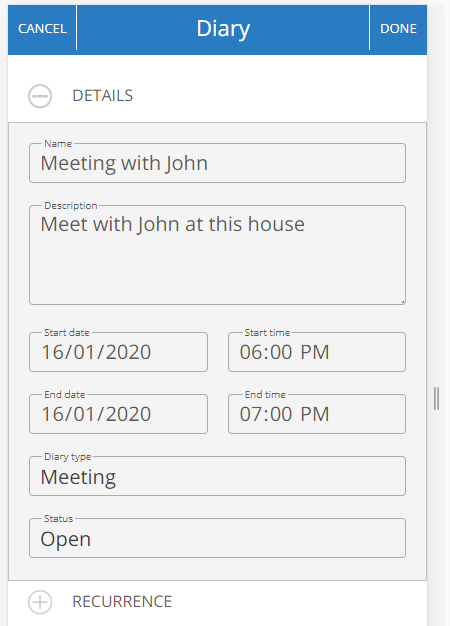
- Once finished, press the Done button to add to your Diary.
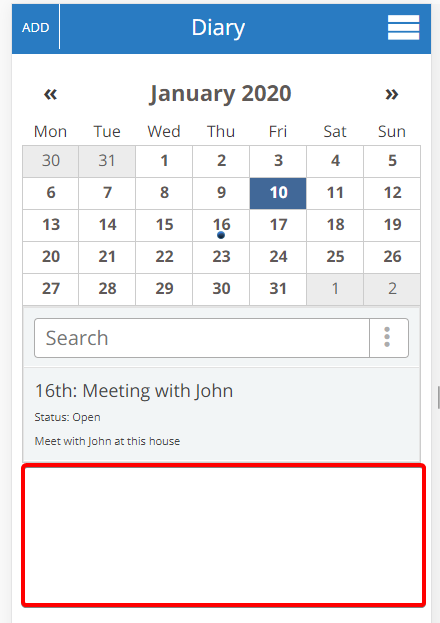
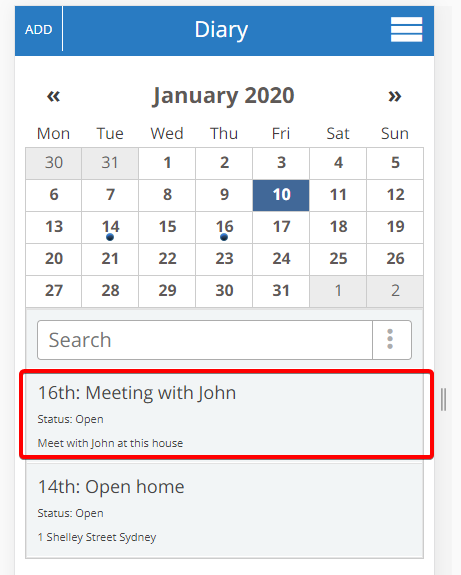
- You will be taken back to your main diary, and if the item has been added into this month it will be displayed as below:
Change What My Diary Displays
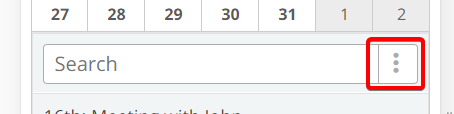
- Press the Advanced button next to the Search Field
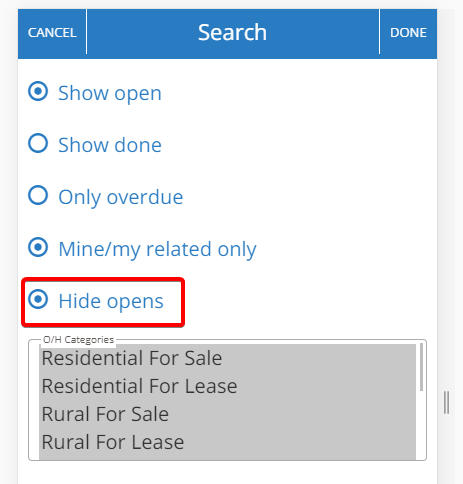
- Here you can select, and un-select items to help filter your Diary. In this example we will hide Open Home entries. Select the “Hide opens” option and press Done
- The Open Home listed on the 14th has now gone. You can always bring it back by un-selecting the option