Introduction
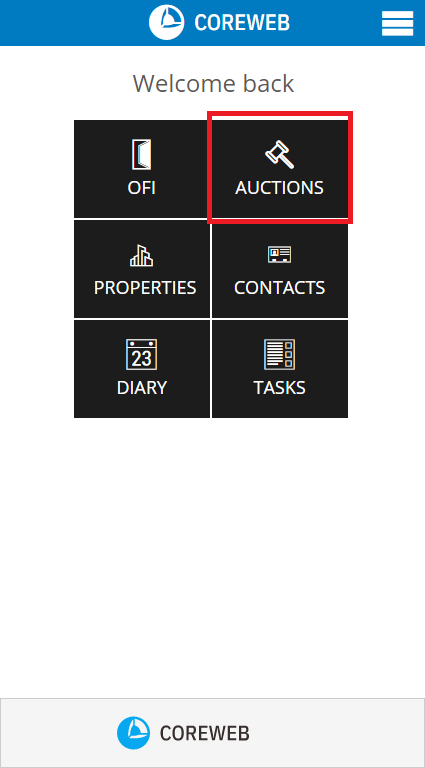
The Auction area allows you to add new, or associate an existing contact as a bidder on the auction property. As with an OFI, a new contact captured as a bidder will be permanently added to the contact database for future communications. When capturing, you can also provide the auction attendee with a bidder number to help associate them with bids as the auction is in progress. This screen also contains the “Launch Auction” function where you can live capture bids as they roll in.
Adding An Auction
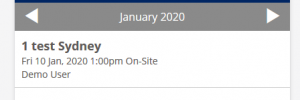
On the Auction screen you will be presented with the current month. If there are no auctions set the tool will advise, however if you do have calendared auction they will appear here. Auctions must be added through the Core web interface as they relate to the property stages.

Adding Auction Bidders
Via QR Code
The quickest way to add bidders is to have them enter their own information. To do this, they would use their own device to scan a QR Code which takes them to a registration page. Once successfully registered, their name will appear as a bidder on the auction.
To find the QR Code, at the screen displaying the address and date of the auction simply swipe left, then press the “QR Code” option. See below:
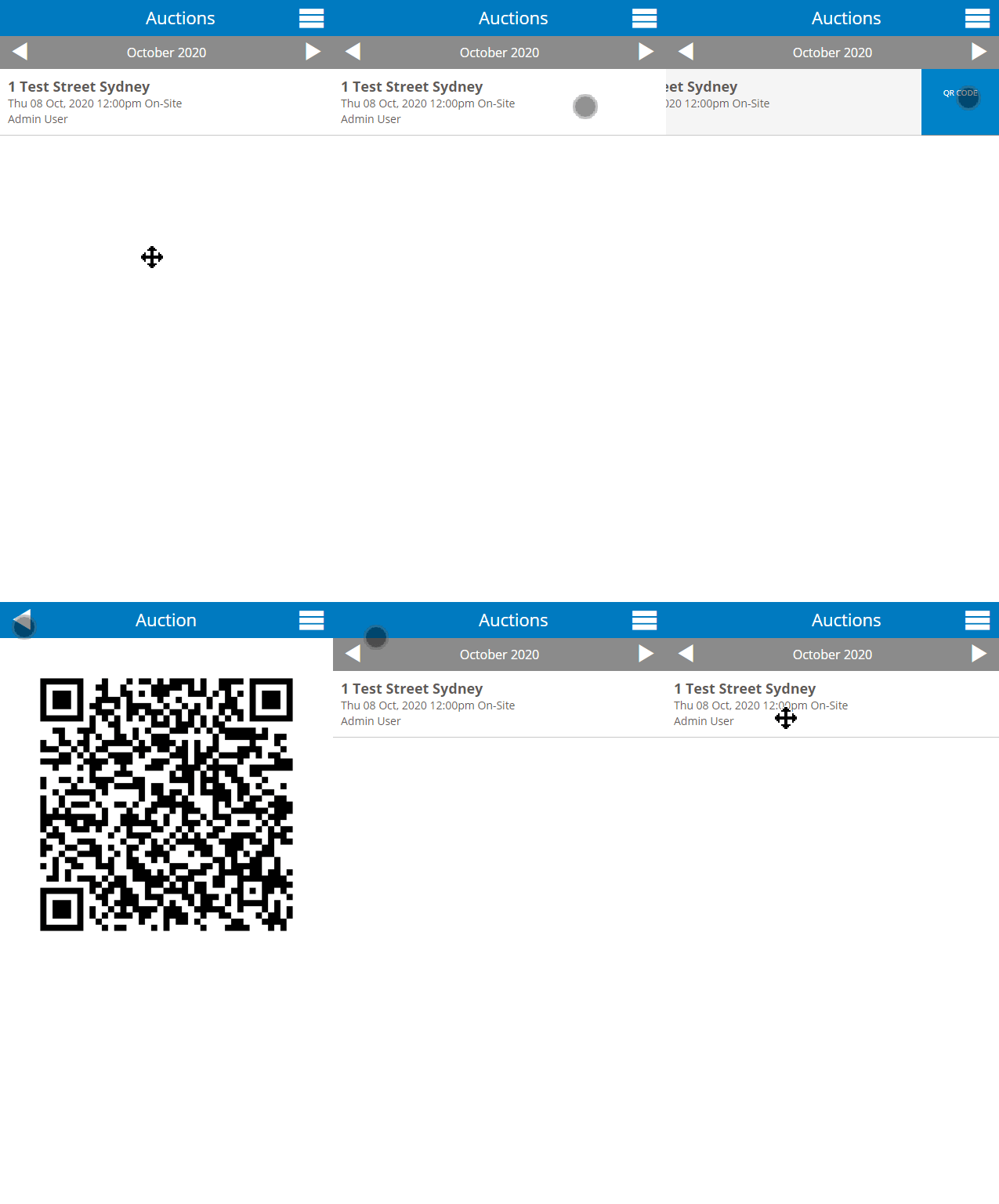
You can leave the QR code displayed on a device permanently for people to register using this method.
Manual Entry
- Press on the name of your auction. If this is a new auction there will be nobody registered and your attendee list will be empty
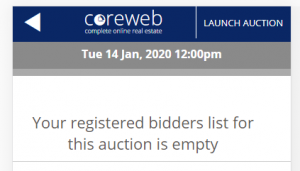
- Press the Add Bidder button at the bottom left of your screen

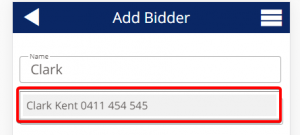
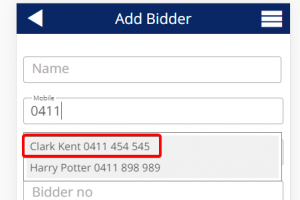
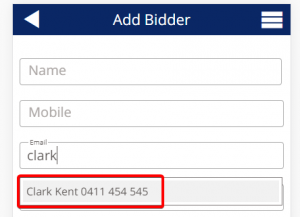
- At the next screen, start entering either the Name, Mobile, or Email address of the bidder. If they are an existing contact they will populate as a selectable option for you. If not, fill in their details and press the “Add Bidder” Button at the bottom of the screen. This will add the attendee as a contact for future use
Name Search Example
Mobile Search Example
Email Search Example
- Once you have found your desired Contact, press on their name to add them to the bidder list. From here you are taken back to the bidder list where you can add more bidders, or launch the Auction. See screenshot below:
Note: You can edit the contact’s details after adding them eg you wish to give them a bidder number. To do this, press their name, edit the info and press the “back” arrow at the top left. This saves the contact. You can also “swipe left” on the bidder to edit them, or remove them.
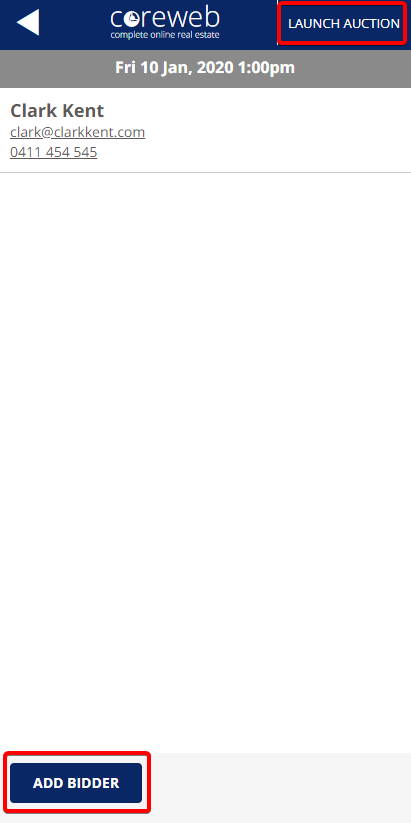
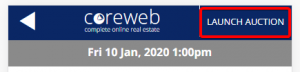
- Once you have added all of your bidders, press Launch Auction, taking you to the bidding screen.
Adding Bids
- After pressing Launch Auction, you are taken to the bids screen as seen below:
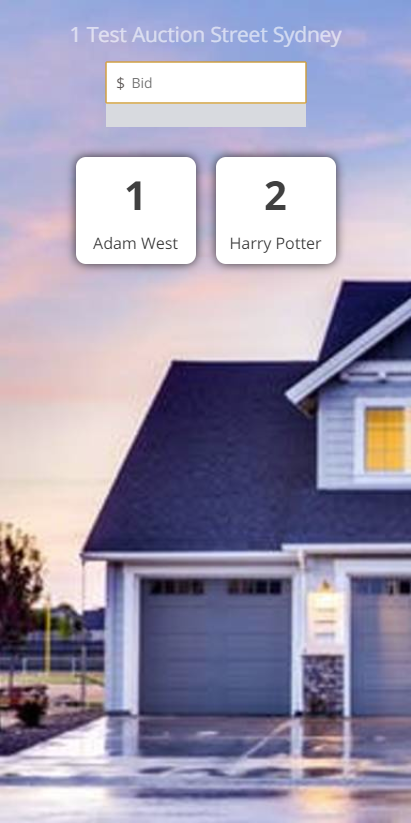
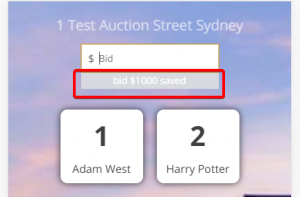
- As the auction progresses, you can enter bid amounts in the “Bid” field, then press on the name, or bidder number of the attendee to register their bid. If a bidder number is not associated with them, only their name will appear in the list. As bids are registered, the system will show you on screen:
- Once the Auction is over, press the name of the property at the top of the screen to finish.
Note: Bidding information can be reviewed at the completion of the auction to be able to follow up with those that did not win for alternative property discussions.
View Bid Information After The Auction
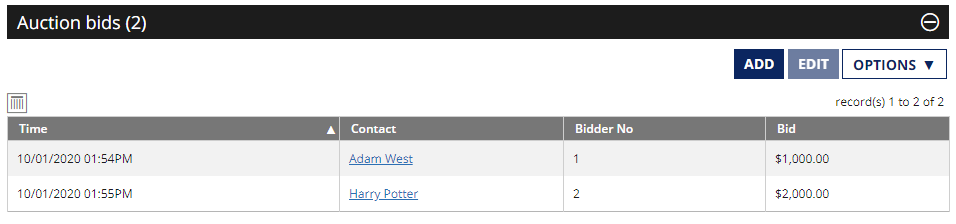
All bidding information recorded during the auction is stored in the Core database and can be accessed via the Web interface.
- In the Properties tab, find the property relating to your auction and double click it to open
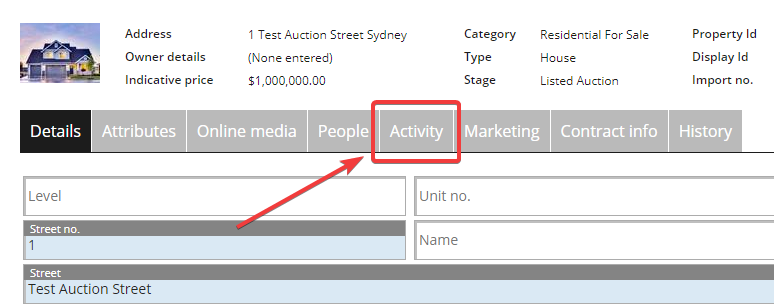
- Click on the Activity tab to see activities associated with the property
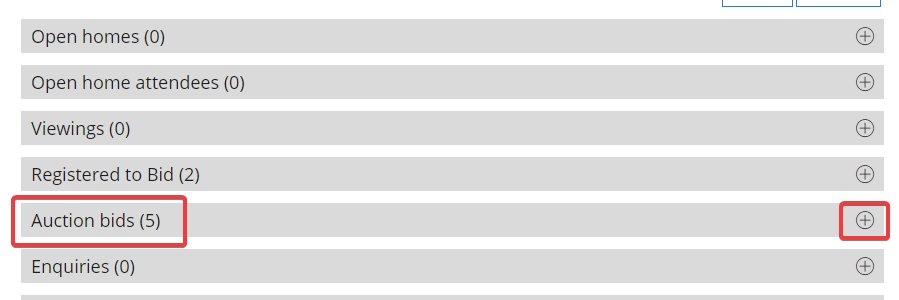
- Find the section “Auction Bids” and click the plus “+” symbol to expand it
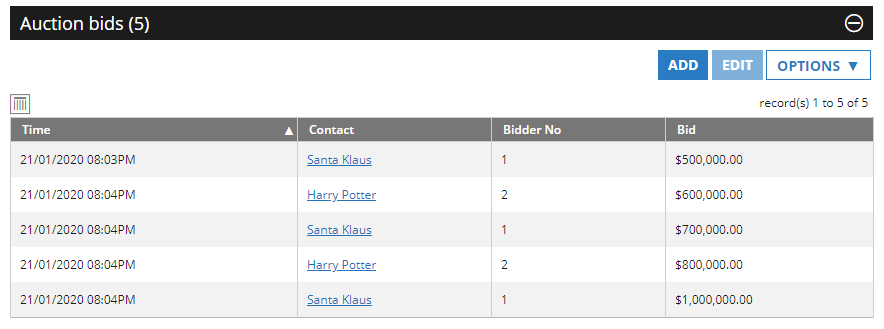
- On this screen you will be able to see the date and time, the Contact, their bidder number (if you assigned them one) and the bid amount. You can export to CSV if you wish, or edit the bid information if needed.
Note: Auctions are notoriously fast paced, so editing the bids after the fact may be a useful way to keep everything up to date and accurate if you think you missed something.
What Happens After An Auction?
The system does not do anything automatically. Here you will need to follow your internal process and edit the property stage in the Core web interface accordingly.