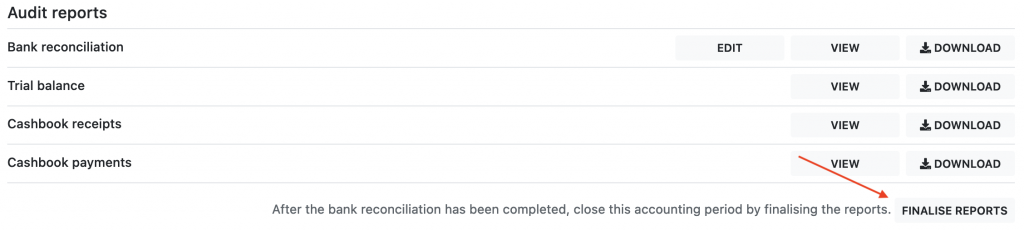
Audit reports
CoreWeb provides tools to perform a bank reconciliation and produce audit reports for your sales trust account.
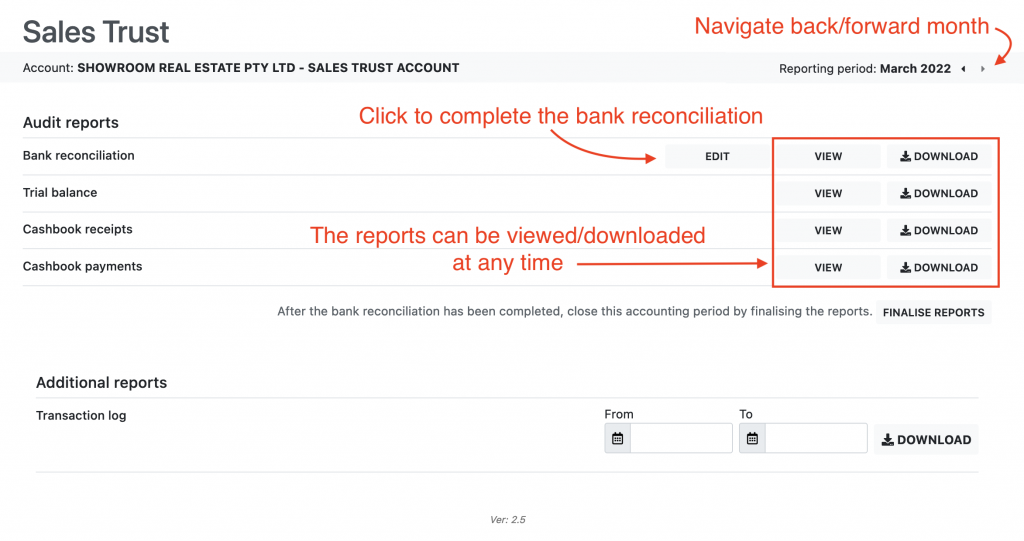
To access these, from the property section of the admin, open the “Admin” sub-menu on the left and click “Sales Trust Report”. On the audit reports homepage you can:
- Navigate through the audit periods using the forward / back buttons at the top right.
- Complete the bank reconciliation.
- View or download a PDF report of the bank reconciliation, trial balance, cashbook receipts and payments.
- Close an audit period, once the bank reconciliation has been completed, and open the next one.
- Additionally you can also generate a log, or statement, for all transactions in the trust account.
Bank Reconciliation
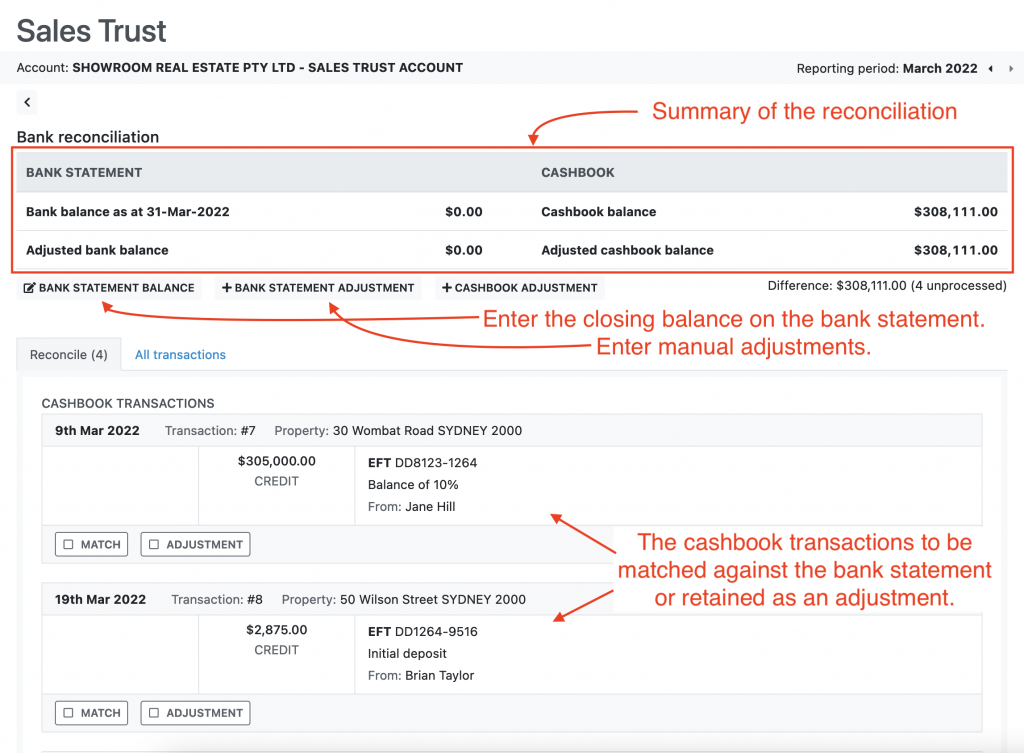
Click on the edit button to open the bank reconciliation. On the bank reconciliation editor you will see:
- A summary of the reconciliation, showing the cashbook and bank statement balances and any adjustments
- Buttons to enter the closing bank statement balance, and enter manually adjustments.
- A list of the cash book transactions which are yet to be reconciled.
Enter the bank statement balance
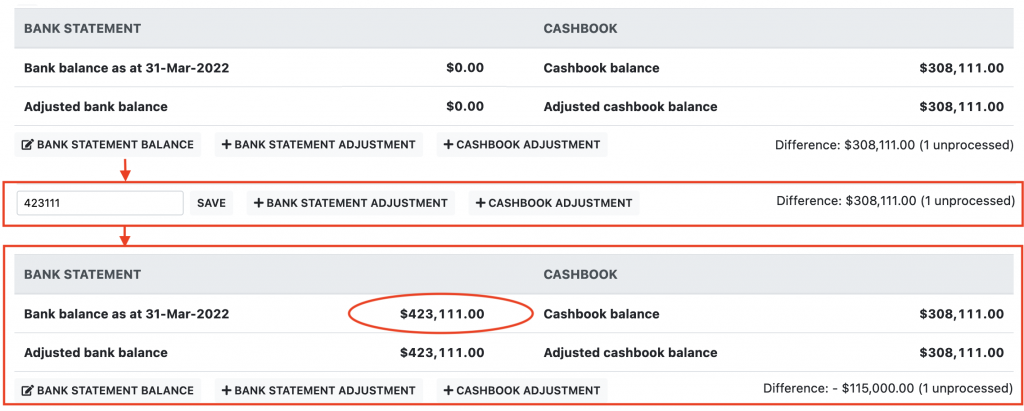
- Click the “Bank statement balance” button
- Enter the balance of the bank statement for the closing date of the audit period
- Click save and to balance will now be shown on the bank reconciliation summary
Reconcile the bank statement
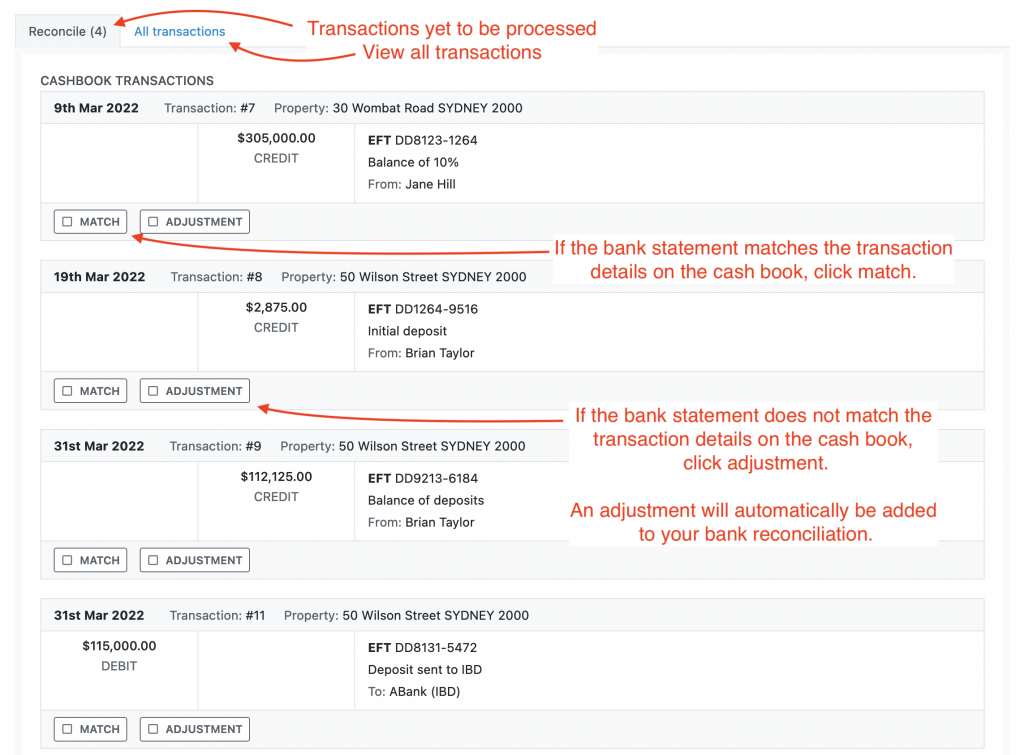
With your bank statement for the audit period at hand, work your way down the list of cash book transactions. Most cash book transactions will have a matching entry on the bank statement, for these transactions click the match button. This will mark the transaction as matched and remove it from the list of transactions to reconcile. For transactions which do not have a matching entry on the bank statement you will need to determine why the cashbook and bank statement do not match. This might occur for several reasons:
- Timing: The transaction does match between the cashbook and bank statement, except there is a difference in the transaction dates and the transaction on the bank statement does not fall within the same audit period as the cashbook. In this case if the transaction appears on the cashbook it should be marked as an adjustment. Or if the transaction appears on the bank statement, a manual adjustment to the cashbook should be create, see below for instructions.
- Cashbook, incorrect transaction: A transaction entered into the cashbook is wrong. In this case the cash book should be corrected by opening the proprety ledger with the error, reversing the incorrect transaction and entering a correct one. The newly entered transaction will now match.
- Bank statement, additional transactions: See the section below on how to enter adjustments to the bank statement.
TIP: It is easiest to work top to bottom down the cashbook transaction, processing the transactions in the order they were entered. Mark off entries on your bank statement as they are matched, any entries left un-marked might indicate an error or adjustment you might need to enter.
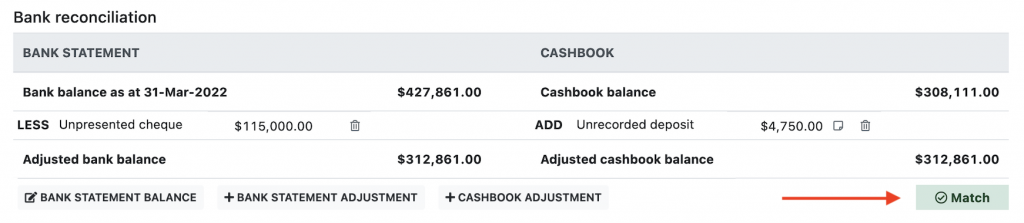
Once you have processed all the transactions the bank statement and cash book will match. The audit reports should now be reviewed and finalised. Return to the audit reports homepage to complete this step.
Entering an adjustment to the bank statement
Some entries on the bank statement cannot be matched against transactions on the cashbook. For example, bank fees or interest paid into the trust account. For these entries you can enter a manual adjustment to the bank statement:
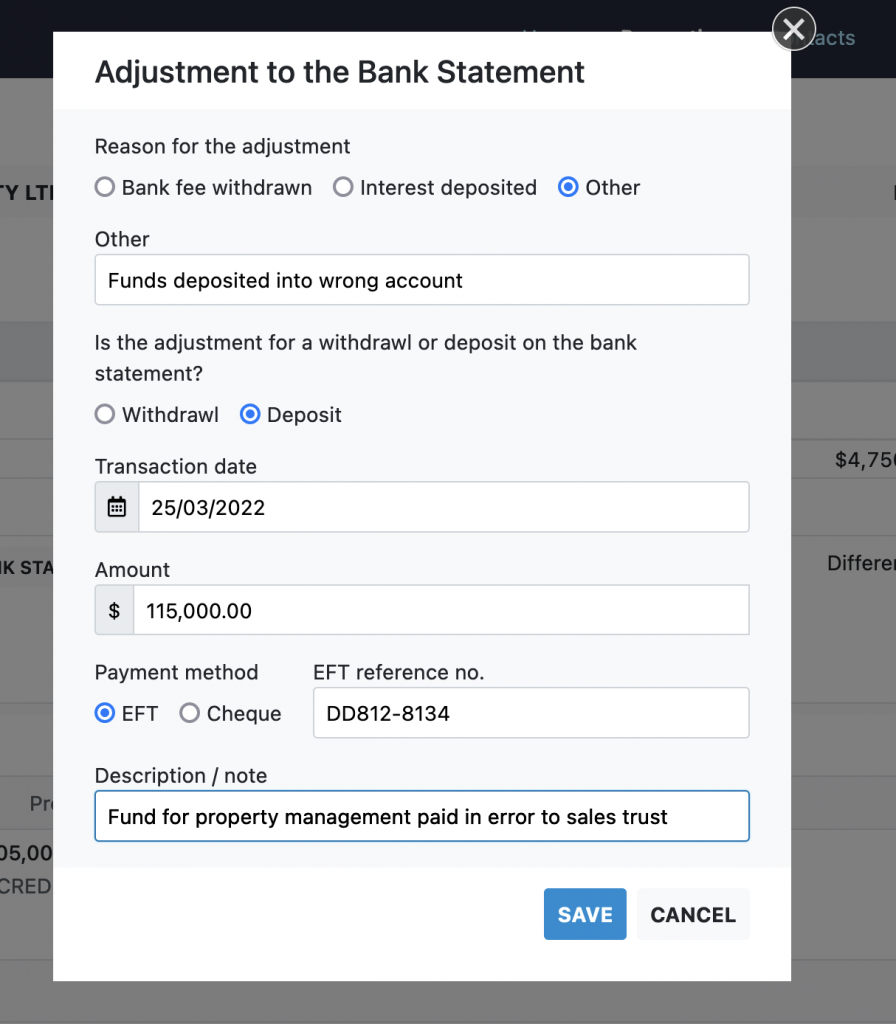
- Click the “Bank statement adjustment” button.
- Enter the details of the entry on the bank statement for which you are creating the adjustment. In this example, we have found a deposit into the trust account that was intended for another account, so “Other” had been chosen as the reason for the adjustment.
- Click save and the adjustment will now be shown on the reconciliation summary. You can hover over the note icon to view the description of the adjustment. You can delete the adjustment to delete the adjustment.

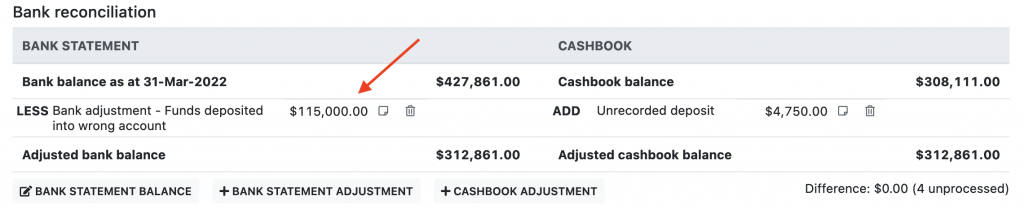
Reconciling an adjustment to the bank statement
If you have entered an adjustment to the bank statement in the previous audit period, you will be prompted to retain or match the adjustment next audit:
- If the adjustment has a matching entry on the bank statement, click match. The adjustment will be marked as processed.
- Otherwise, retain the adjustment for the next audit period. The adjustment will be added to the reconciliation summary. The adjustment can be retain for as many audits as needed until a matching entry is found on the bank statement.
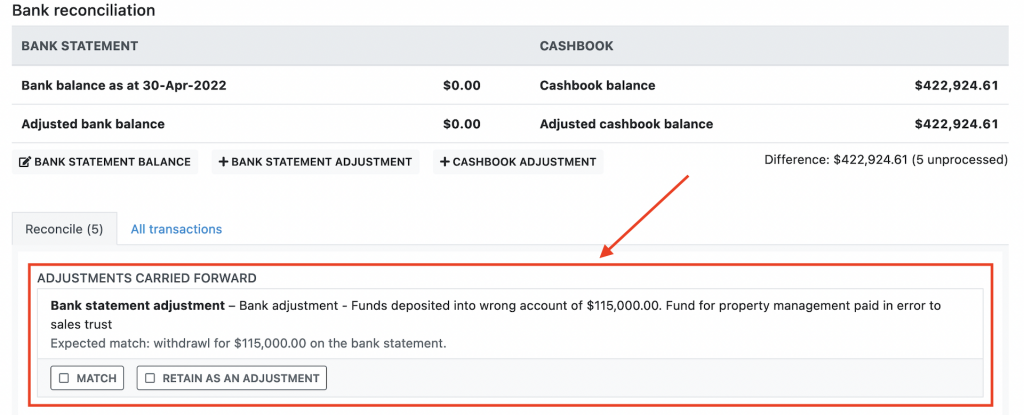
Entering an adjustment to the cash book
Some entries on the bank statement might match transactions on the cashbook, but the transaction on the cashbook might have been entered into the next audit period. For these entries you can enter a manual adjustment to the cashbook:
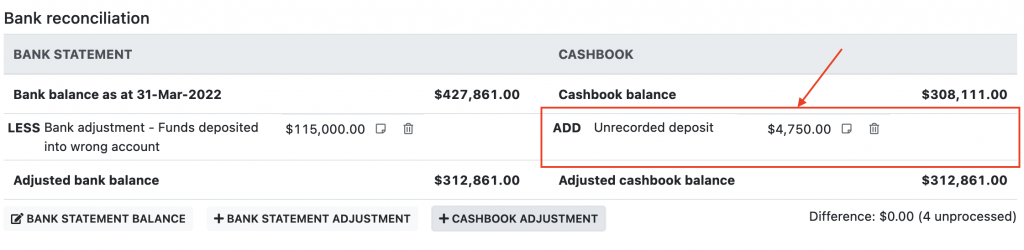
- Click the “Cashbook adjustment” button
- Enter the details of the transaction as it appears on the bank statement. Make sure the amount is correct as it will need to exactly match a transaction on the cashbook in a later audit period.
- Click save and the adjustment will now be shown on the reconciliation summary. You can hover over the note icon to view the description of the adjustment. You can delete the adjustment to delete the adjustment.
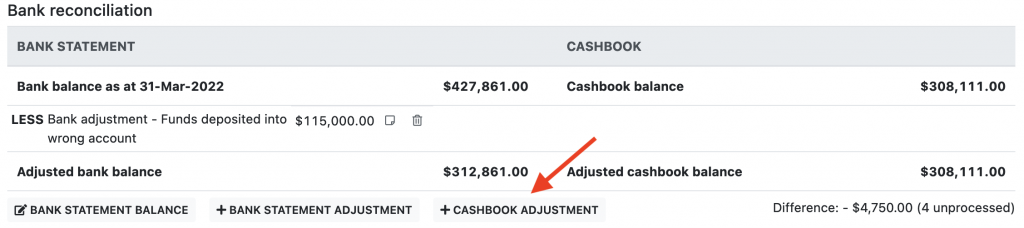
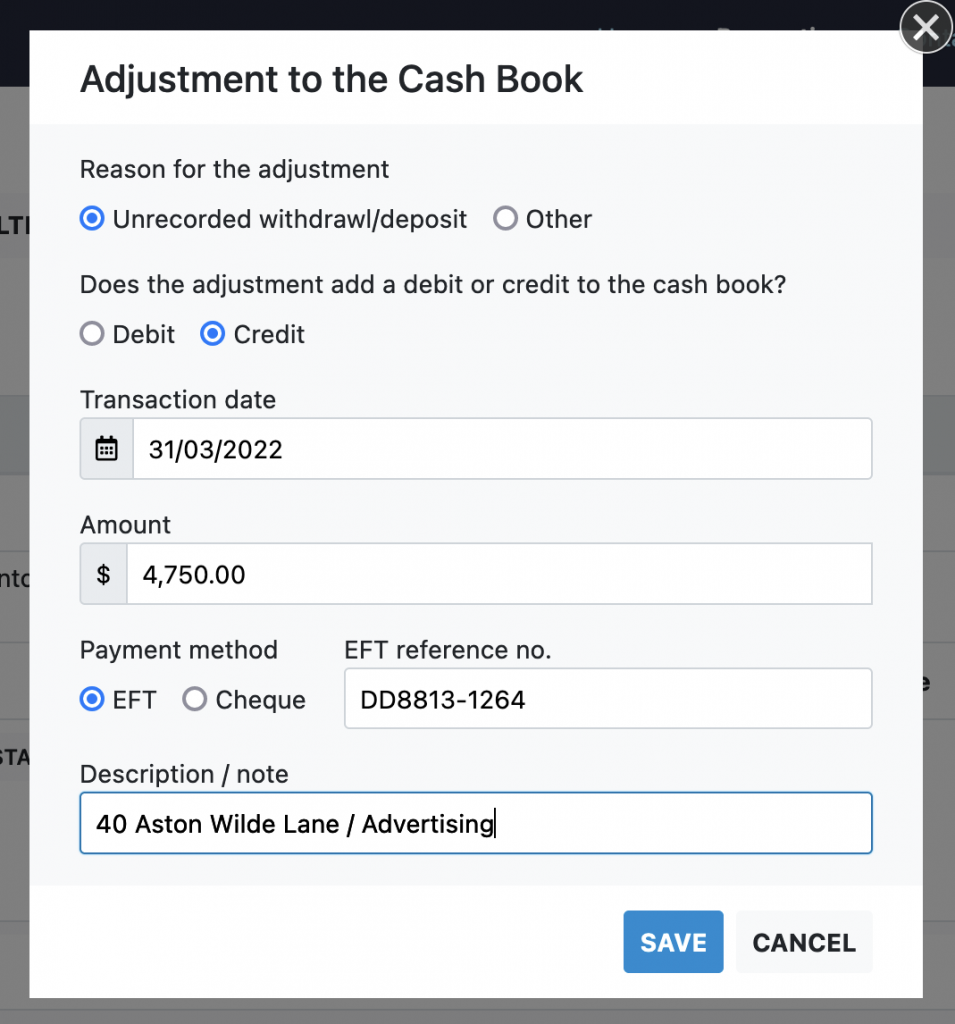
Reconciling an adjustment to the cash book
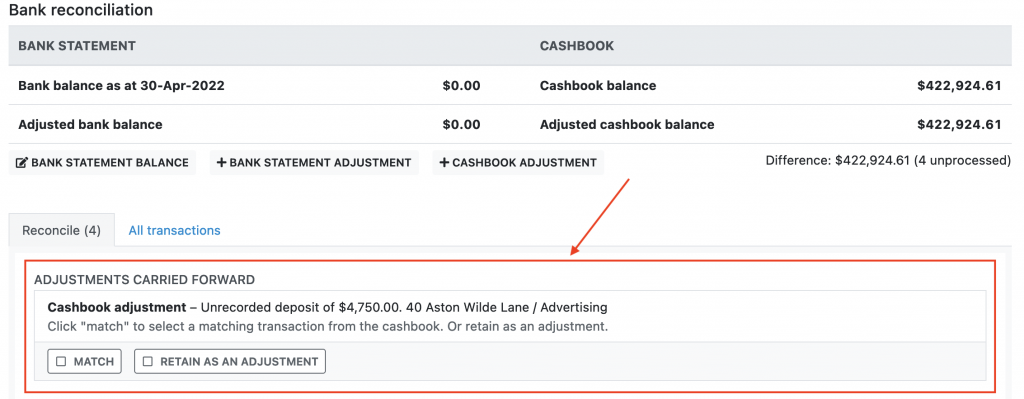
Adjustments to the cashbook from previous audit periods will need to be reconciled:
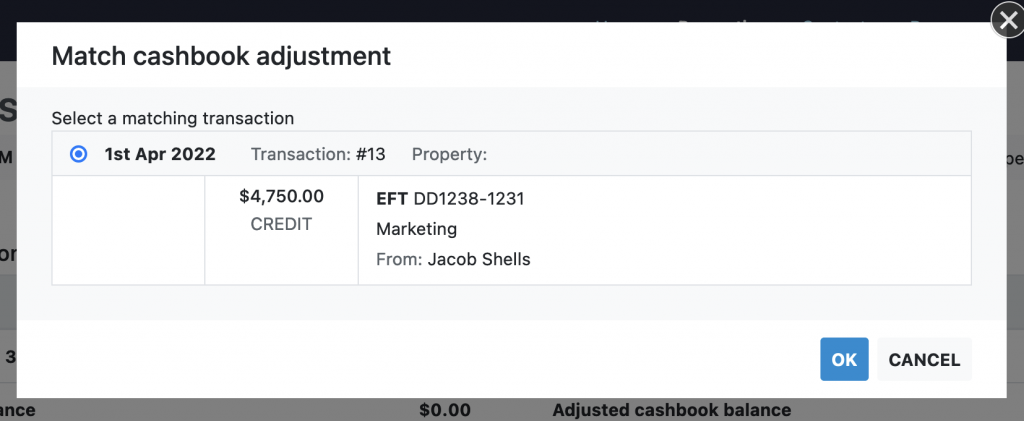
- If the adjustment now has a matching entry in the cashbook, click the match button. You will be shown a list of candidate transactions in the cashbook to match against. Select the matching transaction and click continue.
- Otherwise retain the adjustment until a matching transaction is found in a later audit period.
Closing an audit period
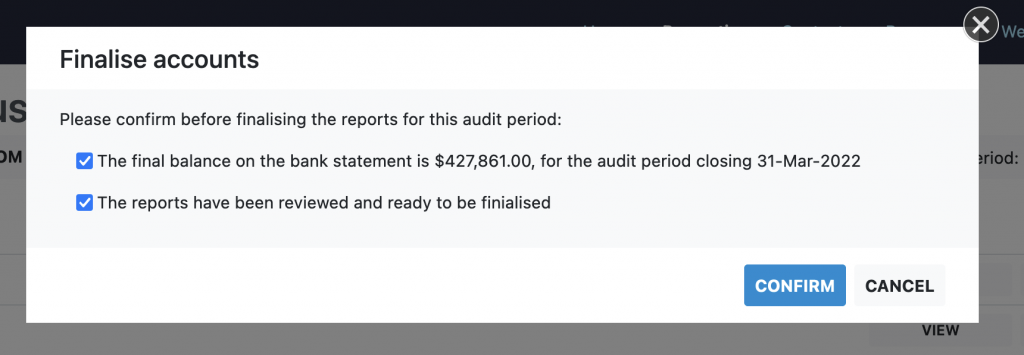
Once you have completed the bank reconciliation and reviewed the audit reports you can close the finalise the accounts for this audit period.
After the audit has been finalised please download the reports for the audit period for your permanent records.