Purpose
To create a new Contact to be saved in the Core system. This is key to the success of the system as it allows you to associate them with enquiries, tasks, diary entries and see any viewings or offers linked to them. It is a good idea to keep your contact information up to date so that your marketing strategies hit their mark.
Instructions
Note: While only a very small number of fields are required to be able to save a Contact, it is very important to capture their Email Address and Mobile number so that Core can communicate with them in the future. Also note that only the Contacts Details and Attributes can be entered at this stage. The contact must be saved and written to the Core database before you are able to access any of the other tabs (Media, Properties/Users, Activity, Survey, History)
- Clicking Add New Contact brings up the following screen. The Core User, Source of Contact and Client Category are prefilled. You can change them if you wish, otherwise enter the First Name and Last Name of the contact as a minimum. As you enter these details, the system will check to see if they already exist in the “Matching Contacts” area. Check here before adding your Contact so that you don’t double up on entries
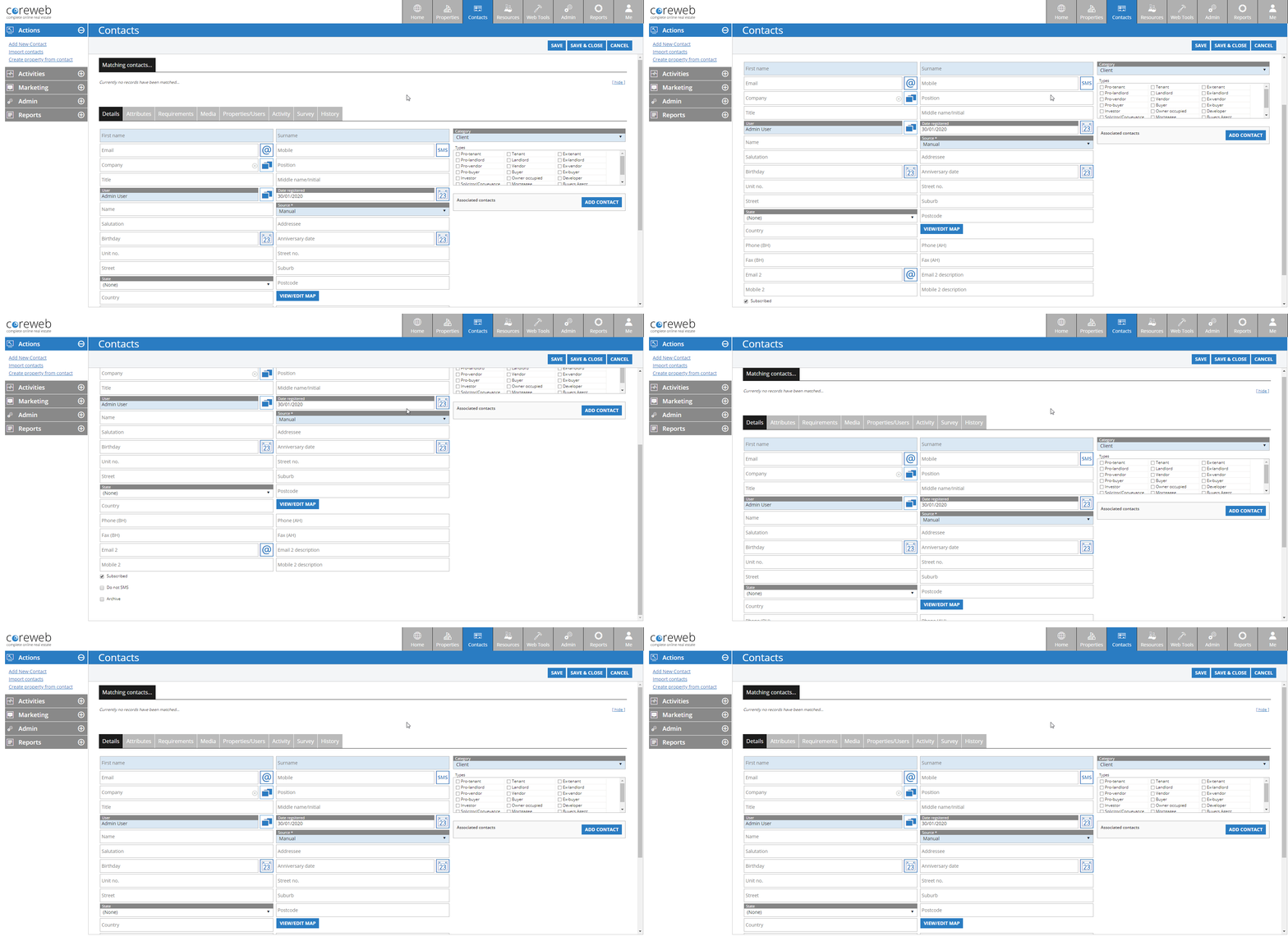
- There are a large number of fields attributed to a Contact. Some are linked to functions elsewhere in the system. Below is a table with an explanation of the fields:
| Field Name | Field Description |
|---|---|
| First Name (Required Field) | Contact’s first name |
| Surname (Required Field) | Contact’s last name/surname |
| Contact’s Email address | |
| Mobile | Contact’s Mobile Number |
| Company | Contact’s Company Name |
| Position | The position held at the Contact’s Company |
| Title | The Contact’s Title |
| Middle Name/Initial | Contact’s Middle name or initial |
| User (Required Field) | The Coreweb User associated with the Contact. |
| Date Registered (Pre-filled) | The date that the Contact was registered. This is able to be edited but defaults to the date they were created |
| Name | If not entered, this will automatically be a combination of the Contact’s First Name and Last Name |
| Source (Pre-filled) | How the Contact came to be registered. Manually entered, imported, via an OFI etc. |
| Salutation | Used to override the name placed on any letters or emails sent to the Contact. ie you may want to address a husband and wife “Mr and Mrs Smith” instead of the system automatically picking the Contact’s First and Last name |
| Addressee | Used to override the name placed on any letters sent to the Contact |
| Birthday | The Contact’s Birthday |
| Anniversary Date | Contact Anniversary Date. You can set this to the date they purchased a property from you and automate anniversary emails in the system |
| Unit No. | Unit number of the Contact’s Home or Postal Address |
| Street No. | Street number of the Contact’s Home or Postal Address |
| Street | Street name of the Contact’s Home or Postal Address |
| Suburb | The Contact’s Contact’s Home or Postal Address Suburb |
| State | The Contact’s Contact’s Home or Postal Address Post State |
| Postcode | The Contact’s Contact’s Home or Postal Address Postcode |
| Country | The Contact’s Contact’s Home or Postal Address Country |
| Phone (BH) | The Contact’s business hours phone number |
| Phone (AH) | The Contact’s after hours phone number |
| Fax (BH) | The Contact’s business hours fax number |
| Fax (AH) | The Contact’s after Hours fax number |
| Email 2 | A place to enter a 2nd email address. This could be potentially used for the Contact’s Partner. Elsewhere in the system, there is an option to CC Email Address #2, which would send the email to both people. |
| Email 2 Description | This field allows you to describe what the Email 2 field is being used for |
| Mobile 2 | A place to capture a 2nd email address. The Core system does not use this in any of its tasks |
| Mobile 2 Description | Allows you to describe what the Mobile 2 number is used for |
- To the right of the screen is a table of options allowing you to select a Type for the Contact. If you are manually entering the Contact, then choose an appropriate type. If your Contact has come in from elsewhere, the Type may have already been selected for you eg via OFI.
Note: the word “pro” here means “prospective” eg an OFI attendee would be a pro-buyer, or prospective buyer.
- On this screen you also have the option to associate Contact’s together. Instead of using Email 2 and Mobile 2 for a partner, you may want to create a unique Contact for both people, then use the Associate Contacts option to link them together.
- At the bottom of the screen you can choose subscription and SMS ability. This would be used if the contact has explicitly told you that they did not want to be contacted.
- Once done, press Save, top right of screen.
A detailed guide explaining each of the Contact Tabs can be found here