Purpose
The Create Brochure option gives you the ability to produce a branded document featuring the marketing details for your Property. This will be based on a pre-defined template for your agency. Once created, these can typically be exported out as a PDF to be printed as window cards or brochures.
Instructions
- Highlight the Listed Property you wish to work on, then click on the Create Brochure option under the Marketing Menu on the left

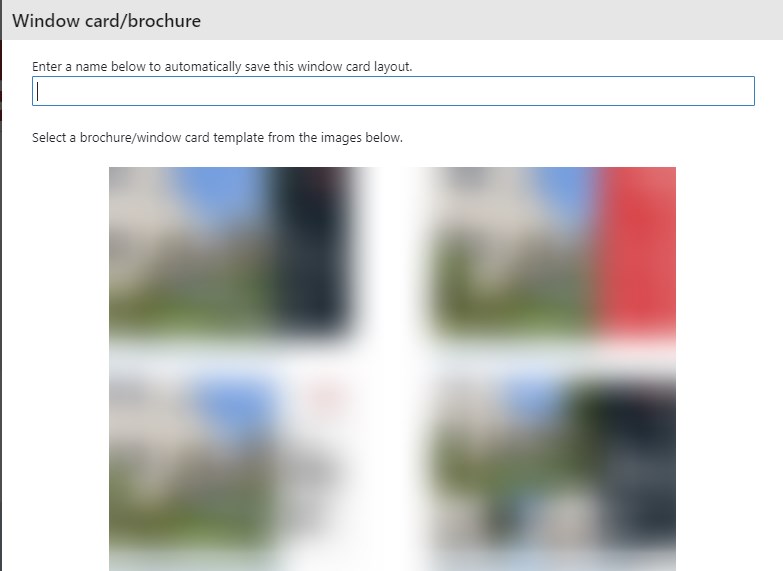
- Next you will be asked to choose the pre-defined template. This will impact the layout of the brochure. The image below is for illustrative purposes – the template thumbnails are blurred. You can save the layout by adding a name if you wish
- The next screen depends completely on the setup of your template. This will differ depending on your design. Examples will include a heading, a description, placeholders for property images etc. These fields will typically automatically populate from the Property’s details that would have been entered prior. Below is an example.
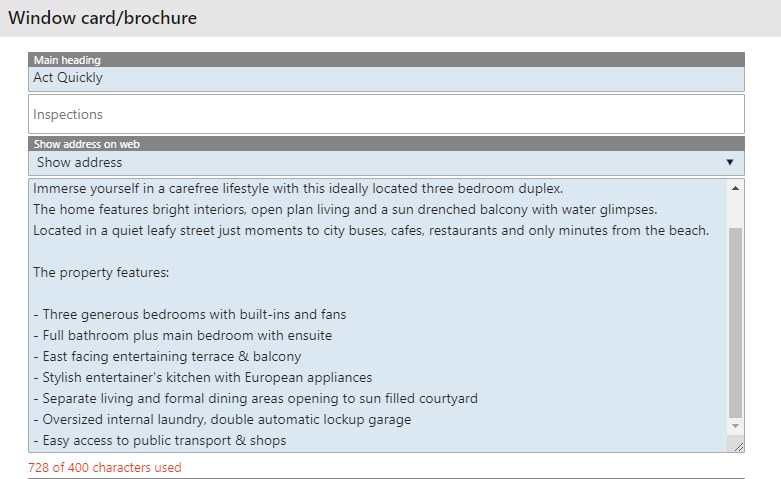
- It is important to note here at the bottom of the screen, in red it states how many characters are available to use. This template has a maximum of 400 available, but 728 are currently in use. This will not fit and the description will need to be simplified to continue
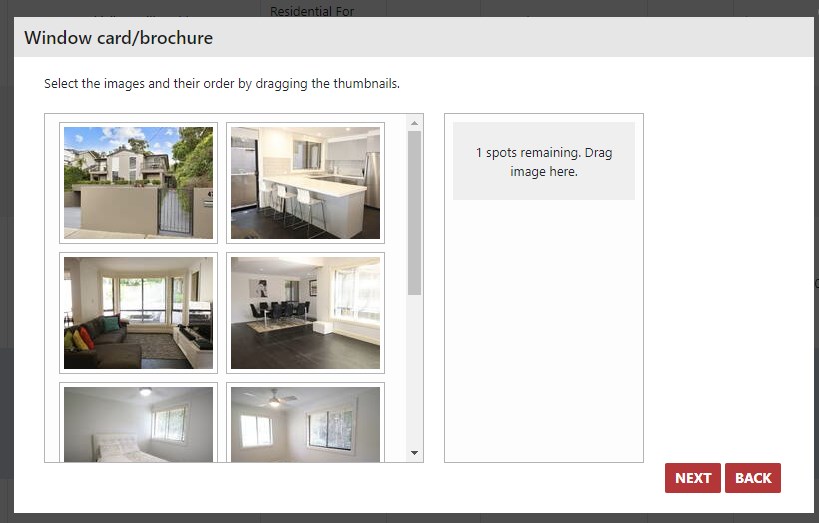
- Next, in this example our template requires 1 image. This screen allows you to drag and drop the image you wish to use into the placeholder, then press Next to continue
- Our template’s image placeholder is set to a certain size. On this screen, drag the image resizer out to fit the area you wish you capture then press Create
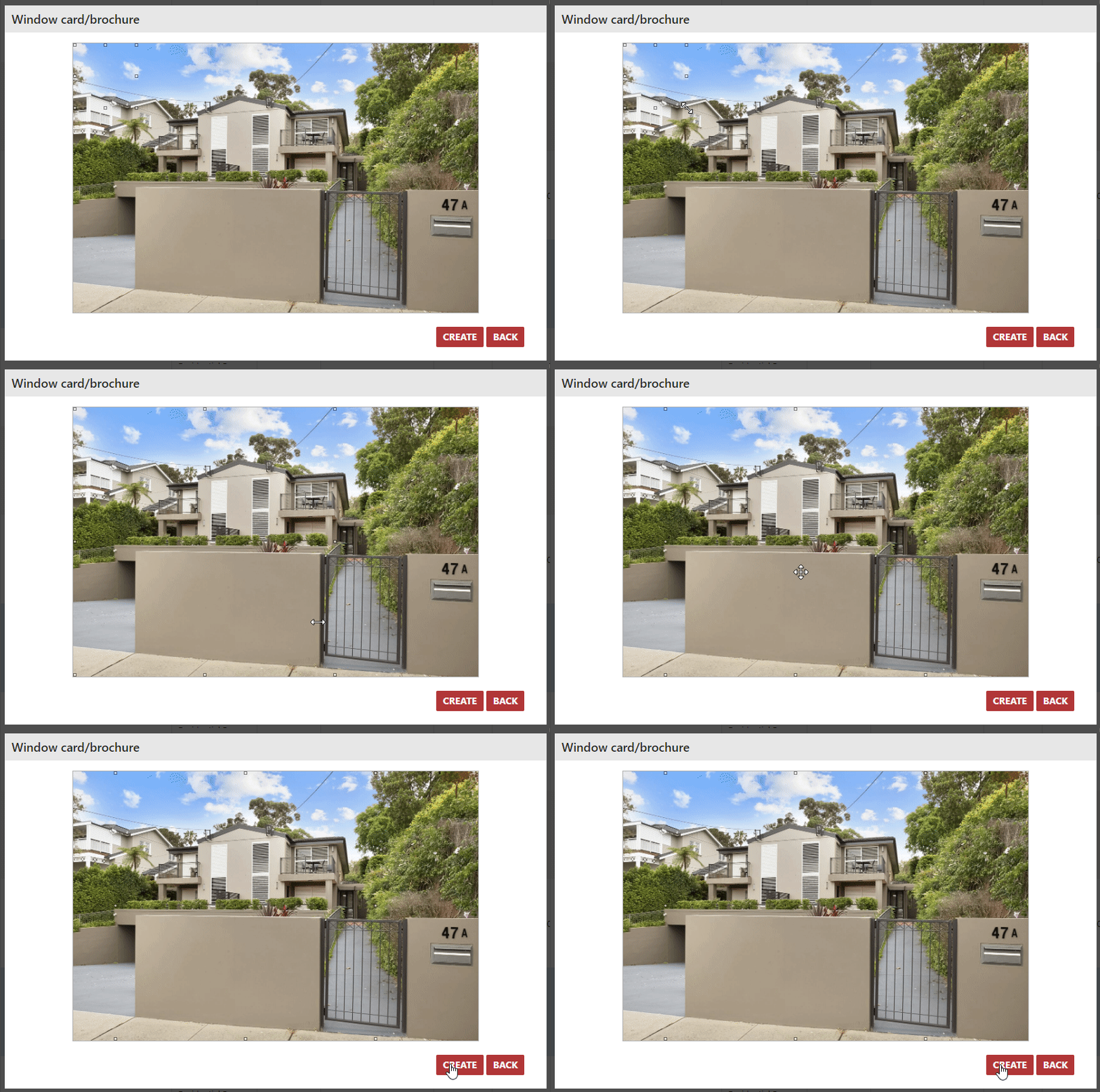
- After pressing Create your computer will download your newly added brochure as a PDF. Save this and you are ready to email or print it.