Purpose
Add an open home date and time and associate it with a user of the system. This area is also where QR codes are generated for attendee self-registration.
Instructions
- Highlight the property that you wish to add an open home for, then click “Add Open Home”
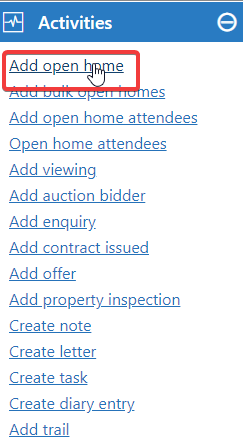
- You will be taken to the Add Open Homes screen.

- Use the Calendar button to select a start date and time, then press Done. If you have several opens to add, you can do this by pressing the “Add” button to get a new line. You can use this multiple times.
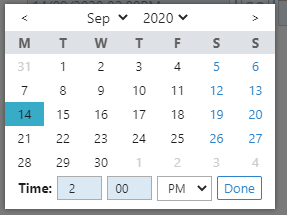
- The details you have selected will now appear in the Start field. All that is left to do is select the duration of the Open, and then finally the User. The User is important as it associates the Open with them and can have flow on effects to any emails or SMS’s that the system sends later at the OFI conclusion.
- Once everything is correct, press Save.
- Once finished, you can see the details by double clicking the property listing to open it, clicking the “Activity” Tab, then expanding the Open Homes section
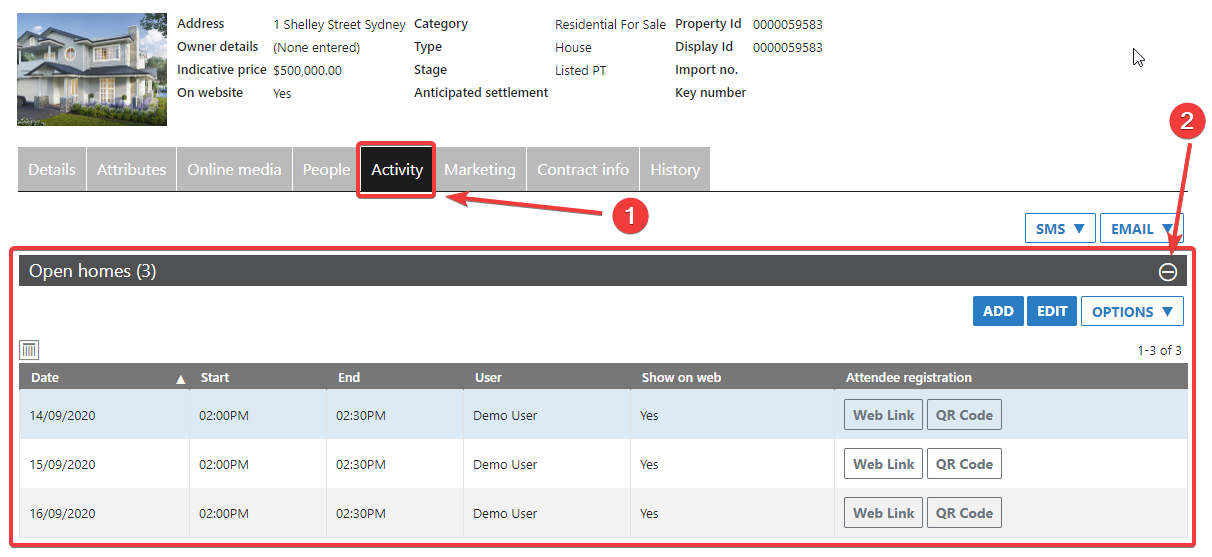
- If you wish, you can delete, edit, or add new items here as well.
Open Home QR Code Registration
Purpose
A powerful Core feature. Whenever an Open Home is created, a unique QR code will be available to download and print from the Open Homes section of the Activity menu. This unique code, when scanned with a mobile QR Scanner will take attendees to a branded registration page. Any details saved by the attendee on this screen will automatically flow into the Core system and attach to the OFI being attended.
Instructions
- After adding an Open Home to a property using the method above you will see two links on the right of each row. “Web Link” and “QR Code”
- Web Link – Simply takes you straight to the registration page for that property. This allows you to see what it looks like and identify anything that needs adjusting. If you want to email the registration link, you can also copy it from here. Note that registration is unavailable until the scheduled date of the OFI.
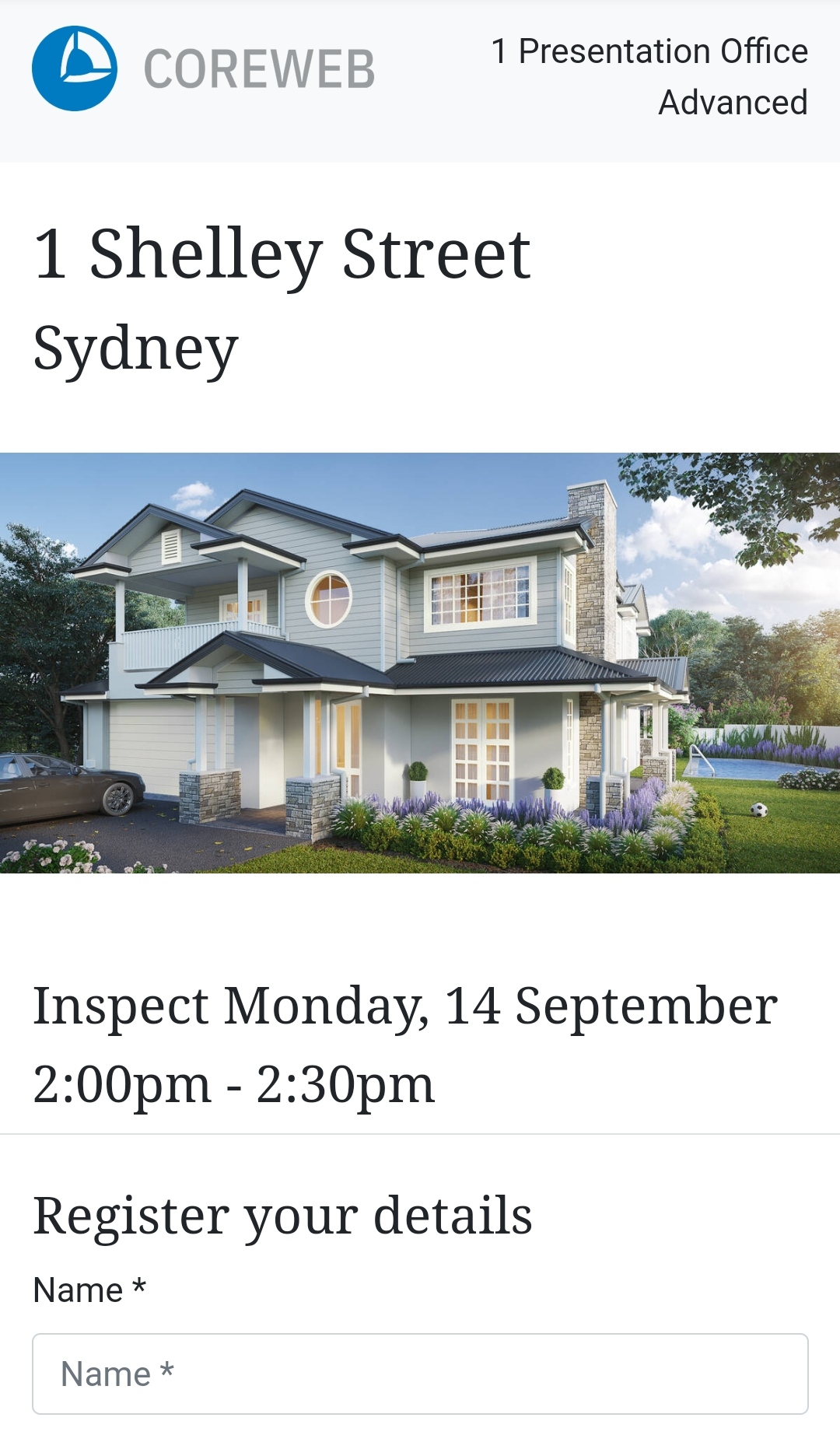
- QR Code – Downloads a file to your computer that can either be printed, or displayed on a mobile device. People attending the OFI can use their phone to scan the code and self-register their details prior to entering the Property. Below is an example of the QR Code itself, an example of how a Property registration page may display, and an example of the screen shown to the attendee once registered.
Example QR Code

Example Registration Page
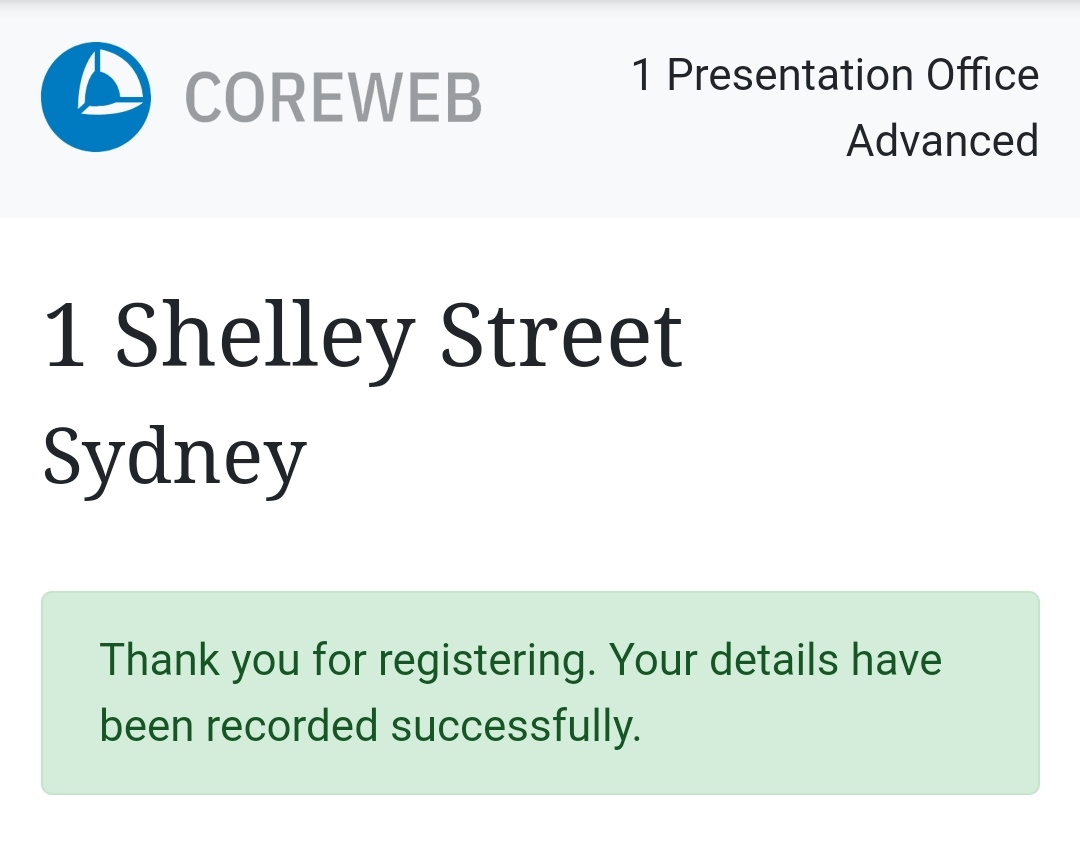
Example Registration Confirmation
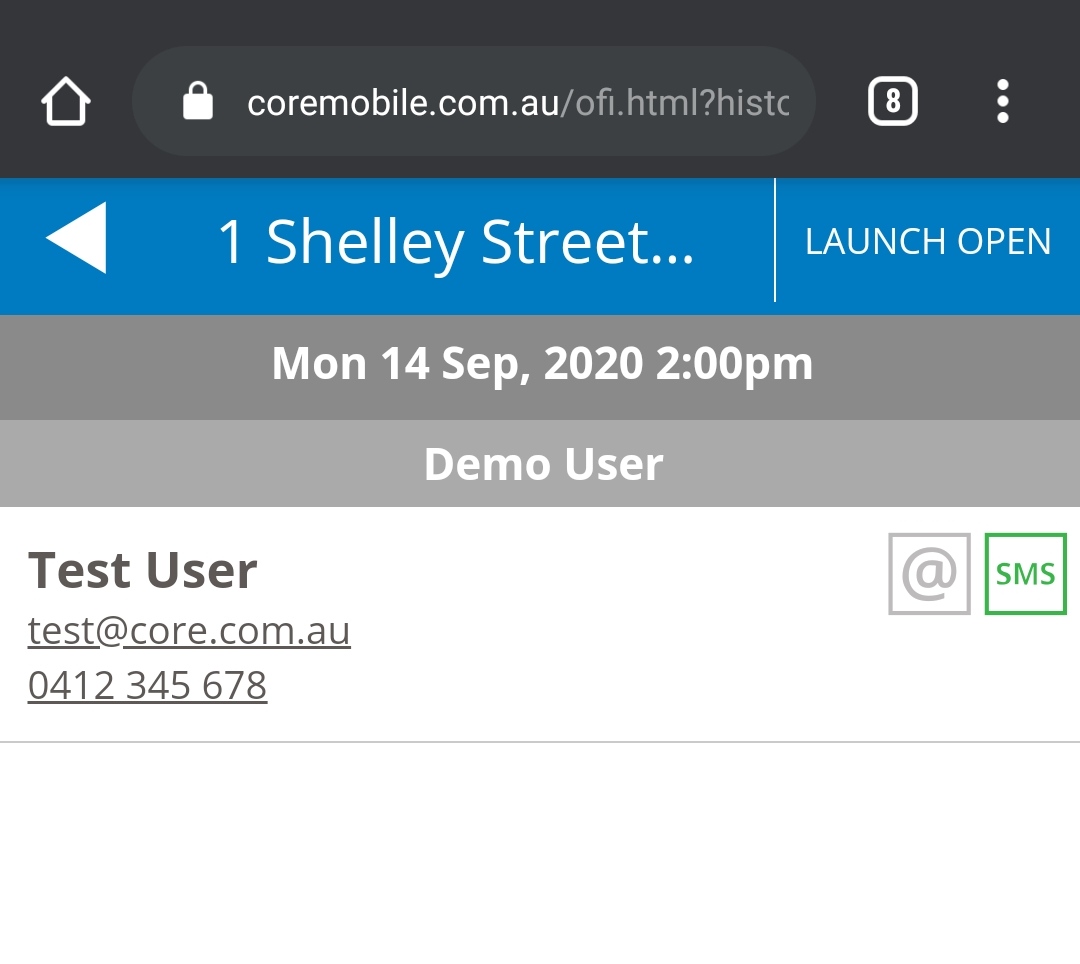
- On the day, it would be advisable to have someone monitoring registrations to ensure the attendees details have come through to the system. Core Mobile would be a great option here, as simply refreshing the OFI Attendees page will update the list. Below is an example of an attendee that has successfully registered:
Note: This step is important, as Core will match via the entered phone number or email address. Only one of these has to match in order for the attendee to register against an existing Contact. If Core does not contain either of these fields, a new Contact will be created.