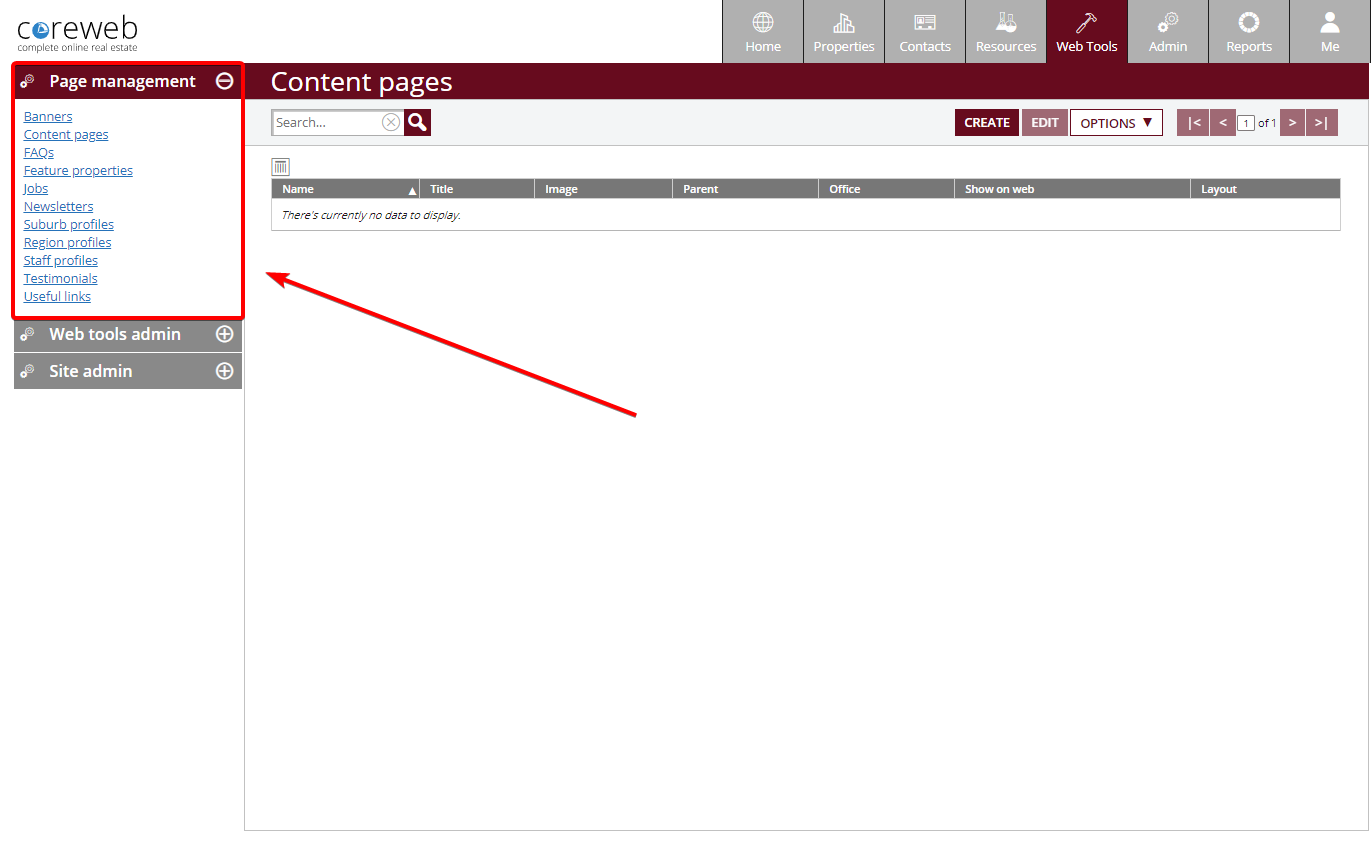
Banners – To Be Added
Purpose
Purpose goes here
Instructions
- Instructions go here
Content Pages
Purpose
To provide you with a list of each individual page on your web site, and the ability to configure them
Instructions
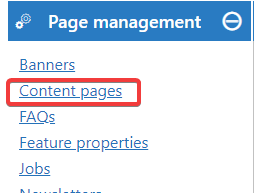
- After entering the Web Tools section, click Content Pages under Page Management
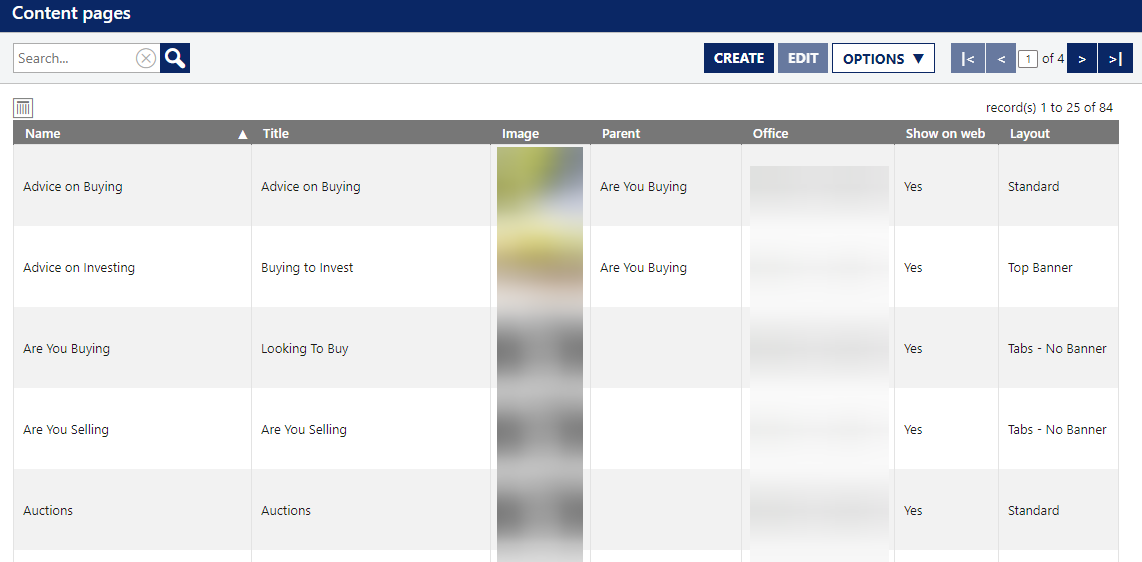
- Here you will be presented with a list of each page on your web site. You can choose to edit existing pages, or add new ones. To edit, either double click a page, or to create new, click the Create button. This screen gives you the name of the name of the page, its title, any image associated with it, the name of it’s Parent page (if any), the office associated with it, whether it is live on your site, and the type of layout it is using eg below:
- Clicking Create takes you to a blank page requiring a title, and a URL. In this example we’ll create a Test Page, and instruct it to use test_page.html
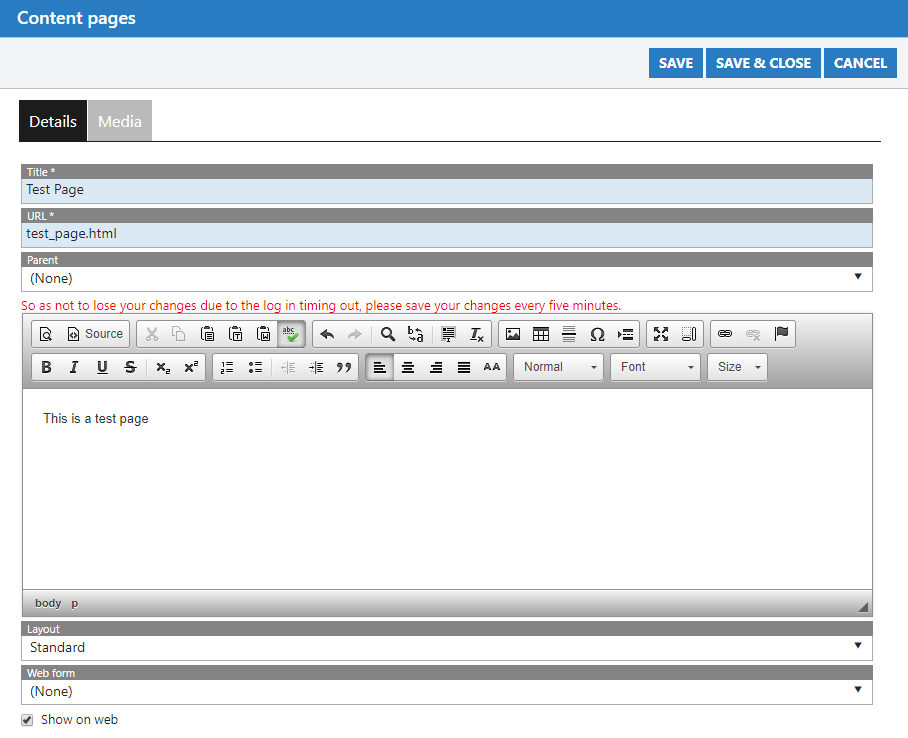
- On the Details tab, fill in the information you’d like displayed on your page. On the Media tab you can add any documents or images you wish to add to the page.
- Once finished, save your page so that it is then available to be linked to, added to menus etc.
FAQs – To Be Added
Purpose
Purpose goes here
Instructions
- Instructions go here
Feature Properties – To Be Added
Purpose
Purpose goes here
Instructions
- Instructions go here
Jobs – To Be Added
Purpose
Purpose goes here
Instructions
- Instructions go here
Newsletters
Purpose
The Newsletters section allow you to provide regular updates to your clients. You can use this feature to create an online blog. Or send them in bulk mail-outs.
Instructions
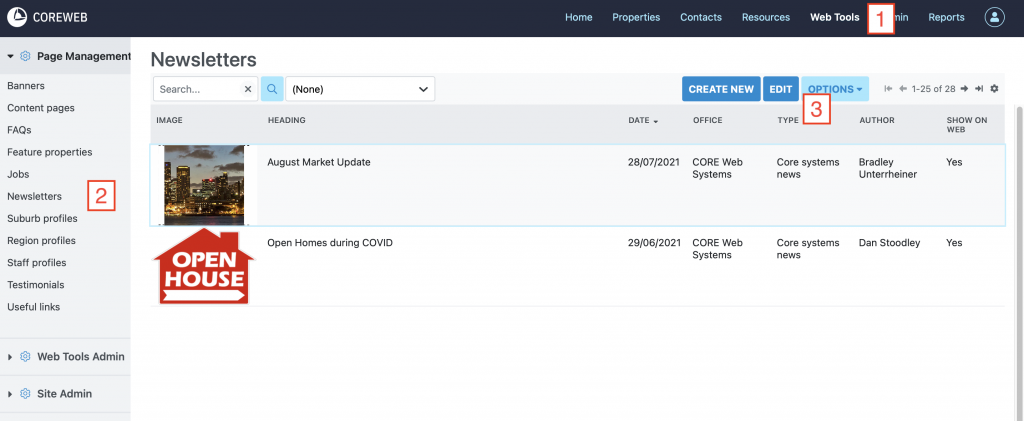
- Open the Web Tools section, then click Newsletters under Page Management. From there you can choose to Create New or Edit an existing newsletter.
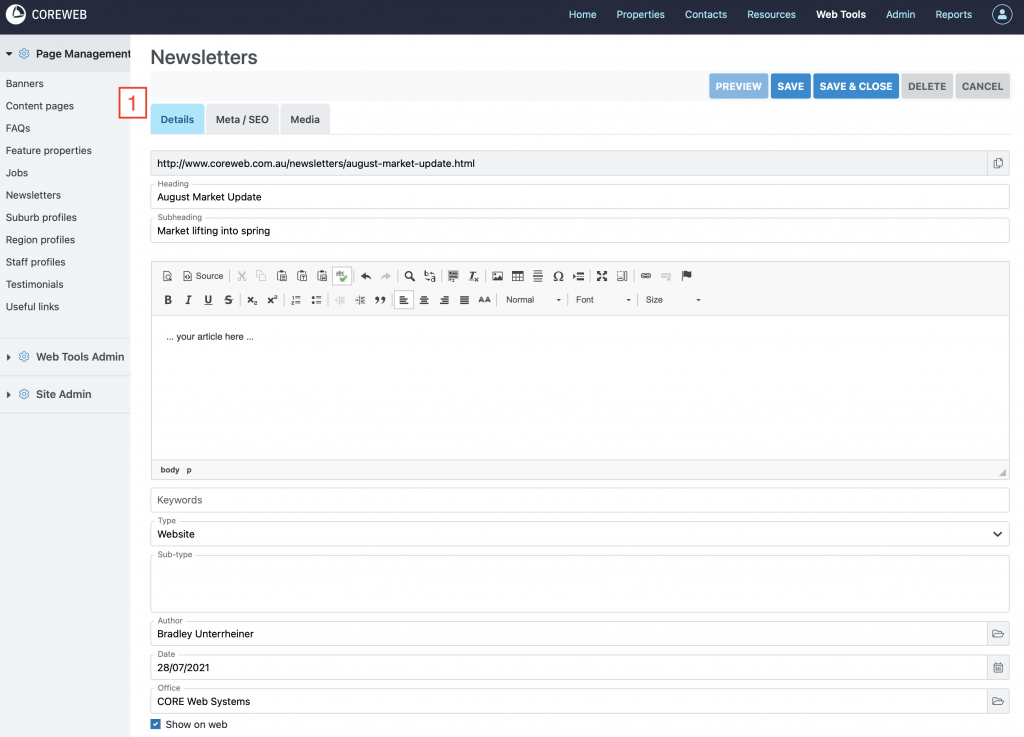
- Enter the content for your newsletter. The URL will automatically be generated based on your title. Select Type > Website if you wish for the page to show on your website, similar to a blog post.
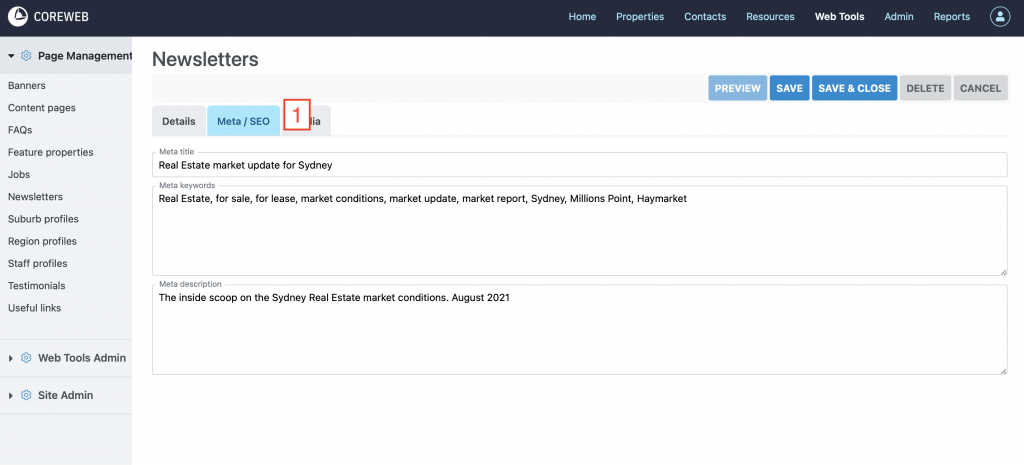
- On the Meta / SEO tab, enter text to help you page rank on search engines. For keywords, enter a comma separated list of words. For description, enter a one or two line summary of the content of the page.
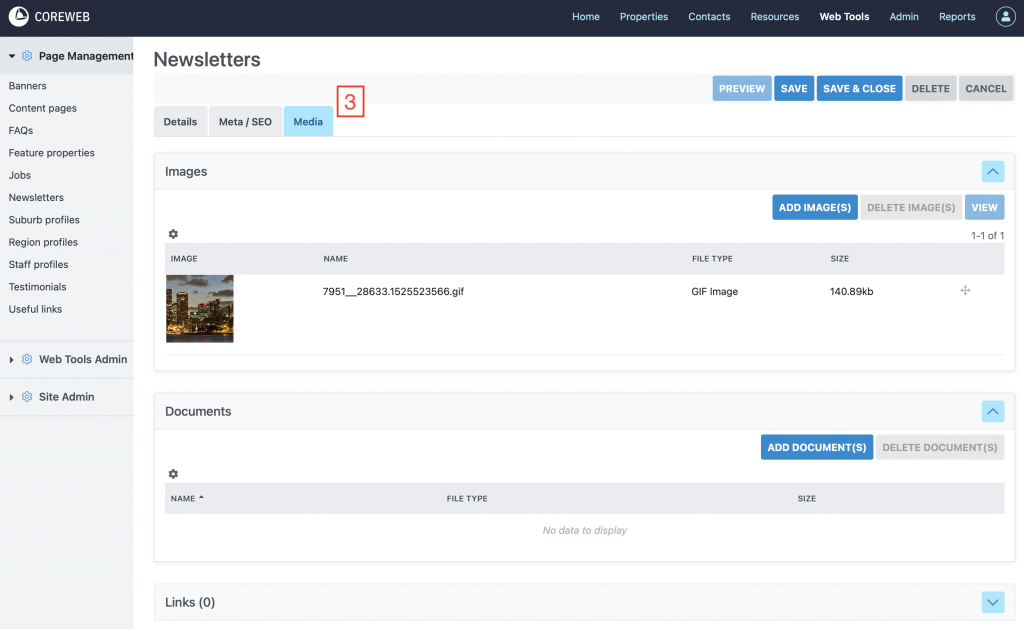
- On the media tab, you can upload a banner image for the newsletter. Links and documents can optionally be attached to the bottom of the newsletters as well.
Suburb Profiles
Purpose
Suburb profiles to give clients an overview of the areas your agency works in. These pages are a great way improve your search engine rank for your geographic location.
Instructions
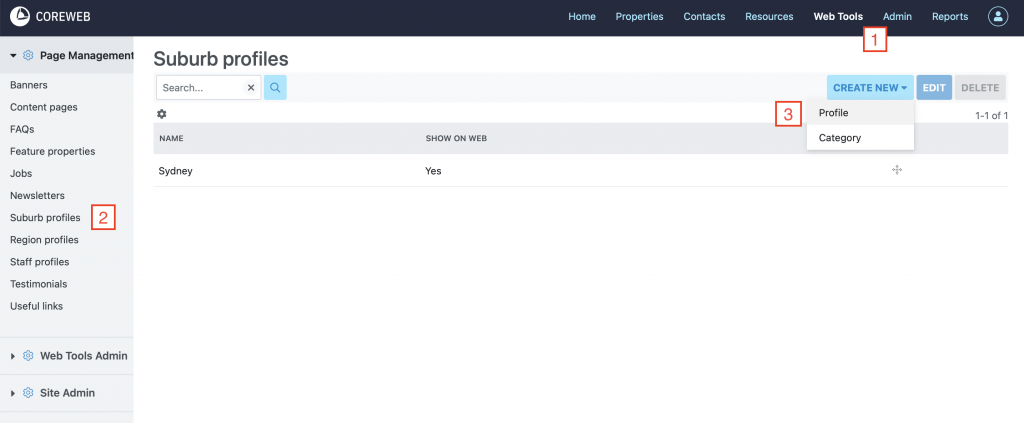
- After entering the Web Tools section, click Suburb Profiles under Page Management. To create a new suburb profile page use Create New > Profile. Or select an existing page and click Edit.
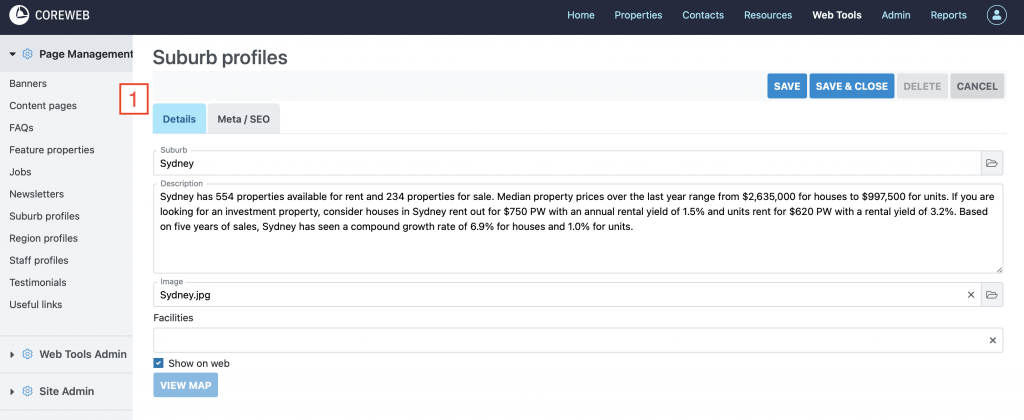
- On the details tab, enter your description for the suburb. You can choose or upload an image to be used as the banner image. Make sure “Show on web” is ticked when you are ready for this page to be displayed on your website.
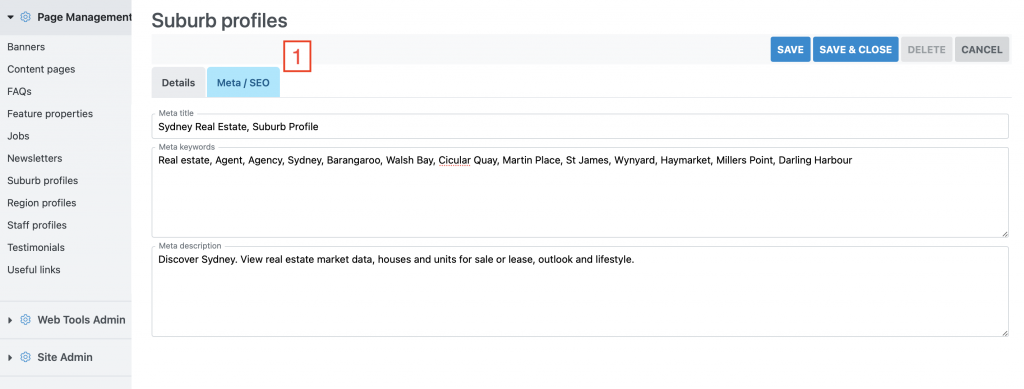
- On the Meta / SEO tab, enter text to help you page rank on search engines. For keywords, enter a comma separated list of words. For description, enter a one or two line summary of the content of the page.
Region Profiles – To Be Added
Purpose
Purpose goes here
Instructions
- Instructions go here
Staff Profiles – To Be Added
Purpose
Purpose goes here
Instructions
- Instructions go here
Testimonials – To Be Added
Purpose
Purpose goes here
Instructions
- Instructions go here
Useful Links – To Be Added
Purpose
Purpose goes here
Instructions
- Instructions go here