Introduction
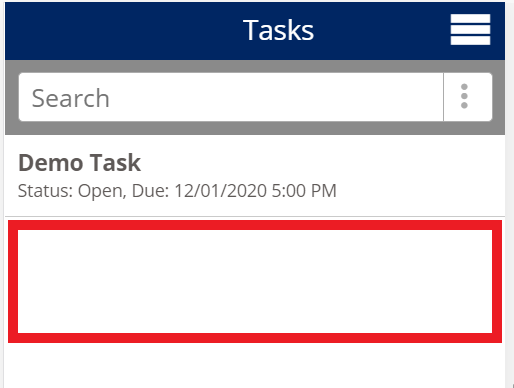
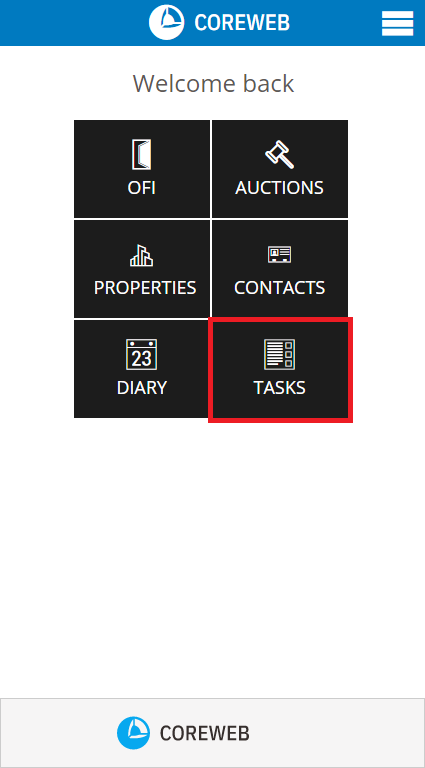
A task refers to a single actionable item that you wish to remind yourself of. Tasks can reoccur if you wish. The intention of this screen is to provide you with a list of to do items, and their status (open, or done). You can set due dates and times, and associate the task with a contact or property should you wish.
Instructions
Adding a Task
- Press the Add Task button at the bottom left of screen
- Fill in the fields relevant to your Task. The Task Type field needs to be configured in the Core web interface. A Task Type can be any word you wish and is relevant to you and your business.
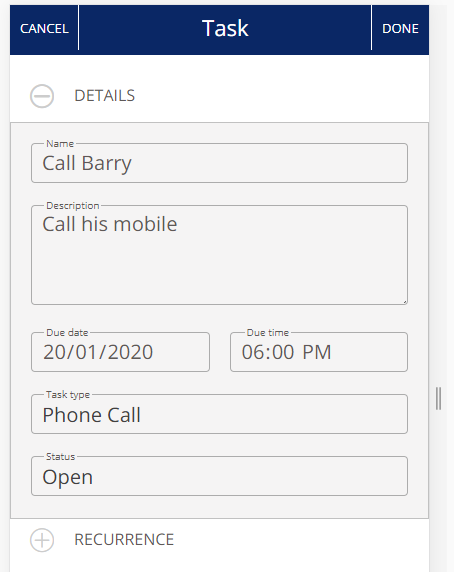
- Once finished, press Done.
- The task is now displayed back at your main Task screen.
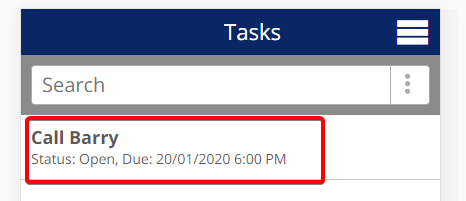
Changing a Task Status
- Press on the task you wish to change from the main Tasks screen
- Once in the task you can edit any of the fields. For this example we will mark the task as Done. Press on the “Status” field
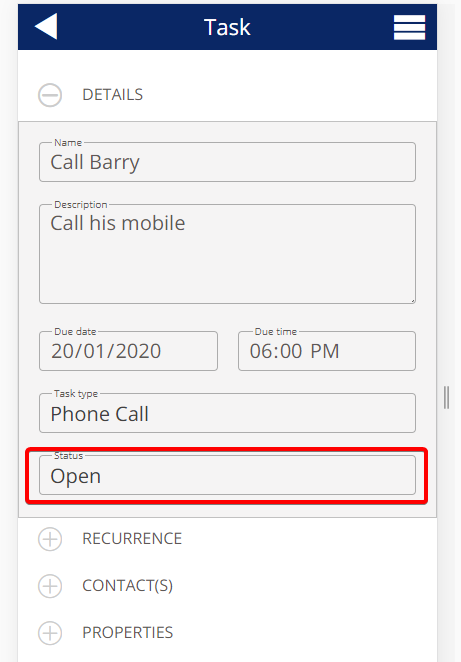
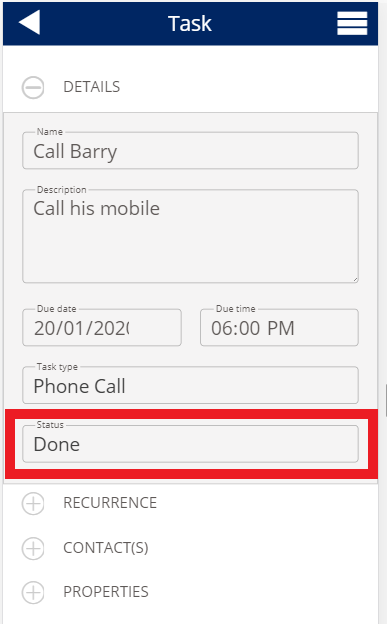
- Select Done, then press the Back arrow up the top left of screen to save.
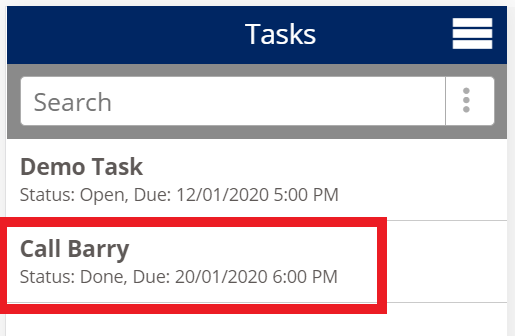
- The task now has a status of “Done”in the main Task area
Filtering Tasks
You can filter tasks out of the main task screen to make it easier to read, or drill down on items you’d prefer to see. In this example we will show how to filter out tasks that are Done so that your list only shows items outstanding
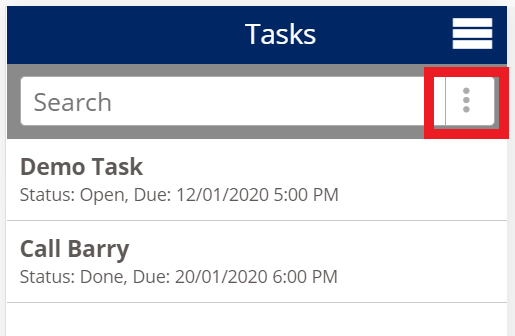
- At the main Tasks screen, press the dots button next to the Search field.
- You will be taken to the advanced search field, see below. Each of the items can be turned on or off by pressing the radio button next to them
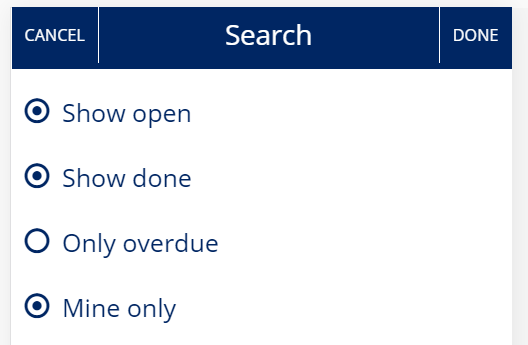
Show Open – only displays items with a status of “Open”
Show Done – only displays items with a status of “Done”
Only Overdue – Only displays items that have passed their due date and are late
Mine Only – Only displays items that are associate with your User. Unselecting this will show tasks associated with other Users
- In this example we will turn off “Show Done” which will filter out tasks marked as done/complete. Press the radio button next to Show Done, turning it off, then press the Done button top right of screen
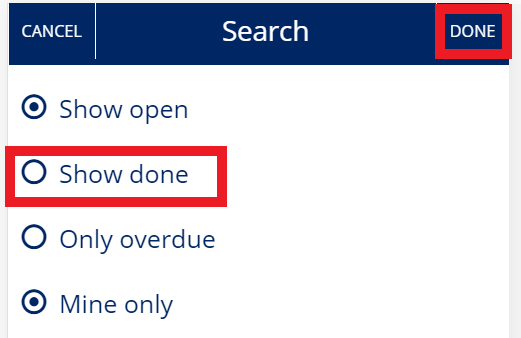
- The “Done” task that was previously showing in the Task list is now gone