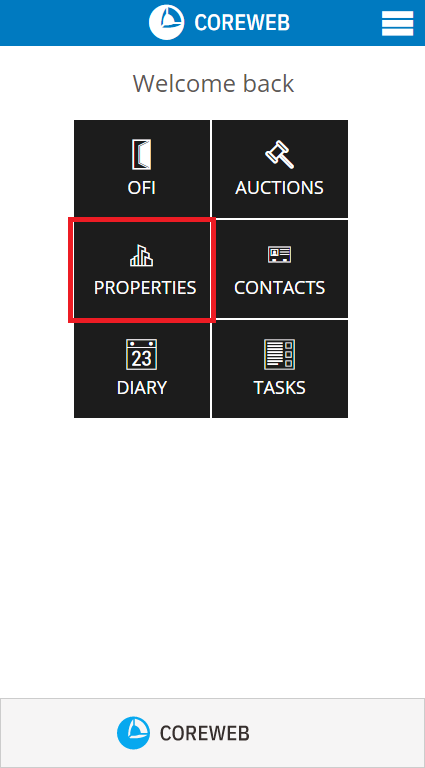
Introduction
The Properties area exists simply to give you access to all of your Core property information when you are out of the office and need data, quick. While you cannot change information relating directly to the property, you can access activities relating to it and add open homes, viewings, offers, enquiries, tasks, diary entries and any helpful notes you wish relating to it.
Instructions
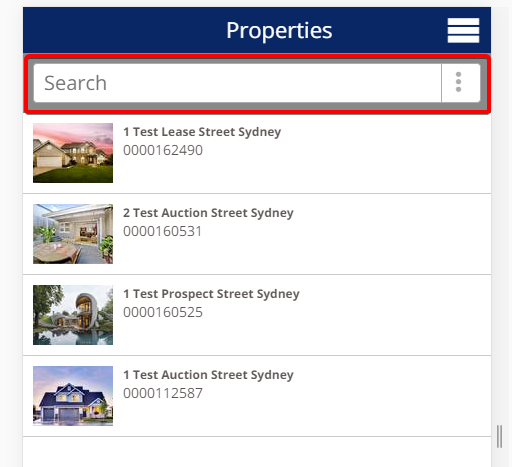
- Entering the Properties section provides you with a list of all current properties for your Agency. Use the Search field to find the property, or select it from your list of properties below
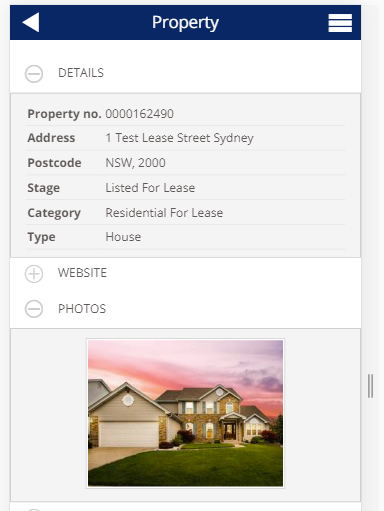
- Once selected you will be presented with the Property Detail. Press the + symbol next to the headings to expand the information, or – symbol to hide it. Property information itself is not editable however you can add Activity on the property from here.
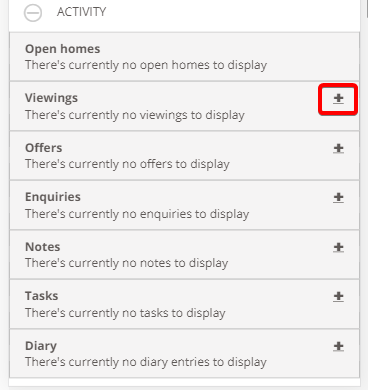
- Expand the Activity section. You will see how many activities are logged for each category, and also have the ability to add new ones. Press the + symbol on the activity to add one. In this example we will add a Viewing
- After pressing the + symbol next to viewing enter the details of the contact, any comments you wish to make, their level of interest and an indication of their price. This can all be looked at later in detail via the Web interface
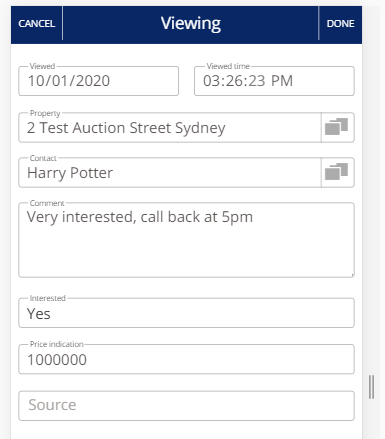
- Once finished, press Done at the top right. Your saved activity can now be seen back at the Property Screen
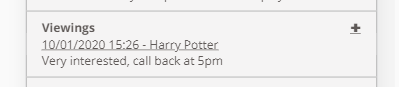
Each of the activities for a property behaves in a similar fashion. All activities can be viewed via the mobile interface, or web interface anywhere, any time.