Purpose
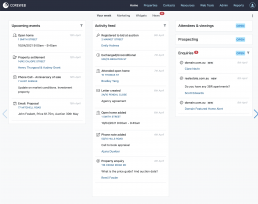
To be used as a “dashboard” to see information that is important to you all in one convenient location. The home screen comprises of several slides that you can navigate between using the left/right arrows, or you can click and swipe the slide as well.
A breakdown of the slides is as follows:
My Week Slide
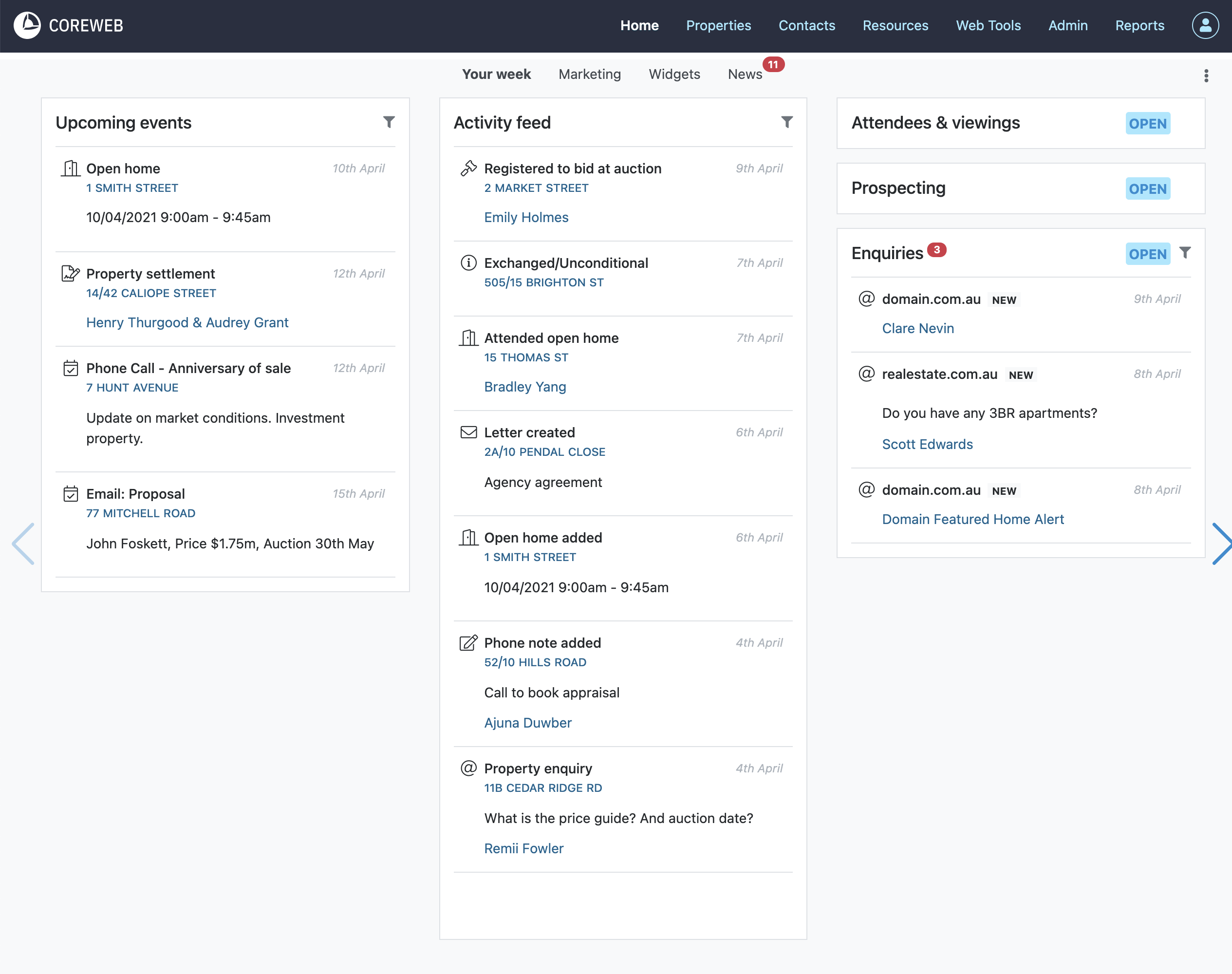
This screen provides you with convenient access to your upcoming events, your activity feed and your enquiries. Here you also have links to the Prospecting Screen, and the Attendees and Viewings screen. You have the ability to filter out types of news and activity that you do not wish to see, making this screen as relevant to you as you want it to be. More information on the Prospecting, Attendees and Viewing and Enquiries features can be found below:
Attendees & Viewings
Purpose
This section is designed to give you a list of all Contacts that have attended open homes (OFIs) or Viewings, all in one place. All of these Contacts are attached to Properties individually, but finding and actioning them this way may be inefficient, hence the need for this screen.
Instructions
- This feature is covered extensively in the Attendees & Viewings Guide. Please visit this for more information
Prospecting
Purpose
Keep your finger on the pulse of your prospect Properties and Vendors. This area provides you with a single screen to view the latest notes you’ve left on prospects and update the likelihood of listing. You can sort the properties based on a variety of attributes and save your searches for easy access.
Instructions
- This feature is covered extensively in the Prospecting Guide. Please visit this for more information
Enquiries Box
Purpose
This section will show you all of the enquiries that have been captured via your connected portals. This should be considered a staging area and is designed for you to be able to weed out bogus/spam/competing agency enquiries from the genuine ones that you want to answer. By default only new/unaccepted enquiries will be displayed for the current user. If you wish to see enquiries for all users you can do this via the filters icon.
Instructions
- This feature is covered extensively in the Captured Enquiries Guide. Please visit this for more information
My Sales Slide
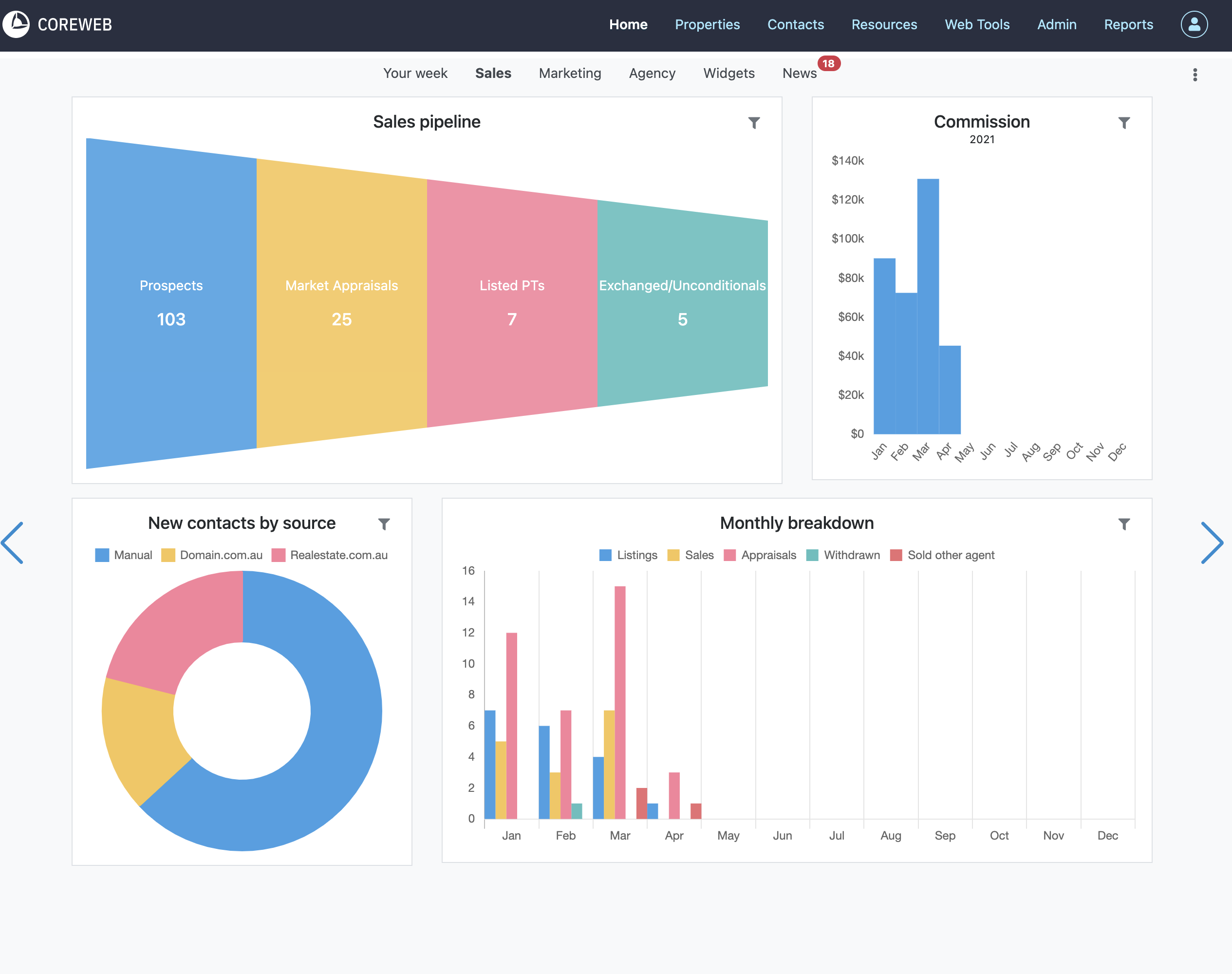
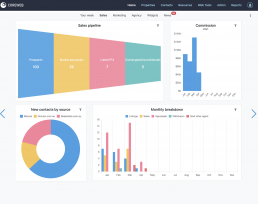
The Your Sales slide is information dedicated to the currently logged in user. It is comprised of helpful graphs, letting you see a view of your pipeline, commission figures, your new contacts by source and the monthly breakdown of your property stages. Use the filter icon to modify the date ranges.
Marketing Slide
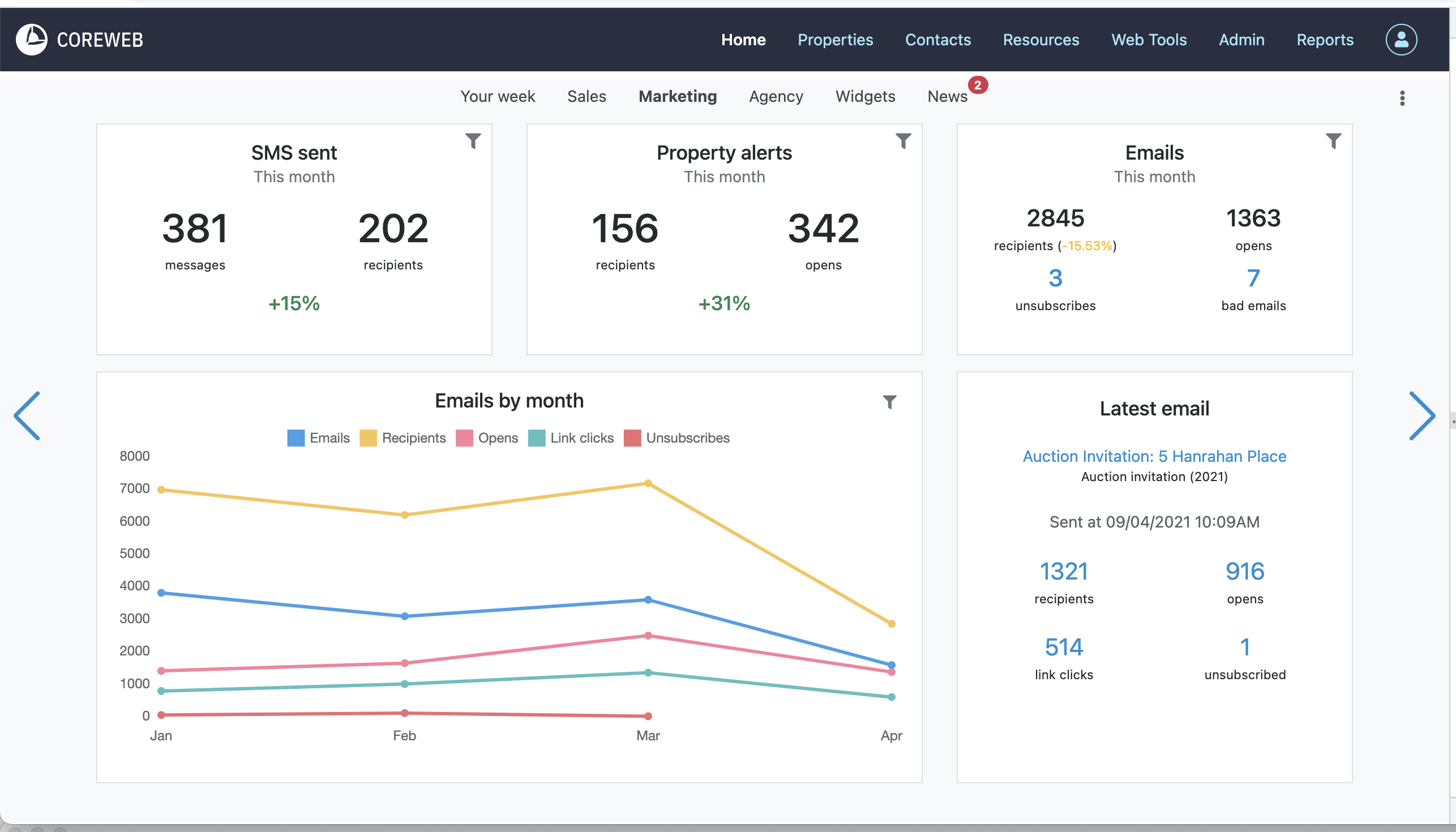
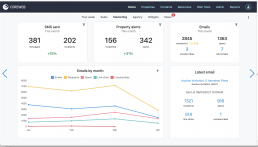
The Marketing Slide is a visual indicator as to the success of your Email and SMS Marketing. Here you can see how many automatic property alerts are going out, how many SMS’s you’ve sent, how many people have received your emails, plus unsubscribes and email address failures. Here you also can see monthly trends and stats on your latest email. The information provided here is dynamic and clickable so that you can see more specific information if you wish.
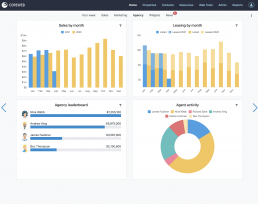
Agency Slide
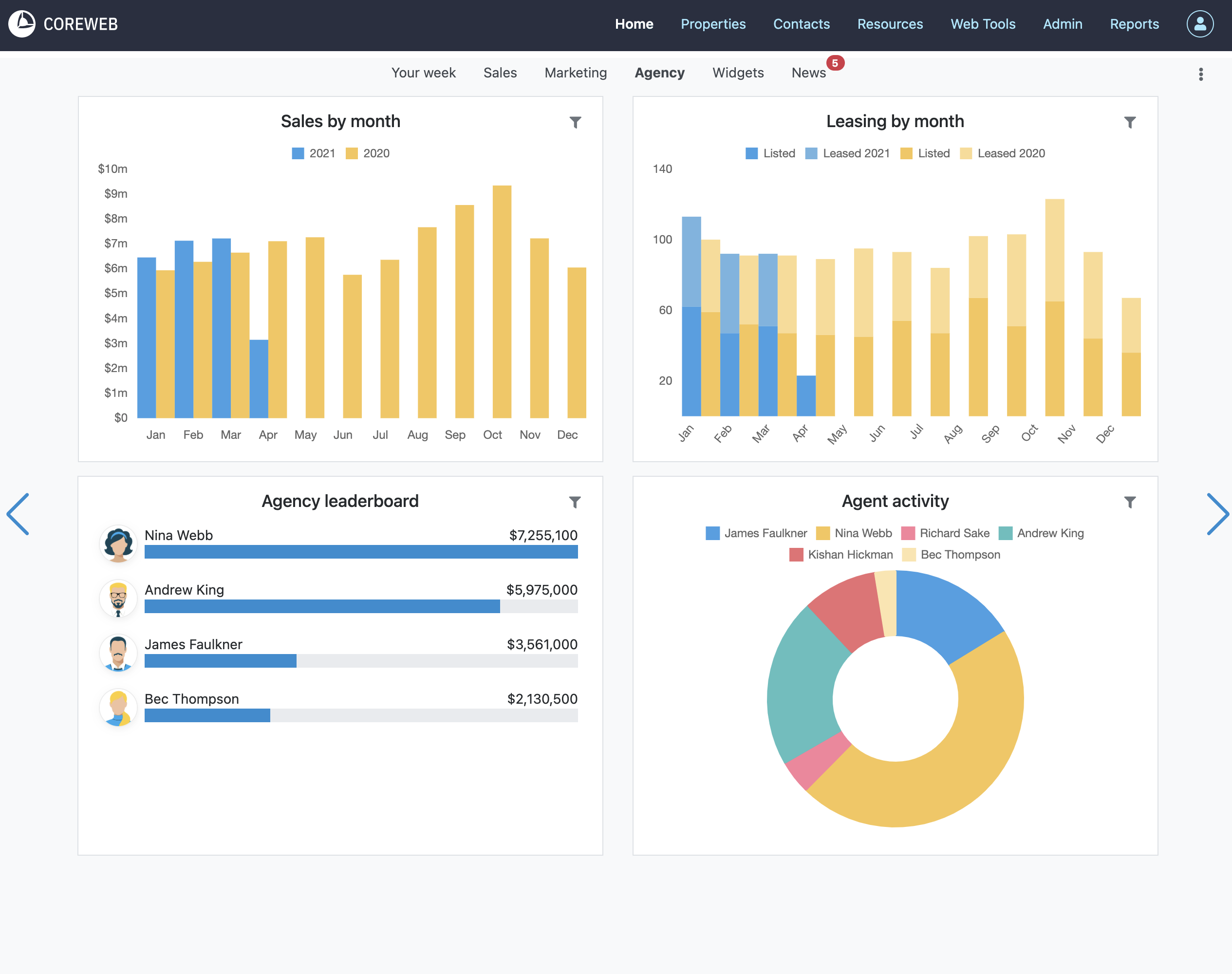
The Agency slide helps you track sales and leasing by month. It is also the place to find the agency leaderboard, and breakdown of agent activity
Widgets Slide
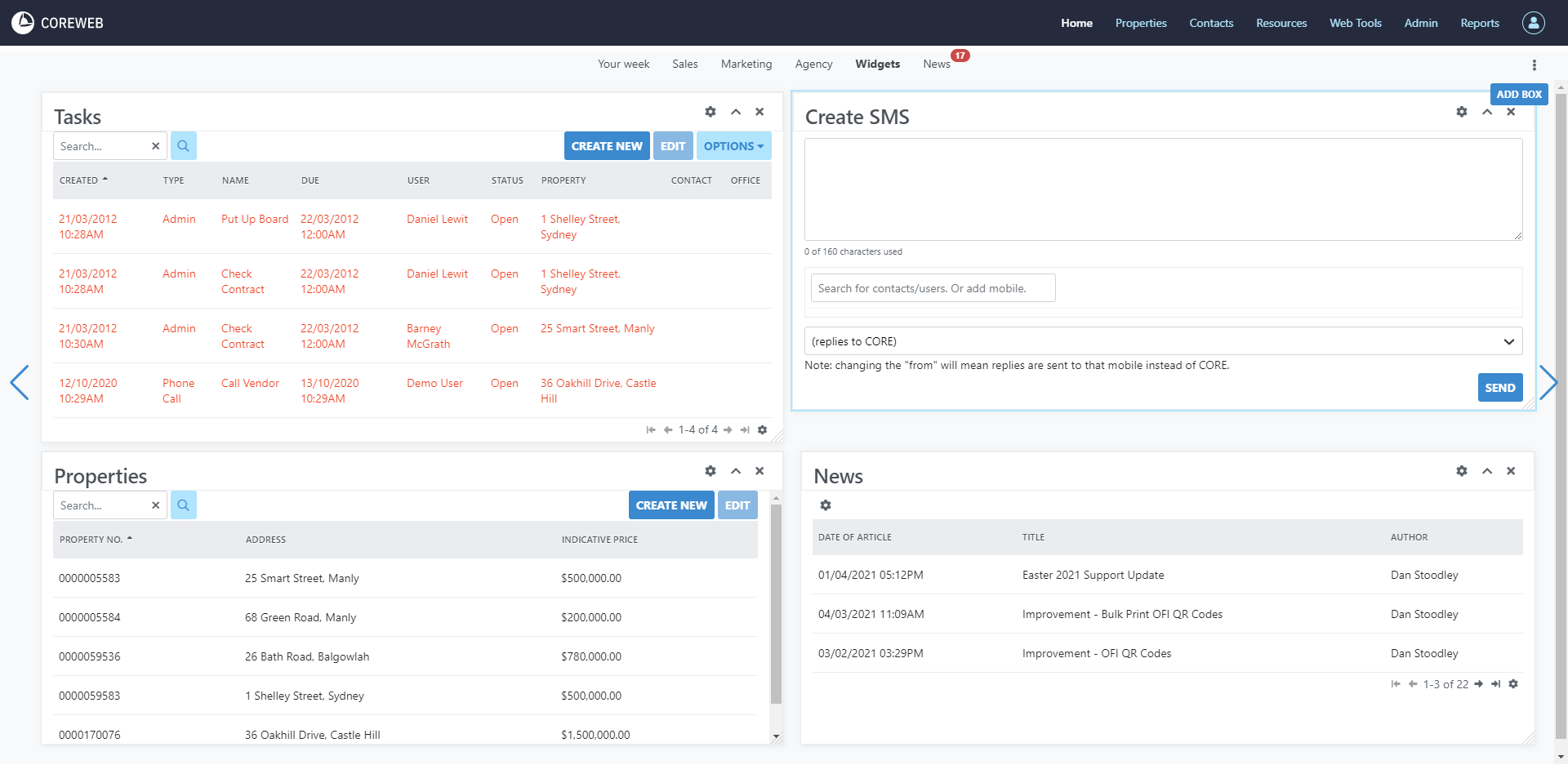
The Widgets slide is a place where you can add custom “widgets” that you can work from. To add a widget, click the “Add Box” button at the top right of the screen. You will be presented with the Dock box options. Choose the type of box you wish to display then press Next
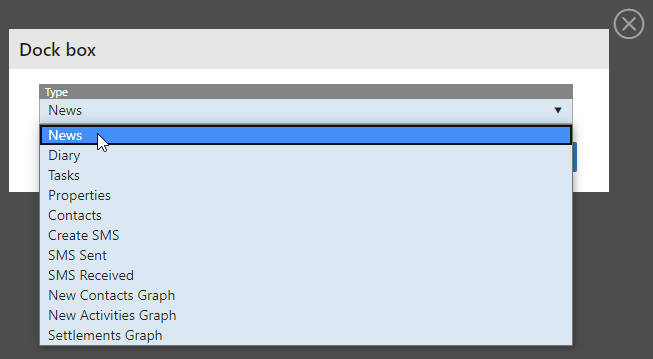
Once selected, and depending on the option you choose you will be given more user selectable options to present the information in the way you prefer
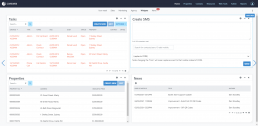
Once added you can move and resize it to an appropriate location on your screen. The screen below shows a My Contacts, a Diary view, Properties and the My Tasks box as an example:
News Slide
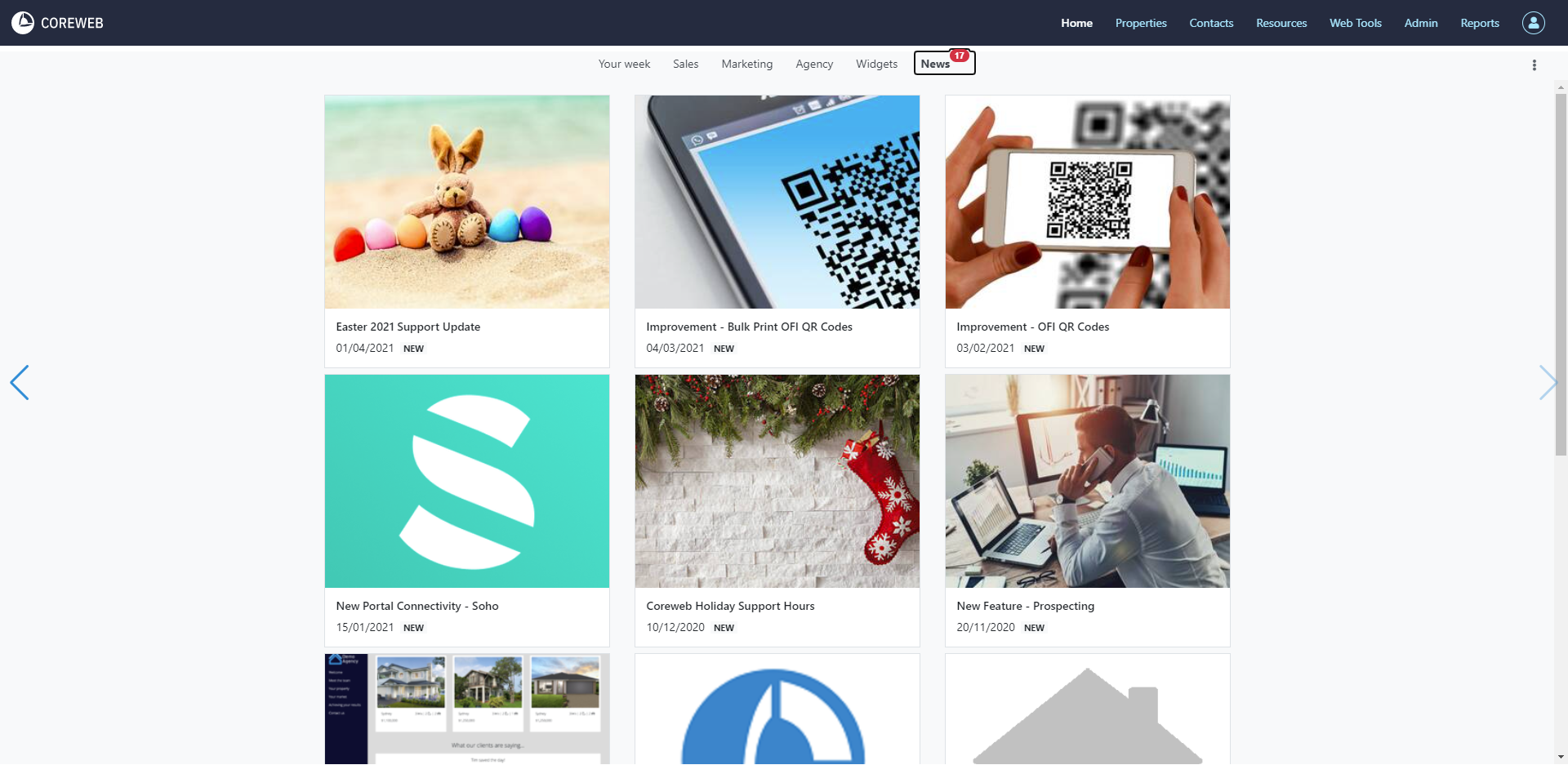
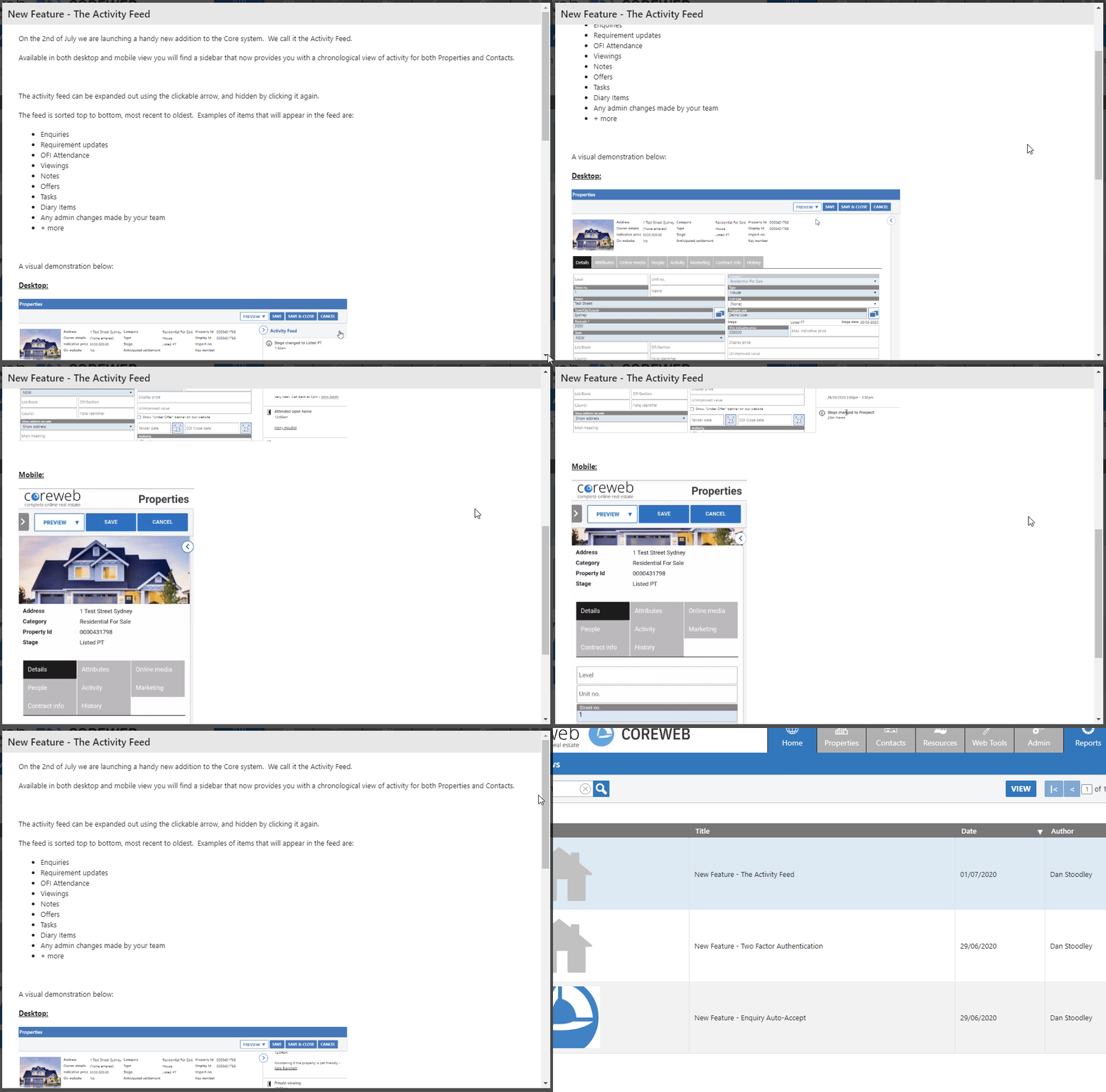
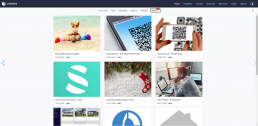
The news slide should be visited regularly to keep up to date on Core improvements and new features. There is a counter displaying next to the slide heading that indicates how many articles are unread. Once in the news slide, the articles are clickable to read in further detail. Example below: